Your photos and videos
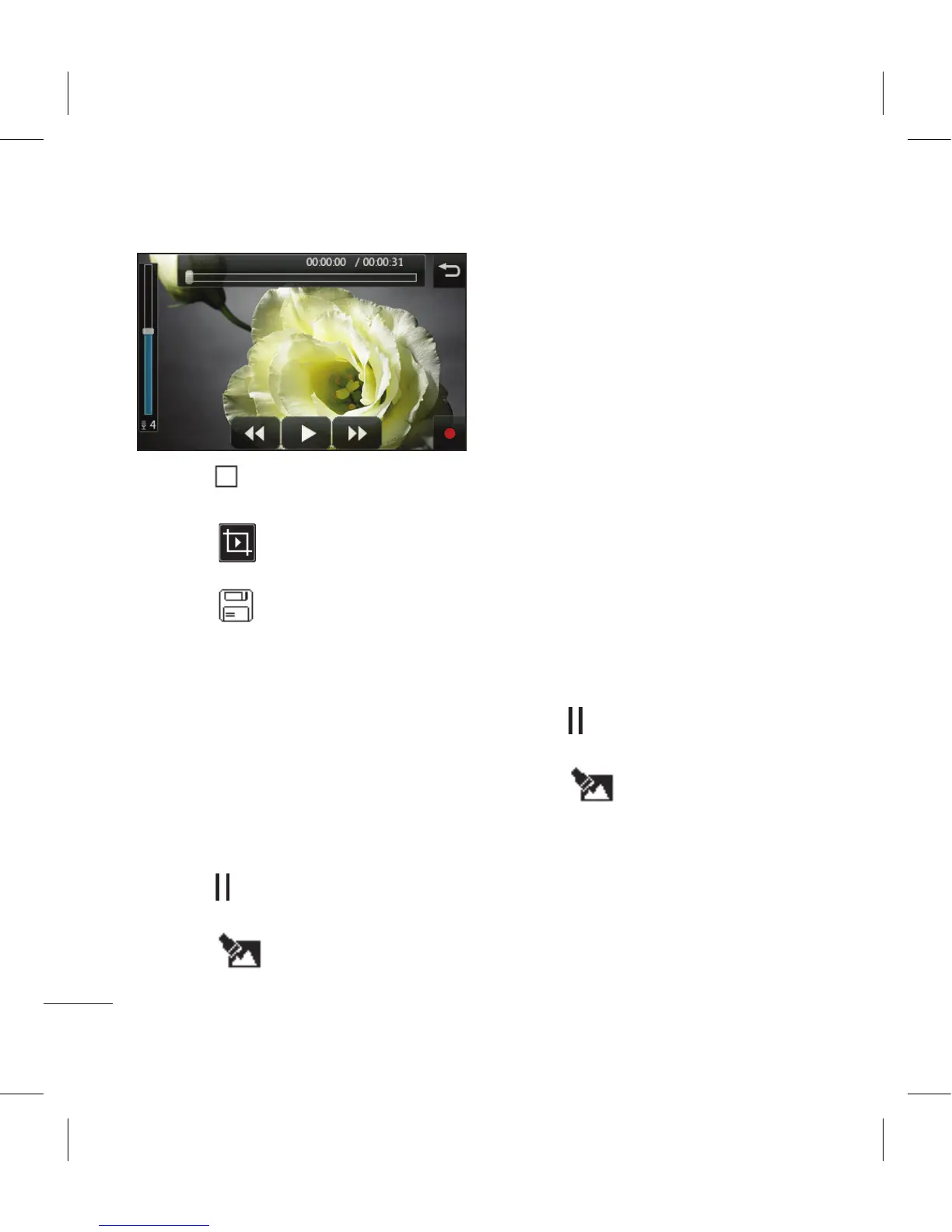
5 Press to stop recording and
playback.
6 Touch to ensure you are
happy with the voice recording.
7 Touch followed by Yes to
save. Choose to save over the
original file or as a new file.
8 Repeat these steps to add more
voice recordings to the video.
Adding a soundtrack to your
video
1 Open the video you’d like to edit,
select and touch the screen to
bring up the options.
2 Select and choose Audio
dubbing.
3 The My sounds folder will open.
Choose the track you would like
to add to your video.
4 The original audio of your video
will be erased. Touch Yes to
continue.
5 If the audio is shorter than the
video choose whether to play
Once or to Repeat it.
6 Choose to save over the original
file or as a new file.
Changing the speed of your
video
1 Open the video you’d like to edit,
select and touch the screen to
bring up the options.
2 Select and choose Time
scaling.
3 Select one of the four speed
options: x4, x2, x1/4, x1/2.
4 Choose to save over the original
file or as a new file.


 To Next Page