EasyManua.ls Logo

Lightware UMX-TPS-TX140 - User Manual

Lightware UMX-TPS-TX140
183 pages
Print Icon
To Next Page IconTo Next Page
Loading...
UMX-TPS-TX120, -TX130, -TX140, -TX140K, -TX140-Plus
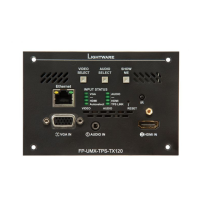
FP-UMX-TPS-TX120, -TX130
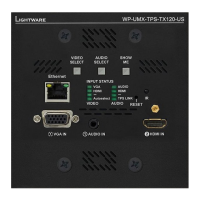
WP-UMX-TPS-TX120-US Black, White
WP-UMX-TPS-TX130-US Black, White
WP-UMX-TPS-TX130-Plus-US Black, White
HDBaseT
TM
Multimedia Extender
User’s Manual
v3.0 18-05-2021

Table of Contents

Other manuals for Lightware UMX-TPS-TX140

Questions and Answers

  • M
    Michael LambertAug 18, 2025
    How to fix no picture on Lightware Extender video output?
    • G
      gordonsharonAug 18, 2025
      If you're not getting any picture on the video output of your Lightware Extender, there are several potential causes: * **Power Issues:** Ensure all devices, including the extenders themselves, are properly powered. Try unplugging and reconnecting them. * **Cable Problems:** Make sure all cables, including video and TPS cables, are securely connected. * **TPS Mode:** Verify that the TPS mode and the selected modes of the extenders are correctly configured. * **Muted Ports:** Check if the input or output port is muted. * **Display Compatibility:** Ensure the display is capable of receiving the video format. Try emulating the display’s EDID on the input port. * **HDCP:** Enable HDCP on both the input and output ports.
  • S
    Sarah GuzmanAug 21, 2025
    Why does Lightware Extender HDMI output have no audio?
    • J
      jyoungAug 21, 2025
      If the HDMI output signal from your Lightware Extender contains no audio, there are a couple of things to check: * **HDMI Mode:** Verify the output port properties and ensure the signal type is set to HDMI or Auto, not DVI. * **EDID Emulation:** Check the EDID settings and select an HDMI EDID to emulate instead of a DVI EDID.
  • B
    Brian CrawfordAug 23, 2025
    What to do if Lightware Extender displays the wrong picture?
    • R
      rodriguezrobertAug 23, 2025
      If the picture displayed on the video output of your Lightware Extender isn't what you expect, here's what to investigate: * **Test Pattern Settings:** Check the input ports properties to ensure the video input is not set to a static test pattern (no sync screen). * **Crosspoint Settings:** Verify that the video source isn't set to Testpattern input (I6). * **Source Video Settings:** Confirm that the video output isn't set to a test pattern because there's no picture on the video source. Check video settings of the source.
  • E
    Eric HesterAug 25, 2025
    How to troubleshoot no audio on Lightware Extender output?
    • M
      Mark HenryAug 26, 2025
      If you're not getting any audio on the output of your Lightware Extender, consider the following: * **Source Audio:** Check the audio settings of the source to ensure the volume isn't too low or muted. * **Input Port:** Verify the audio input port properties to make sure it's not muted. * **Output Port:** Check the output port properties to confirm it's not muted.
  • L
    Larry GuzmanAug 27, 2025
    Why can't I establish a LAN connection with my Lightware Extender?
    • A
      Amy GrantAug 28, 2025
      If you're unable to establish a LAN connection with your Lightware Extender, try the following: * **IP Address:** If using a static IP, ensure the IP address is correct. Consider using a dynamic IP address by enabling the DHCP option. * **Factory Reset:** Restore the factory default settings (with fix IP). * **IP Conflict:** Check for IP address conflicts with other devices on the network.
  • J
    Jacqueline RamirezAug 30, 2025
    How to fix a Lightware Extender when connected serial device does not respond?
    • S
      stephanie07Aug 30, 2025
      If a connected serial device isn't responding when connected to your Lightware Extender, check these things: * **Cable Connections:** Ensure the connectors fit well and check the wiring of the plugs. * **RS-232 Settings:** Verify that the port settings of the transmitter and the connected serial device(s) match. * **RS-232 Mode:** Confirm that the RS-232 mode settings (control, command injection, or disconnected) are correct.
  • E
    Edward ParkerSep 1, 2025
    How to stop continuous error messages on Lightware Extender?
    • C
      Christopher ShafferSep 1, 2025
      If you are continuously receiving error messages with your Lightware Extender, check the port protocol settings (LW2 / LW3) and use the proper protocol commands. It may be that a different protocol is set.
  • E
    Elizabeth SimmonsSep 3, 2025
    Why doesn't changing EDID on Lightware Extender change resolution?
    • K
      Kaylee AnthonySep 3, 2025
      If you've changed the EDID on an input port of your Lightware device to get a different resolution and nothing happens, you need to restart your source to make it read out the EDID again.
  • S
    Sean WhiteSep 8, 2025
    What to do if there is no audio output from Lightware UMX-TPS-TX140 Transmitter?
    • C
      cummingsrichardSep 8, 2025
      If there's no audio present on the output of your Lightware Transmitter, consider the following: * **Crosspoint Settings:** Verify the audio layer crosspoint settings to ensure the correct audio port is switched to the output. * **Source Volume:** Check the audio settings of the source device to ensure the volume is not low or muted. * **Output Port Mute:** Review the output port properties to confirm it is not muted. * **Analog Audio Volume:** If using analog audio, check the Analog audio input port settings and ensure the volume is not set too low.
  • R
    Raymond KimSep 10, 2025
    Why does my Lightware UMX-TPS-TX140 HDMI output have no audio?
    • E
      Eddie PerezSep 12, 2025
      If your Lightware Transmitter's HDMI output signal contains no audio, check the following: * **HDMI Mode:** Verify the properties of the output port and ensure it is set to HDMI or Auto, not DVI. * **EDID Emulation:** Check the EDID settings and select an HDMI EDID to emulate, rather than a DVI EDID.

Summary

Important Safety Instructions

Class II Apparatus Construction and Ventilation

Details on apparatus construction, power connection, safe disconnection, and ventilation requirements for optimal performance.

1. Introduction

Product Description and Features

Overview of the UMX-TPS-TX100 series, its capabilities, and key features like 4K support and autoselect.

Box Contents and Model Comparison

Details on supplied accessories, optional accessories, and a comparison table of different product models.

Model Comparison and Typical Application

Highlights key differences between models and provides diagrams for typical application scenarios.

3. Installation

Mounting Options for Transmitters

Guides for mounting standalone transmitters using rack shelves or under-desk kits.

Electrical Connections

Details on power connectors (12V DC, 48V DC) and various video/audio/data port connectors.

5. Software Control - Lightware Device Controller

Install, Run, and Connect LDC

Guides on installing LDC software, running it, and connecting to devices via Ethernet, Serial, or USB.

Event Manager and Settings Menu

Guides on creating events, managing settings like status, network, and front panel.

6. LW2 Programmers Reference

Network and RS-232 Configuration Settings

Covers network IP settings, RS-232 modes, baud rates, databits, parity, and stopbits.

7. LW3 Programmers’ Reference

Video and Audio Port Settings

Covers video/audio port status, crosspoint, autoselect, input priorities, and mute/lock functions.

Analog Audio Input Level Settings and Event Manager Basics

Explains analog audio volume/balance settings and the fundamental concepts of Event Manager.

Event Manager Tool Kit and Variable Management

Details setting delays, naming events, linking conditions/actions, and managing custom variables.

Ethernet Port Configuration and Tool Kit

Covers DHCP, static IP settings, MAC filtering, and Ethernet tool kit functionalities.

TCP Message Recognizer and RS-232 Port Configuration

Explains TCP message recognition, RS-232 settings, and message sending via RS-232.

8. Firmware Update

Running LDU2 Software and Updating via GUI

Instructions on launching LDU2, discovering devices, and performing firmware updates using the graphical interface.

Troubleshooting Firmware Update Issues

Steps to take if the firmware update is not successful, including restarting and checking logs.

9. Troubleshooting

Troubleshooting Use Cases by Symptom

A table mapping symptoms (no video, no audio, HDCP issues) to root causes, actions, and relevant sections.

Lightware UMX-TPS-TX140 Specifications

General IconGeneral
BrandLightware
ModelUMX-TPS-TX140
CategoryTransmitter
LanguageEnglish

Related product manuals