EasyManua.ls Logo

Lightware UMX-TPS-TX100 Series - User Manual

Lightware UMX-TPS-TX100 Series
124 pages
Print Icon
To Next Page IconTo Next Page
Loading...
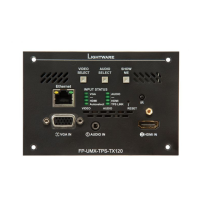
UMX-TPS-TX120, -TX130, -TX140, -TX140-Plus
FP-UMX-TPS-TX120, -TX130
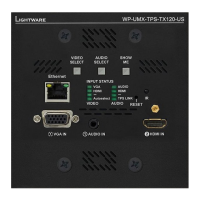
WP-UMX-TPS-TX120-US Black, White
WP-UMX-TPS-TX130-US Black, White
WP-UMX-TPS-TX130-US-Plus Black, White
HDBaseT
TM
Multimedia Extender
User’s Manual

Table of Contents

Other manuals for Lightware UMX-TPS-TX100 Series

Questions and Answers

  • C
    Carmen MitchellAug 18, 2025
    How to fix no picture on Lightware Extender video output?
    • V
      Victoria PhillipsAug 18, 2025
      If you're not getting any picture on the video output of your Lightware Extender, there are several potential causes: * **Power Issues:** Ensure all devices, including the extenders themselves, are properly powered. Try unplugging and reconnecting them. * **Cable Problems:** Make sure all cables, including video and TPS cables, are securely connected. * **TPS Mode:** Verify that the TPS mode and the selected modes of the extenders are correctly configured. * **Muted Ports:** Check if the input or output port is muted. * **Display Compatibility:** Ensure the display is capable of receiving the video format. Try emulating the display’s EDID on the input port. * **HDCP:** Enable HDCP on both the input and output ports.
  • O
    opetersenAug 21, 2025
    Why does Lightware Extender HDMI output have no audio?
    • R
      rossmarkAug 21, 2025
      If the HDMI output signal from your Lightware Extender contains no audio, there are a couple of things to check: * **HDMI Mode:** Verify the output port properties and ensure the signal type is set to HDMI or Auto, not DVI. * **EDID Emulation:** Check the EDID settings and select an HDMI EDID to emulate instead of a DVI EDID.
  • G
    Glenn ClarkAug 23, 2025
    What to do if Lightware Extender displays the wrong picture?
    • R
      Ryan OrrAug 23, 2025
      If the picture displayed on the video output of your Lightware Extender isn't what you expect, here's what to investigate: * **Test Pattern Settings:** Check the input ports properties to ensure the video input is not set to a static test pattern (no sync screen). * **Crosspoint Settings:** Verify that the video source isn't set to Testpattern input (I6). * **Source Video Settings:** Confirm that the video output isn't set to a test pattern because there's no picture on the video source. Check video settings of the source.
  • M
    Michael FischerAug 26, 2025
    How to troubleshoot no audio on Lightware Extender output?
    • N
      Nathaniel ZamoraAug 26, 2025
      If you're not getting any audio on the output of your Lightware Extender, consider the following: * **Source Audio:** Check the audio settings of the source to ensure the volume isn't too low or muted. * **Input Port:** Verify the audio input port properties to make sure it's not muted. * **Output Port:** Check the output port properties to confirm it's not muted.
  • W
    William JonesAug 27, 2025
    Why can't I establish a LAN connection with my Lightware Extender?
    • L
      leblanckerriAug 27, 2025
      If you're unable to establish a LAN connection with your Lightware Extender, try the following: * **IP Address:** If using a static IP, ensure the IP address is correct. Consider using a dynamic IP address by enabling the DHCP option. * **Factory Reset:** Restore the factory default settings (with fix IP). * **IP Conflict:** Check for IP address conflicts with other devices on the network.
  • D
    David MillerAug 30, 2025
    How to fix a Lightware Extender when connected serial device does not respond?
    • J
      Julie MeltonAug 30, 2025
      If a connected serial device isn't responding when connected to your Lightware Extender, check these things: * **Cable Connections:** Ensure the connectors fit well and check the wiring of the plugs. * **RS-232 Settings:** Verify that the port settings of the transmitter and the connected serial device(s) match. * **RS-232 Mode:** Confirm that the RS-232 mode settings (control, command injection, or disconnected) are correct.
  • D
    Diane LyonsSep 1, 2025
    How to stop continuous error messages on Lightware Extender?
    • A
      Anna JohnsonSep 1, 2025
      If you are continuously receiving error messages with your Lightware Extender, check the port protocol settings (LW2 / LW3) and use the proper protocol commands. It may be that a different protocol is set.
  • J
    jonesnatashaSep 3, 2025
    Why doesn't changing EDID on Lightware Extender change resolution?
    • K
      Kristine SandovalSep 3, 2025
      If you've changed the EDID on an input port of your Lightware device to get a different resolution and nothing happens, you need to restart your source to make it read out the EDID again.
  • W
    wilsontroySep 8, 2025
    What to do if there is no audio output from Lightware UMX-TPS-TX100?
    • D
      Diane LeeSep 8, 2025
      If there's no audio present on the output of your Lightware Transmitter, consider the following: * **Crosspoint Settings:** Verify the audio layer crosspoint settings to ensure the correct audio port is switched to the output. * **Source Volume:** Check the audio settings of the source device to ensure the volume is not low or muted. * **Output Port Mute:** Review the output port properties to confirm it is not muted. * **Analog Audio Volume:** If using analog audio, check the Analog audio input port settings and ensure the volume is not set too low.
  • B
    brian62Sep 12, 2025
    Why does my Lightware UMX-TPS-TX100 HDMI output have no audio?
    • M
      Michael FrazierSep 12, 2025
      If your Lightware Transmitter's HDMI output signal contains no audio, check the following: * **HDMI Mode:** Verify the properties of the output port and ensure it is set to HDMI or Auto, not DVI. * **EDID Emulation:** Check the EDID settings and select an HDMI EDID to emulate, rather than a DVI EDID.

Lightware UMX-TPS-TX100 Series Specifications

General IconGeneral
CategoryTransmitter
HDBaseTYes
HDCPYes
Input Ports1x VGA
Output Ports1x HDBaseT
Maximum Resolution4096x2160@30Hz
Resolution Support480i, 576i, 720p, 1080i, 1080p, 4K
ConnectorsHDMI, HDBaseT
HDCP SupportHDCP 1.4
Power12V DC
Power SupplyIncluded
ControlRS-232
Operating Temperature0°C to +40°C
Storage Temperature-20°C to +60°C
Video ResolutionUp to 4K UHD (30Hz RGB 4:4:4, 60Hz YCbCr 4:2:0)

Related product manuals