43
Section 3: Configuring the Access Point
LAPAC1750PRO Access Point Software User Manual
Virtual Access Point (VAP)
Virtual Access Points (VAPs) segment the wireless LAN into multiple broadcast
domains that are the wireless equivalent of Ethernet VLANs. VAPs simulate
multiple APs in one physical AP. Each radio supports up to 8 VAPs.
For each VAP you can customize the security mode to control wireless client
access. Each VAP can also have a unique SSID. Multiple SSIDs make a single
AP look like two or more APs to other systems on the network. By configuring
VAPs, you can maintain better control over broadcast and multicast traffic,
which affects network performance.
You can configure each VAP to use a different VLAN, or you can configure
multiple VAPs to use the same VLAN, whether the VLAN is on the same radio or
on a different radio. VAP0, which is always enabled on both radios, is assigned
to the default VLAN 1.
The AP adds VLAN ID tags to wireless client traffic based on the VLAN ID you
configure on the VAP page or by using the RADIUS server assignment. If you
use an external RADIUS server, you can configure multiple VLANs on each
VAP. The external RADIUS server assigns wireless clients to the VLAN when the
clients associate and authenticate.
If wireless clients use a security mode that does not communicate with the
RADIUS server, or if the RADIUS server does not provide the VLAN information,
you can assign a VLAN ID to each VAP. The AP assigns the VLAN to all wireless
clients that connect to the AP through that VAP. About the RADIUS server
setting please see “RADIUS Server” on page 64.
NOTE:
Before you configure VLANs on the AP be sure to verify that the
switch and DHCP server the AP uses can support IEEE 802.1Q VLAN
encapsulation.
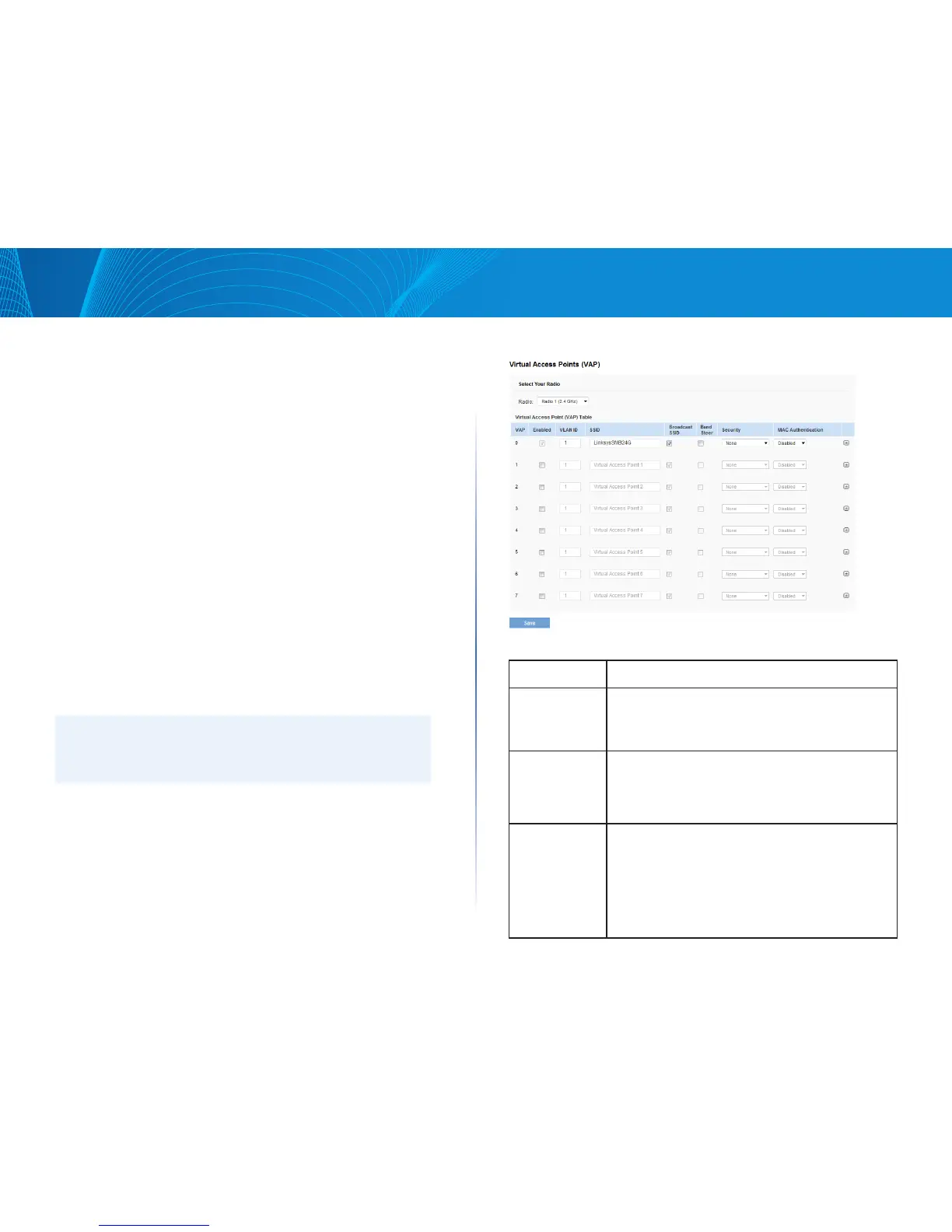
To set up multiple VAPs, click Configuration > Wireless > Virtual Access Points
(VAP).
Figure 27: Virtual Access Points (VAP)
Table 30: Virtual Access Point Settings
Field Description
Radio Select the radio to configure. VAPs are configured
independently on each radio.
VAP You can configure up to eight VAPs for each radio. VAP0
is the physical radio interface; so to disable VAP0 you
must disable the radio.
Enabled You can enable or disable a configured network.
If you disable the specified network, you will lose the
VLAN ID you entered.



 To Next Page