LITE-CHECK INSPECTOR 930
42
Images taken during an inspection can be downloaded by clicking the “Image Gallery” option in the report
menu. This will redirect to a page where you can view all of the images. To view an image in full resolution
click its thumbnail. Select which images to download by clicking the check-box below it’s thumbnail, then click
the “Download selected Images” button. This will generate a zip file containing the images. If you intend to
download all the images taken, click the “Download All Images” button.
Saving Reports
To generate a PDF version of a report, open it and click “Print” in the web browser menu. When the print
dialog appears change the destination to “Save as PDF” then click save. You can also send the report to a
printer. PDF versions are ideal for saving on the local computer or sending via e-mail.
Troubleshooting - Trailer Interface and Tablet
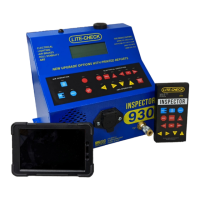
If the tablet loses it link to the Inspector Trailer Interface (becomes unresponsive):
1. Press the Bluetooth icon in the upper-left corner of the screen and select the Verifier from the list.
2. Restart the app
A. Press the “APP HISTORY” icon (to one side of the Home button; looks like two boxes, one in front of the other
B. Swipe the title bar of the DOT app off the screen
C. Return to the Home screen
D. Press the “LITE-CHECK DOT” icon on the Home screen to restart
E. If these steps do not resolve the problem, move on to step #3
3. Cycle power on both the Verifier Trailer Interface and the tablet
A. For the Inspector Trailer Interface:
3.A.1 Flip the “POWER” switch off (NOTE: The emergency and service air, if active, will be released!)
3.A.2 Wait for the “GREEN LED” to turn off
3.A.3 Flip the “POWER” switch on (The green LED light will be illuminated and solid)
B. For the tablet:
3.B.1 Press and hold the “POWER” button
3.B.2 Select “Power Off”
3.B.3 Select “Power Off” again
3.B.4 Wait for the screen to go blank
3.B.5 To turn tablet back on, press and hold the “POWER” button until graphics appear on the screen
3.B.6 Wait for the tablet to finish booting
3.B.7 Swipe the lock icon
3.B.8 Open the Lite-Check DOT app


 To Next Page