SECTION 3.6
3.6 Adding a Fingerprint (Continued)
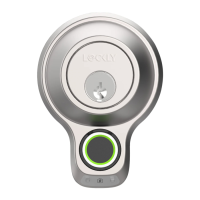
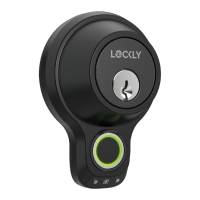
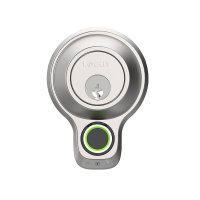
Scan your finger by lightly placing your designated finger on the sensor until you hear a beep. Lift
your finger and repeat the process slowly until the digit “6” shown on the screen becomes “1”.
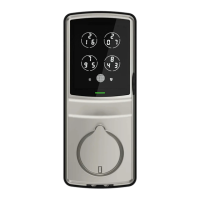
If you have successfully scanned and registered your fingerprint, you will hear a long beep, and
the Bluetooth icon will flash green.
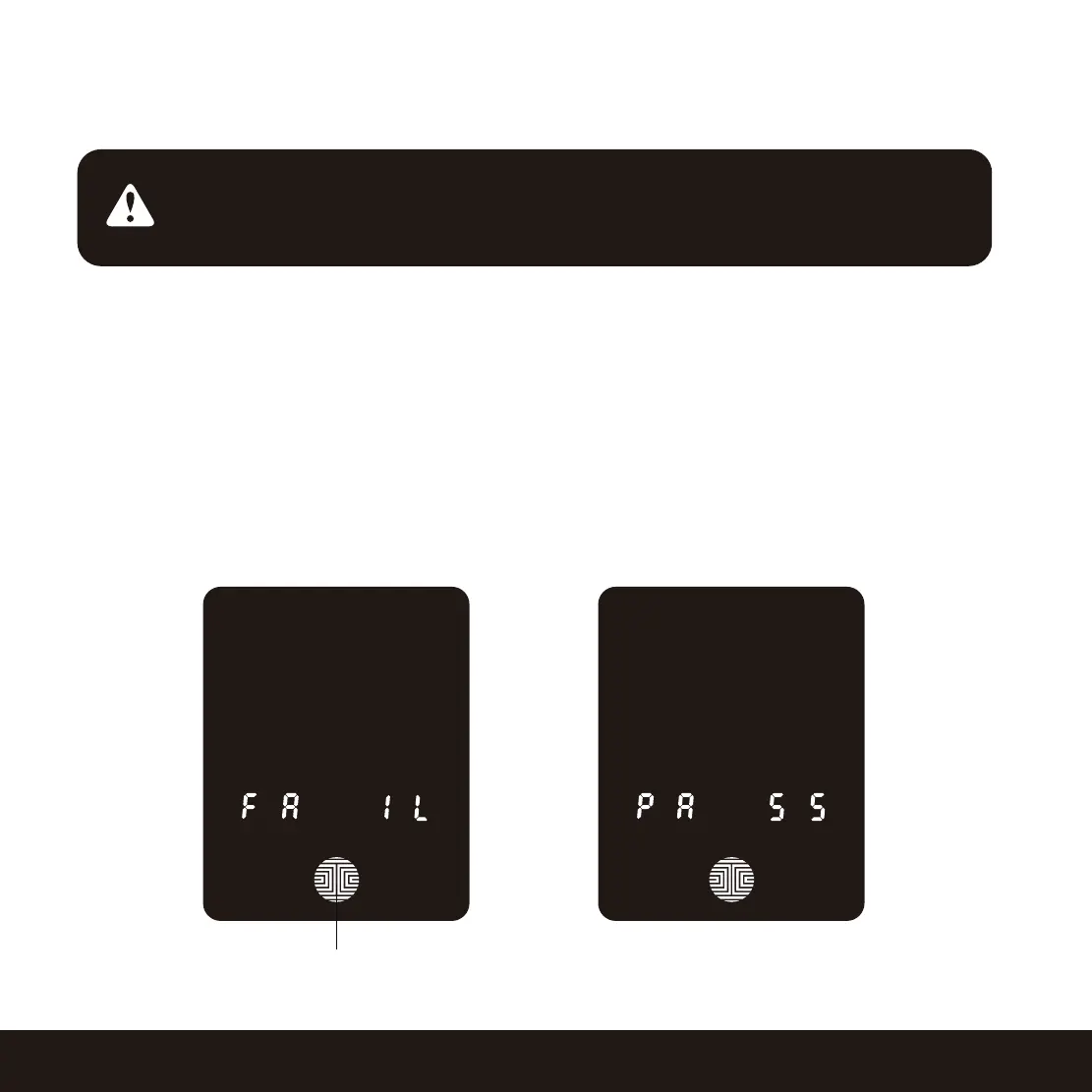
PASS will show on the keypad and press OK Button to exit. If you did not successfully register
your fingerprint, FAIL will show on the keypad. If FAIL is displayed, press OK Button to return to
the previous screen to rescan your finger.
For instructions on scanning an optimal fingerprint, please proceed to Section 3.7.
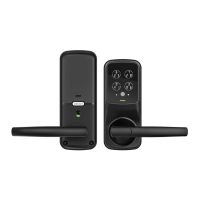
OK Button
NOTICE
Please make sure your fingers are clean from dirt and oils before scanning
your fingerprint. Make sure the sensor is also clean by taking a soft cloth
and wiping the surface.
18



 To Next Page