17
Loewe klang mr1, klang mr3, klang mr5
deutsch
english
2 Main unit Components
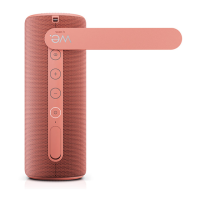
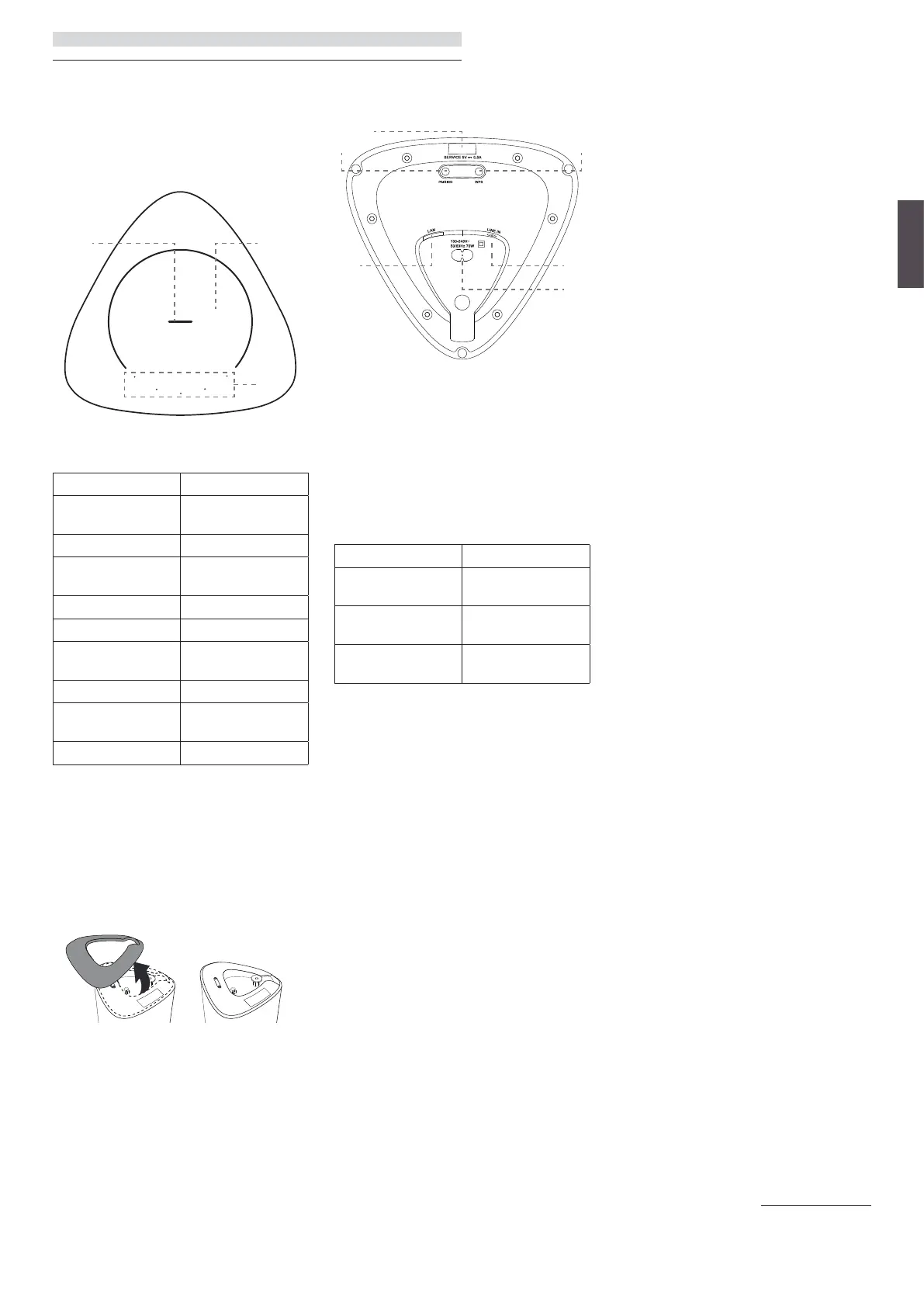
2.1 Top panel
1 2
3
1. LED centre button
LED indicator state Status
Blue LED breathing
Bluetooth pairing
mode/pause/mute
Blue LED is on Bluetooth mode
Teal LED breathing
WDAL2.0 pair-
ing mode
Teal LED is on WDAL2.0 mode
Orange LED is on Multiroom mode
Orange LED
breathing
Multiroom mode
is paused/muted
Green LED is on LINE IN mode
Green LED breathing
LINE IN mode
is paused
LED is off Speaker is turned off
2. Touch sensitive area
3. 5 LED buttons
2.2 Bottom panel
A magnetic cover is attached to the bottom of
the speaker. Remove this cover to gain access to
the buttons and rating label. Replace the cover if
you no longer need access to the buttons.
1
2
4 5
6
3
1. USB port – for software update only.
2. PAIRING button - for WDAL 2.0 pairing.
3. WPS (Wi-Fi Protected Setup) button/
indicator – Triggers Wi-Fi setup for Play-Fi.
Press and hold the button for 3 sec-
onds to activate the WPS mode.
Press and hold the button for 8 seconds to
activate the AP mode. In AP mode, all DTS
Play-Fi / Multiroom settings are restored.
LED indicator state Status
LED slowly pulsing
Wi-Fi Access Point
(AP) mode
LED flashes twice
Wi-Fi Protected
Setup (WPS) mode
LED is on
Connected /
Pairing successful
4. LAN – connect to the router via LAN cable.
5. LINE IN – connect to the audio source via
3.5mm audio cable.
6. AC IN – connect to an electrical outlet.
3 Connecting the
speaker
3.1 Connecting the power
Note
Risk of product damage! Ensure that the
power supply voltage corresponds to the
voltage printed on the rating label. Remove
the magnetic cover from the bottom to find
the rating label.
Connect the mains cable to the AC IN Socket of
the speaker and then into a mains socket.
When connected to the power, the speaker
starts automatically. You should see the LED
light up at the top.
3.2 Connecting to Wi-Fi
Airplay setup
Use AirPlay to set up the Wi-Fi connection of iOS
device (iOS7 or later) and speaker.
1. Press and hold the WPS button located on
the bottom of the speaker for 8 seconds to
trigger the Wi-Fi connection until the speaker
makes a second tone, and then release the
button.
2. Wait until the Wi-Fi light indicator turns from
a fast blink to a slow pulse. A slow pulse indi-
cates that the speaker is entering the Wi-Fi
setup mode.
3. On your iOS device go to Settings > Wi-Fi >
select network [Play-Fi device (xxxxxx)]
4. Speaker will be automatically recognized as
Airplay device. Tap on [Set up new AirPlay
speaker].
5. Tap on [Show Other Networks…] and se-
lect your home network to which you want
speaker to connect.
6. After a successful Wi-Fi connection, the Wi-
Fi light indicator stops pulsing and stays on.
After setting up this product on your Wi-Fi
network, you can control it from any smart-
phone or tablet on the same network.
Google Home setup
1. Download the Google Home app on your
mobile device.
2. iPhone/iPad only: Turn on your mobile de-
vice’s Bluetooth.
3. Press and hold the WPS button located on
the bottom of the speaker for 8 seconds to
trigger the Wi-Fi connection until the speaker
makes a second tone, and then release the
button.
4. Wait until the Wi-Fi light indicator turns from
a fast blink to a slow pulse. A slow pulse indi-
cates that the speaker is entering the Wi-Fi
setup mode.
5. Open the Google Home app.
6. Follow the steps to set up your device.
If you can’t find the steps to set up your speaker:
At the top left of the Google Home app home
screen, tap Add + > Set up device > New
device.
Follow the setup steps.
WPS mode
If your router has Wi-Fi Protected Setup (WPS),
you can set up the connection without entering
a password.
1. Press and hold the WPS button for 3 sec-
onds. You will hear a tone and the Wi-Fi indi-
cator will flash twice continuously.
2. Press the WPS button on your router. The
button is usually marked with the WPS logo.
Main unit Components | Connecting the speaker | Basic Operation


 To Next Page
 Loading...