91
Display
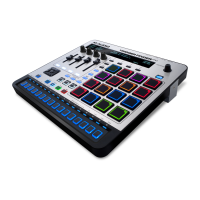
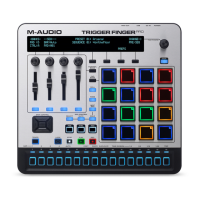
The Preferences let you adjust certain settings that affect Trigger Finger Pro's display.
To adjust the display settings:
1. Enter Preferences by pressing the third Function Button (Prefs) while in Performance
Mode.
2. Press the third Function Button (More).
3. Turn the first Assignable Knob (LCD: Bright) to set the display's brightness (00–100%).
Turn the second Assignable Knob (LCD: Contrast) to set the display's contrast (00–
100%).
Press the second Function Button (Night Mode) to activate or deactivate Night Mode,
which keeps Step Switches 1, 5, 9, and 13 dimly lit at all times (unless their lights are lit
brighter due to normal operation). This can help you easily distinguish the four "groups"
of four Step Switches when using Trigger Finger Pro in darker rooms.
4. Make other changes to your Preferences, or exit Preferences by pressing the fourth
Function Button (Exit) or another mode button.
PREFERENCES
----- LCD ------ --------- PADS -------
BRIGHT:
50%
CONTRAST:
100%
GAIN:
05
SENS:
16
CURVE:
Log1
NIGHT
MODE:
Off
EXIT
TAP
AVERAGE:
04




 To Next Page