Chapter 9262
6 Select all the cast members that use the old version of the palette, or use Find to locate all the
cast members using a particular palette.
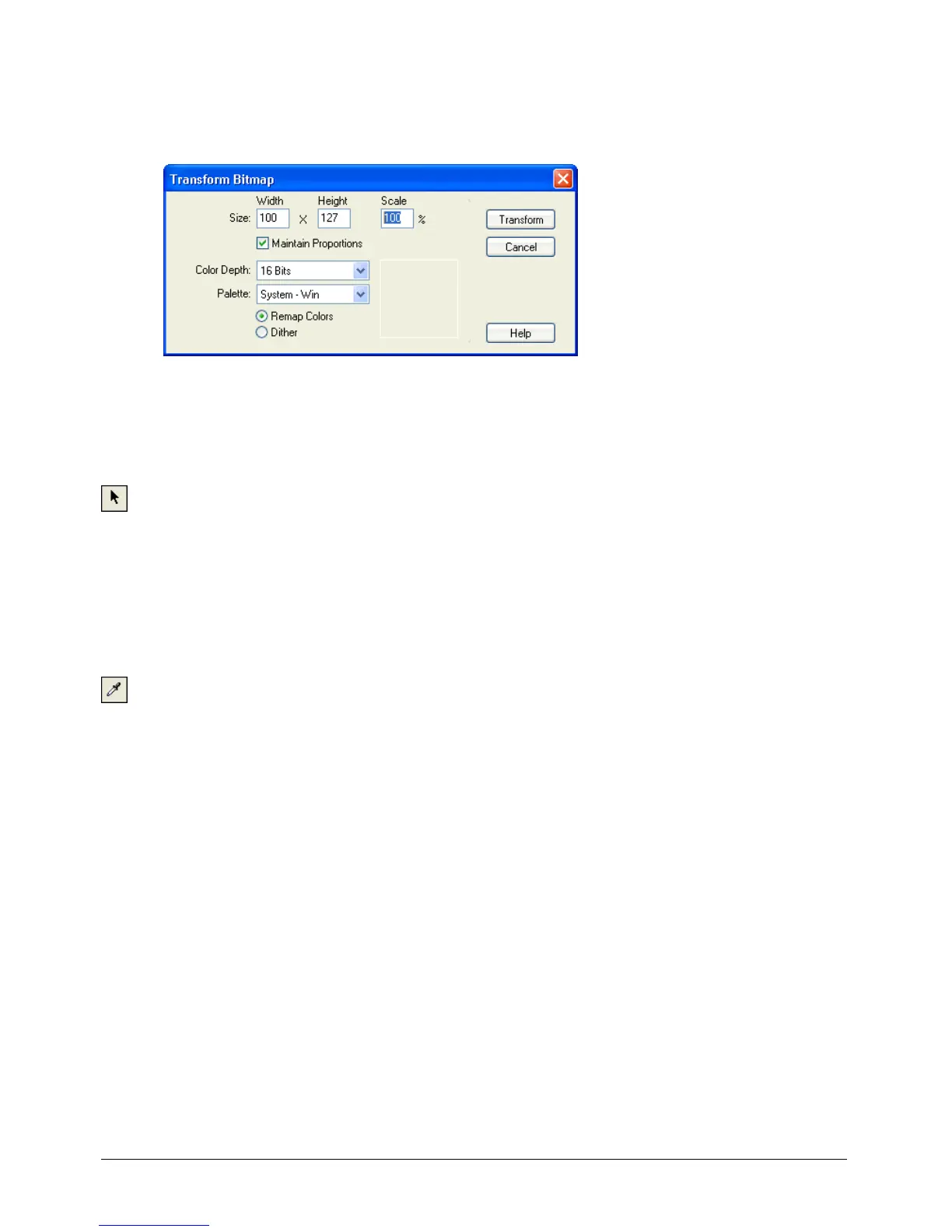
7 Select Modify > Transform Bitmap and select the desired options.
Note: Be sure to select Remap Colors, not Dither.
8 Click Transform to remap all the cast members to the new palette.
To select one or more colors:
1 Click a color in the Color Palettes window. If the selection arrow is not active, click the Arrow
tool at the bottom of the window.
2 To select a range, drag across colors or click the first color in the range, and then Shift-click
the last.
3 Control-click (Windows) or Command-click (Macintosh) to select multiple discontiguous
colors.
To match the color of any pixel on the Stage with the same color in the palette:
1 Click the Eyedropper tool.
2 Drag any color in the Color Palettes window to any point on the Stage.
The selection in the Color Palettes window and the foreground color in the Tool palette
changes to the color at the pointer location.



 To Next Page