Chapter 270
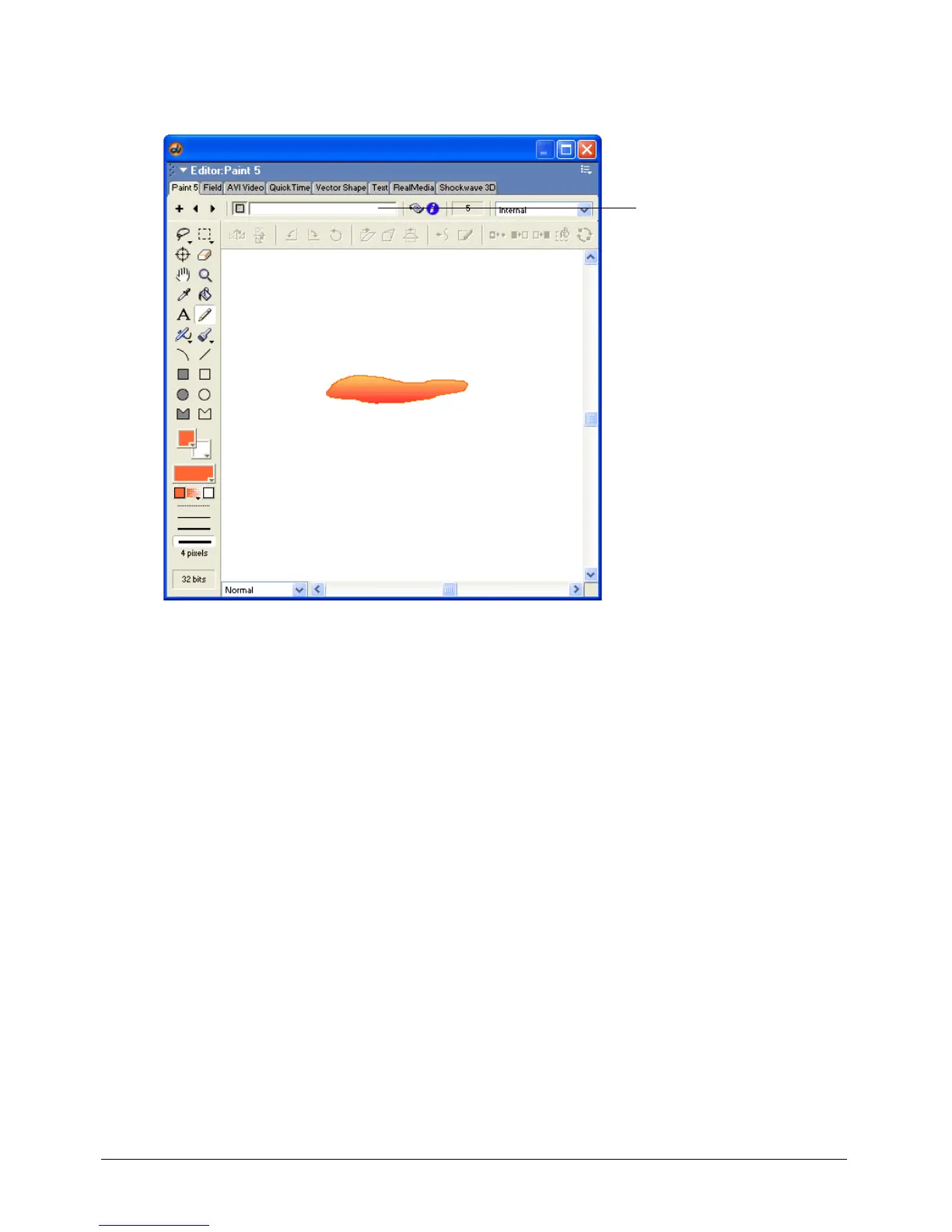
5 With the Paint Bucket tool still selected, click inside the outline of the cloud. The cloud fills
with an orange gradient.
6 Click the Cast Member Name text box at the top of the Paint window, type Cloud in the text
box, and then press Enter (Windows) or Return (Macintosh).
7 Close the Paint window.
Next you’ll create a different kind of cast member for the Sun in your animation scene.
Create a vector shape cast member
Vector graphics are another kind of graphic cast member you can use. Although bitmap images
contain long lists of data for each pixel in a graphic, vector cast members store graphic
information as mathematical descriptions of an image. Because of this difference, vector cast
members generally use less memory than comparable bitmap cast members. There are some
differences in the kinds of effects you can achieve and the methods used to create various shapes
and fills for each of these cast member types. By experimenting with both types of images, you
can determine if your art is better suited as a vector shape or bitmap image.
For the Sun cast member in the animation scene, you’ll use a vector shape. The sun is a circle,
which uses little memory. You’ll create it using the Vector Shape window. As with the Text
and Paint windows, the Vector Shape window provides special tools for creating and editing
cast members.
You’ll create a circle for the sun and fill it with a yellow gradient.
Cast Member Name
text box



 To Next Page