Select and move slides 141
Add and name a slide
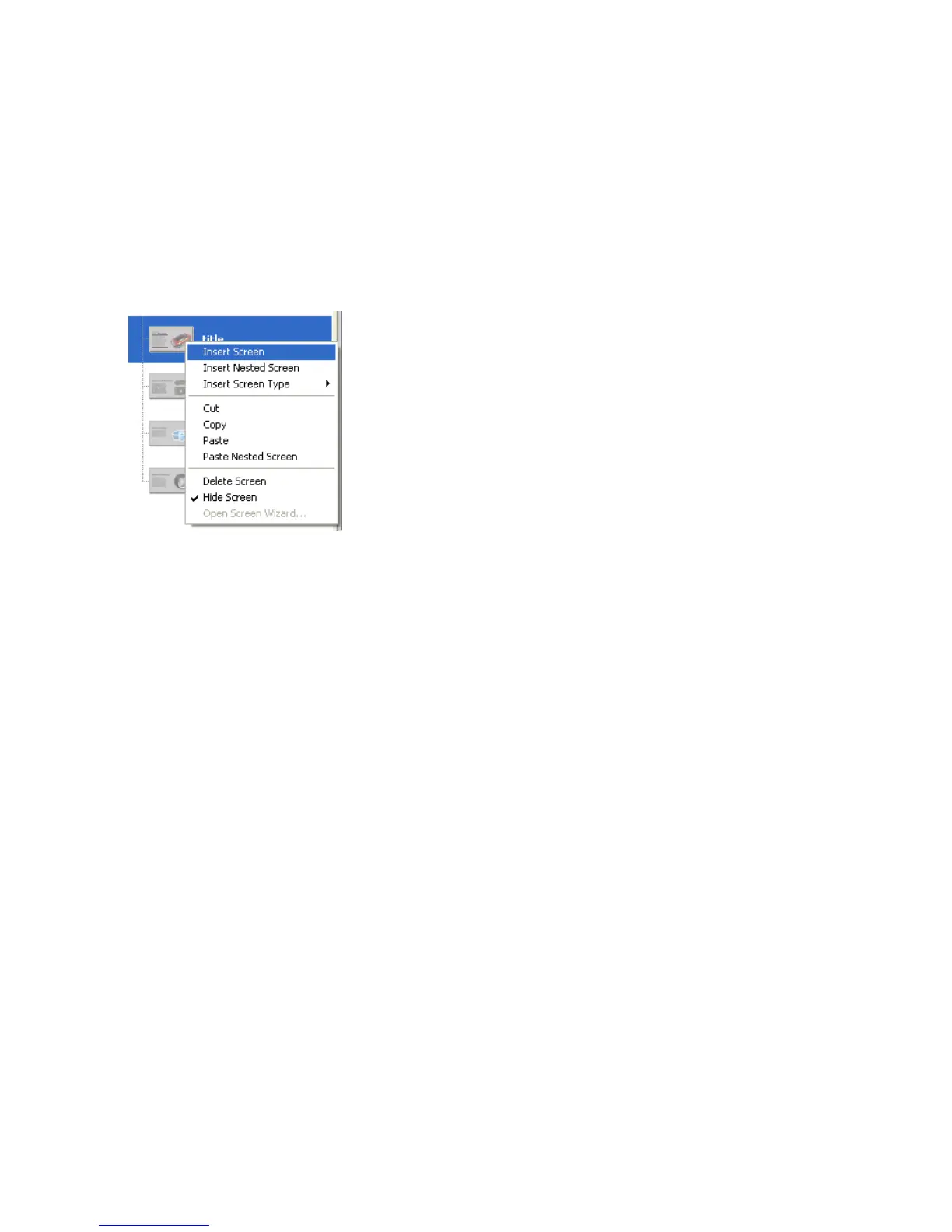
You can easily add slides to your presentation using the context menu in
the Screen Outline pane.
1. In the Screen Outline pane, select the title thumbnail. Right-click
(Windows) or Control-click (Macintosh) and select Insert Screen from
the context menu.
A new screen appears in the Screen Outline pane, at the same level as
the title slide. The new slide automatically inherits media from the
presentation slide.
2. Double-click the new slide’s name in the Screen Outline pane, and
name the slide features.
Select and move slides
You can copy, cut, paste, and drag screens in the Screen Outline pane to
change their order in the presentation. You’ll select three screens, cut them,
and paste them so that they’re nested as children of the features slide.
1. In the Screen Outline pane, select the performance slide. Shift-click the
safety and handling slides to add them to the selection.
2. Right-click (Windows) or Control-click (Macintosh) the selected slides
and select Cut from the context menu.
3. In the Screen Outline pane, right-click (Windows) or Control-click
(Macintosh) the features slide and select Paste Nested Screen from the
context menu.
The three slides now appear as children of the features slide.



 To Next Page