168 Creating Graphics: Making Animations with Easing (Flash Professional only)
6. In the Timeline, drag the playhead from Frame 1 to Frame 61. You will
see the eight ball animate downward towards the shadow graphic.
7. Select File > Save As.
8. Name the file my_tween_start.fla and click OK.
Use easing controls
You can control the speed at which your animations start and stop with the
easing controls in Flash. The term easing is used because when you make an
animation, such as dropping the eight ball slowly and then speeding it up,
it is considered to be “easing in” to its motion. When slowing an animation
at the end, it is said to be “easing out.” Flash also allows you to perform
easing in the middle of a tween with its custom easing controls.
Ease in the eight-ball animation
1. In the Timeline, select the entire Ball layer by clicking the layer name.
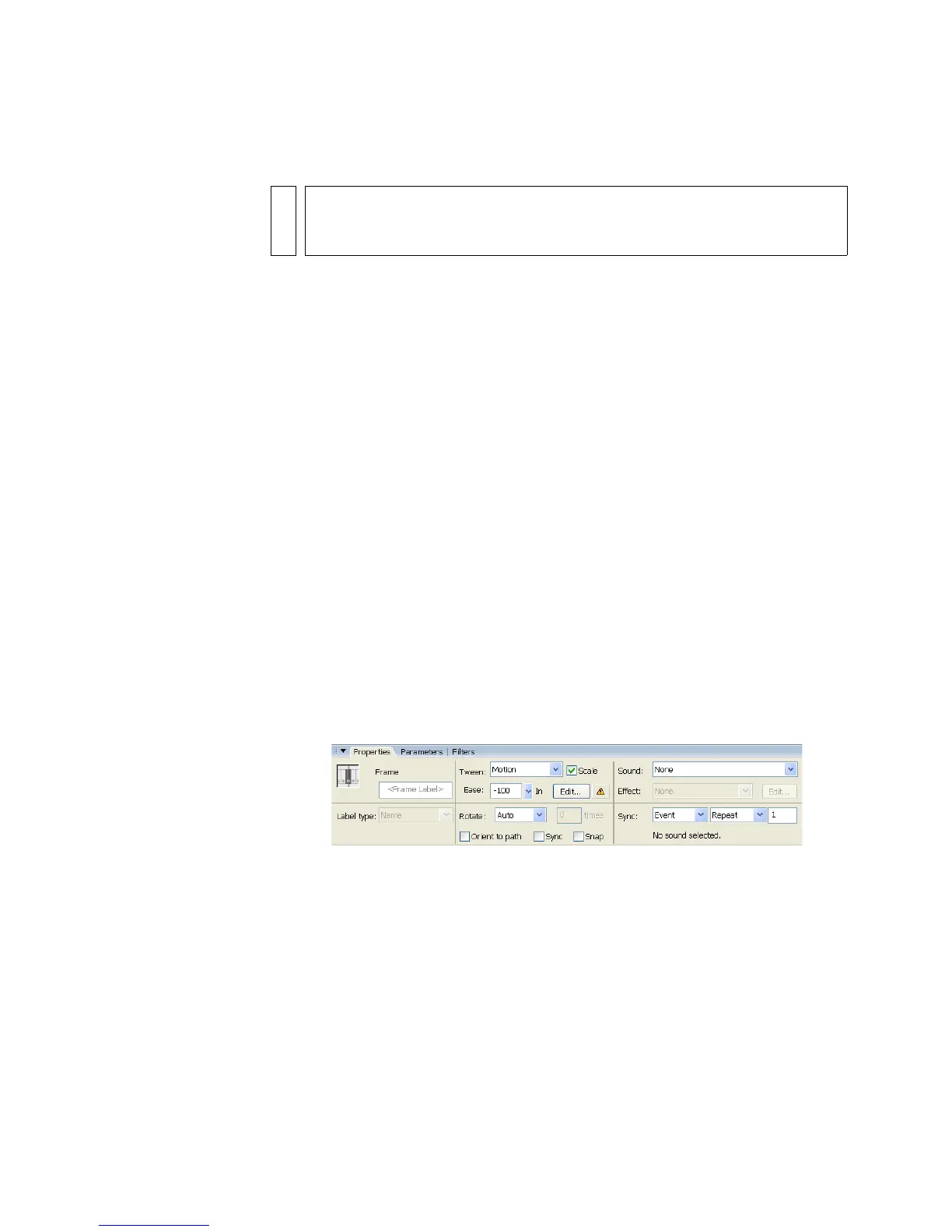
2. In the Property inspector, drag the Ease slider down until the value
is -100.
This will provide the maximum amount of easing in, thereby causing
the eight-ball motion to start slowly and accelerate.
The Ease slider set to -100
3. Drag the playhead across the Timeline and observe the animation speed.
NOTE
The speed of the ball’s motion is constant throughout the animation. In the
next section you will learn to control the speed with which your animations
begin and end their motion.



 To Next Page