Open the starter document 169
Ease out the eight-ball animation
1. In the Timeline, select the entire Ball layer by clicking the layer name.
2. In the Property inspector, drag the Ease slider up until the value is 100.
This will provide the maximum amount of easing out, thereby causing
the eight-ball motion to start abruptly and then decelerate.
3. Drag the playhead across the Timeline and observe the animation speed.
4. In the Timeline, select the entire Ball layer.
5. In the Property inspector, drag the Ease slider down until the value is 0.
This will remove the easing from the animation.
Flash also provides more precise control of how easing occurs and allows
you to add easing in the middle of a tween. In the next section, you
will apply custom easing settings to the animation instead of using the
Ease slider.
Add custom easing settings to the eight-ball
tween
1. In the Timeline, select the entire Ball layer.
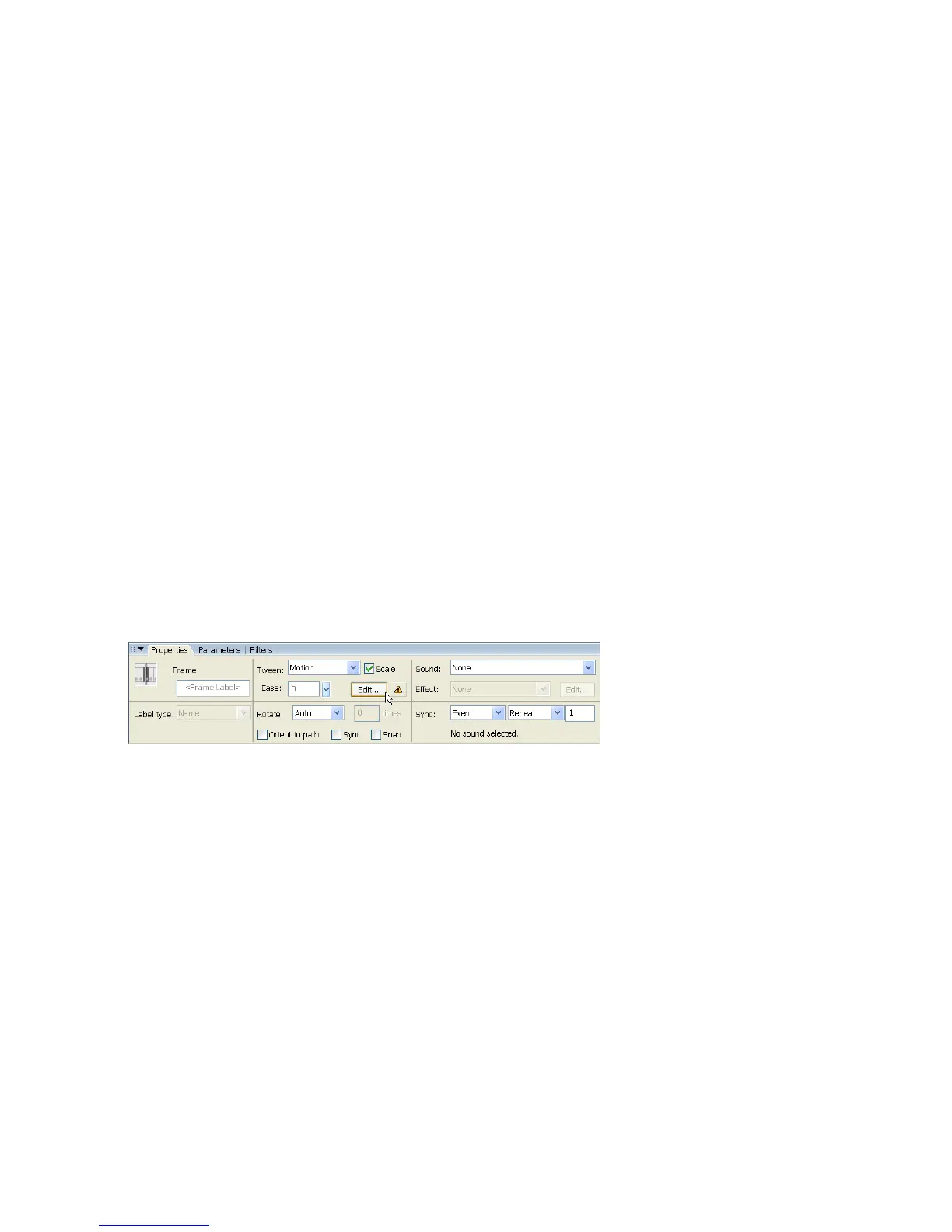
2. In the Property inspector, click Edit next to the Ease slider.
The Edit button in the Property inspector



 To Next Page