EasyManua.ls Logo

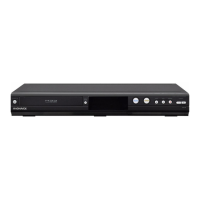
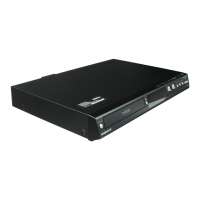
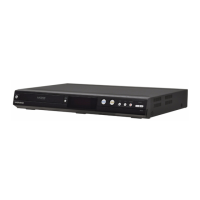
Magnavox MDR515H - User Manual

Magnavox MDR515H
128 pages
Print Icon
To Next Page IconTo Next Page
Loading...
O
wn
e
r's M
a
n
ual
M
DR515H
/
F
7
HDD
&
DVD P
LAYER
/
R
ECORDE
R
WITH
D
IGITAL
T
UNE
R
T
HANK YOU FOR CHOOSING
M
AGNAVOX
.
NEED HELP FAST
?
R
EAD YOUR
Q
UICK GUIDE AND/OR OWNER
'
S MANUAL FIRST FOR QUICK TIPS THAT MAKE USING
Y
OUR
M
AGNAVOX PRODUCT MORE ENJOYABLE
.
F YOU HAVE READ YOUR INSTRUCTIONS AND STILL NEED ASSISTANCE
YOU
MAY ACCE
SS
OU
R
O
NLINE HELP A
T
W
WW.MAGNAVOX.COM
/
SUPPOR
T
O
R WWW.FUNAISERVICE.COM
/
O
R CALL 1-
800
-
605
-
86
1
0
WHILE WITH Y
O
UR PR
O
DUCT
.
Recording Playback EditingIntroduction Connections Basic Setup Function Setup Others
Español
INSTRUCCIONES EN ESPAÑOL INCLUIDAS.
©
2010 Funai Electric Co.
,
Ltd
.
E2S02UDMDR515HF7ENv1.indd1E2S02UDMDR515HF7ENv1.indd1 2010/08/179:03:512010/08/179:03:51

Table of Contents

Other manuals for Magnavox MDR515H

Questions and Answers

  • H
    hansenkathleenAug 20, 2025
    How to fix a Magnavox DVD Player that won't turn on?
    • M
      Melissa LynchAug 20, 2025
      If your Magnavox DVD Player isn't turning on, make sure the AC power cord is securely connected. Also, check the remote control batteries and replace them if they are weak.
  • D
    Diane PaceAug 22, 2025
    Why is my Magnavox DVD Player not recording?
    • M
      Mrs. Sarah WarrenAug 22, 2025
      If your Magnavox DVD Player is not recording, it could be due to several reasons. Recording is prohibited from 2 minutes before a timer recording starts. The unit cannot record programs with copy protection signals. The recording media may be full, so try deleting unnecessary titles or using new media. Also, the maximum number of titles or chapters may have been exceeded; delete titles or insert new media.
  • P
    Pamela HeathAug 25, 2025
    Why is timer recording not working on my Magnavox DVD Player?
    • C
      Christina BallardAug 25, 2025
      If your Magnavox DVD Player isn't performing timer recording, it might be because the internal clock stopped due to a power failure lasting over 1 hour.
  • B
    Brandi LeeAug 26, 2025
    Why is there no picture or sound on my Magnavox DVD Player?
    • S
      sbeckerAug 26, 2025
      If there's no picture, sound, or menu on your Magnavox DVD Player screen, first check the cables for any damage. Then, ensure all connections are securely and correctly made. Finally, make sure the correct external input channel is selected on your TV.
  • M
    Mark CastroAug 27, 2025
    How to troubleshoot sound or subtitle issues on Magnavox DVD Player?
    • T
      Tammy PattersonAug 28, 2025
      If you're experiencing no sound or subtitles on your Magnavox DVD Player, ensure all connected devices are turned on and that the external input channel is set correctly. Also, check that all connections are securely made. If using HDMI, sound will not output if “HDMI Audio” is set to “OFF”.
  • J
    Justin LeonardAug 29, 2025
    Why doesn't my Magnavox DVD Player start playback from the beginning?
    • S
      Sarah SmithAug 29, 2025
      If playback on your Magnavox DVD Player doesn't start from the beginning, the resume function may be activated.
  • D
    Darrell LozanoAug 31, 2025
    What to do if my Magnavox DVD Player won't play?
    • N
      Nicholas ShermanAug 31, 2025
      If your Magnavox DVD Player isn't playing back, make sure a playable disc is inserted correctly with the labeled side facing up. Clean the disc if it's dirty or flawed, and check all connections. Also, review the parental lock settings.
  • G
    Garrett McculloughSep 2, 2025
    Why does the language menu keep appearing on my Magnavox DVD Player?
    • A
      Ashlee SmithSep 2, 2025
      If the language menu appears every time you turn on your Magnavox DVD Player, it might not have been turned off correctly. Finish the language setting by selecting a language in the menu, press OK, and then press STANDBY/ON to turn the unit to standby mode.
  • L
    Lisa SparksSep 4, 2025
    Why does my Magnavox DVD Player turn on by itself?
    • P
      Patricia GatesSep 4, 2025
      If your Magnavox DVD Player turns on automatically, it is designed to turn on 2 seconds before a timer recording without any operation.
  • M
    Michael JohnsonSep 6, 2025
    Why can't I set the clock or channels on my Magnavox DVD Player?
    • J
      Joseph GatesSep 6, 2025
      If the clock setting and channel setting cannot be performed on your Magnavox DVD Player, it is because a recording is in progress; these operations are disabled during recording.

Summary

SAFETY INFORMATION

Important Safety Instructions

Essential guidelines for safe operation and handling.

Hazard Prevention

Covers laser safety and electrical shock/fire prevention.

FUNCTIONAL OVERVIEW

Front Panel Controls

Description of buttons and indicators on the front panel.

Rear Panel Connections

Description of all rear panel input/output terminals.

CONNECTION

TV Connections via Component Video and HDMI

Instructions for connecting with component video and HDMI cables.

HDMI Mode and Output Signals

Explanation of HDMI output modes and copyright protection.

Digital and Analog Audio Connections

How to connect digital audio outputs and stereo systems.

BEFORE YOU START

Finding the Viewing Channel on Your TV

Steps to select the correct input on your TV for initial setup.

Main Menu and General Setting Navigation

How to access and navigate the main menu and general settings.

Switching HDD;DVD Mode and Inserting Discs

How to select the operating component and insert discs.

INITIAL SETTING

Initial Setup Procedure

Guide for the first-time setup process, including language and channel scan.

CHANNEL SETTING

Auto Channel Scan

How to automatically scan for available TV channels.

SETTING THE CLOCK

Analog Auto Clock Setting

How to automatically set the clock using analog TV signals.

Manual and Digital Auto Clock Settings

Manually setting analog clock and automatic digital clock setting with time zones.

Manual Clock Setting and Daylight Saving

Manually setting date/time and configuring daylight saving time.

TUNER SETTINGS

INFORMATION ON RECORDING

Disc Compatibility and Limits

Information on recordable discs, unrecordable discs, and maximum title/chapter limits.

Recording Modes and HDD Information

Explanation of recording modes and details on HDD usage.

BASIC RECORDING & ONE-TOUCH TIMER RECORDING

Performing Basic Recording

Step-by-step guide for basic recording of TV programs.

One-Touch Timer Recording (OTR) and Notes

How to set simple timer recordings and important recording considerations.

AUTOSTART RECORDING

Autostart Recording Procedure and Notes

How autostart recording works, how to initiate it, and important considerations.

TIMER RECORDING

Timer Programming Display and Setup

Explains the timer programming interface and step-by-step guide to program recordings.

DUBBING

DVC to HDD; DVD Dubbing Procedure

Step-by-step process for dubbing from DVC to HDD or DVD.

PLAYING THE DISCS ON OTHER DVD PLAYERS

Finalizing a Disc

Steps to finalize discs for compatibility with other players.

INFORMATION ON PLAYBACK

BASIC PLAYBACK

Direct Playback

How to start playback directly from HDD or DVD.

SPECIAL PLAYBACK

Resume, Fast Forward;Reverse, and Rapid Playback

How to resume, speed up, slow down, and play rapidly.

SEARCH

Title;Chapter and Track Search

How to search for specific titles, chapters, tracks, or files.

INFORMATION ON EDITING

Edit Menu Overview and Access

Lists available editing functions and how to access the edit menu.

EDITING

Title Deletion

How to delete single titles and selected titles from HDD/DVD.

SETUPS

Parental Lock Setup

How to set up and manage parental controls and passwords.

HDMI Settings - Format and Audio Output

How to configure HDMI output format and audio signal transmission.

TROUBLESHOOTING

Power, General Operation, and Connection Issues

Solutions for power, unit, picture, sound, and connection problems.

Playback and DVD Compatibility Issues

Solutions for playback errors, no sound/subtitle, and disc compatibility problems.

Error Messages and Solutions

Explains common error messages and their corresponding solutions.

ESPAÑOL

Copiado Básico (Español)

Spanish instructions for copying content between HDD and DVD.

Magnavox MDR515H Specifications

Power IconPower
power supply voltage120 V
power supply frequency60 Hz
Ports & Interfaces IconPorts & Interfaces
front connectionsAnalog Audio Left/Right In, Composite Video (CVBS) In, DV In, S-Video In
rear connectionsAnalog audio Left/Right out, Component Video output, Composite video (CVBS) output, Digital coaxial out, HDMI output, S-Video out, Analog audio Left/Right in
additional rear connectionsComposite video (CVBS) input, S-Video in, RF In, RF Out
Weight and Dimensions IconWeight and Dimensions
set dimensions420 x 59 x 290 mm
set weight3.4 kg
packaging dimensions520 x 147 x 413 mm
weight including packaging4.6 kg

Related product manuals