THE CONTROL PANEL43
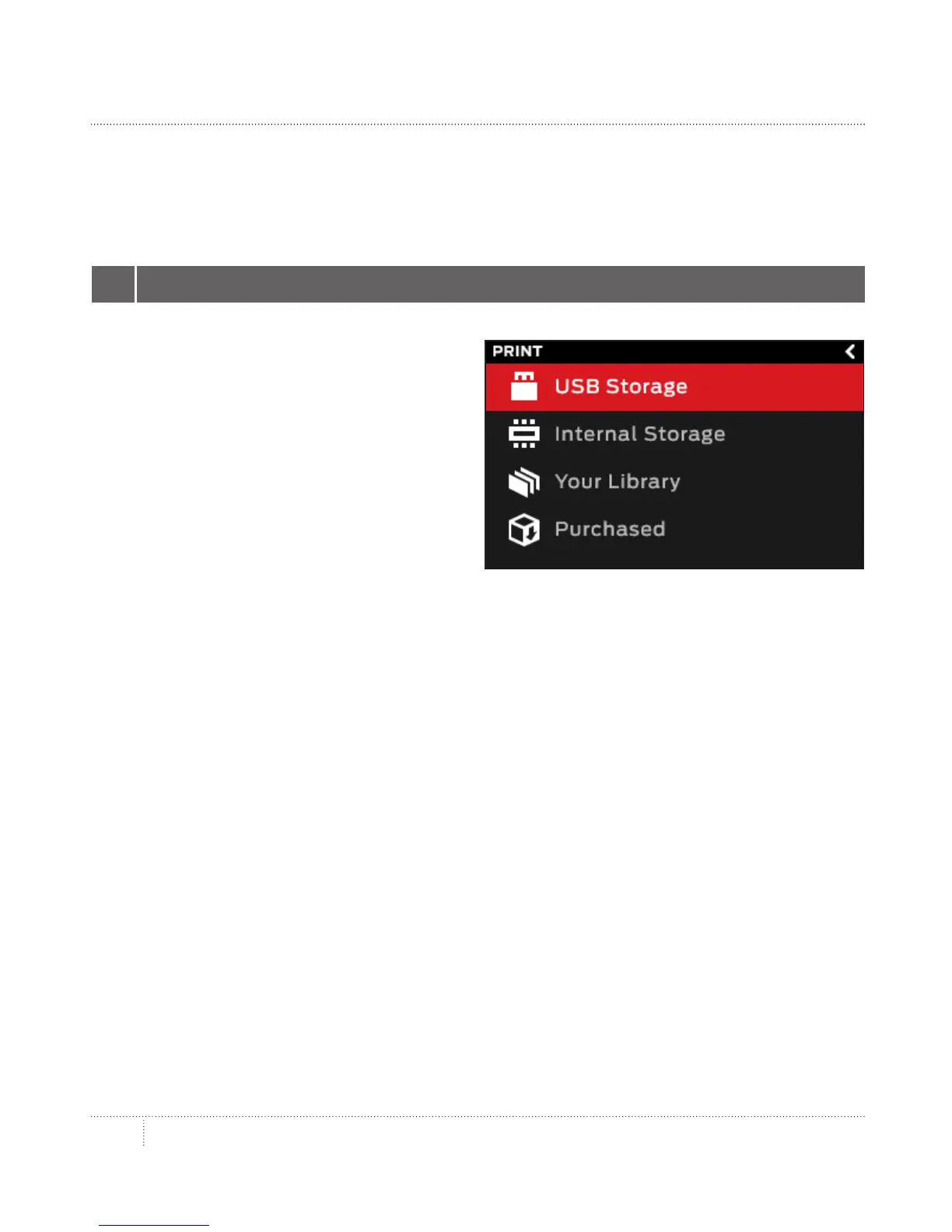
PRINT
Turn the dial to scroll through the list of
available locations. Push the dial to select
the location of the file you want to print.
Select USB Storage to print a file stored on
a USB drive inserted into the USB port.
Select Internal Storage to print a file stored
on the MakerBot Replicator Z18. The internal
storage has a capacity of about 2 GB.
Select Your Library to print a sliced file from your MakerBot Cloud Library. In the Library
menu:
• • Choose All Things to access every item synced to your MakerBot Replicator
from your Library.
• • Choose Purchased Things for files purchased from the MakerBot Digital Store.
• • Choose Thingiverse for items from your MakerBot Thingiverse™ collections.
• • Choose My Library for files you imported from your computer.
• • Choose MakerBot-Ready Apps for files you saved via third-party apps developed
to be used with MakerBot Replicator 3D printers.
• • Choose PrintShop for files you saved via the MakerBot PrintShop app.
Press the dial to select a location. Turn the dial to scroll through the list of available files
and press it again to select one.
1 SELECT A FILE
Select the Print icon to initiate a print stored on a USB drive or internal storage or synced
from your MakerBot Cloud Library.



 To Next Page