17
Getting Started Basic Connections
Advanced ConnectionsBasic OperationsBasic Operations Advanced Operations TroubleshootingExplanation terms Specifi cations Index
ENGLISH
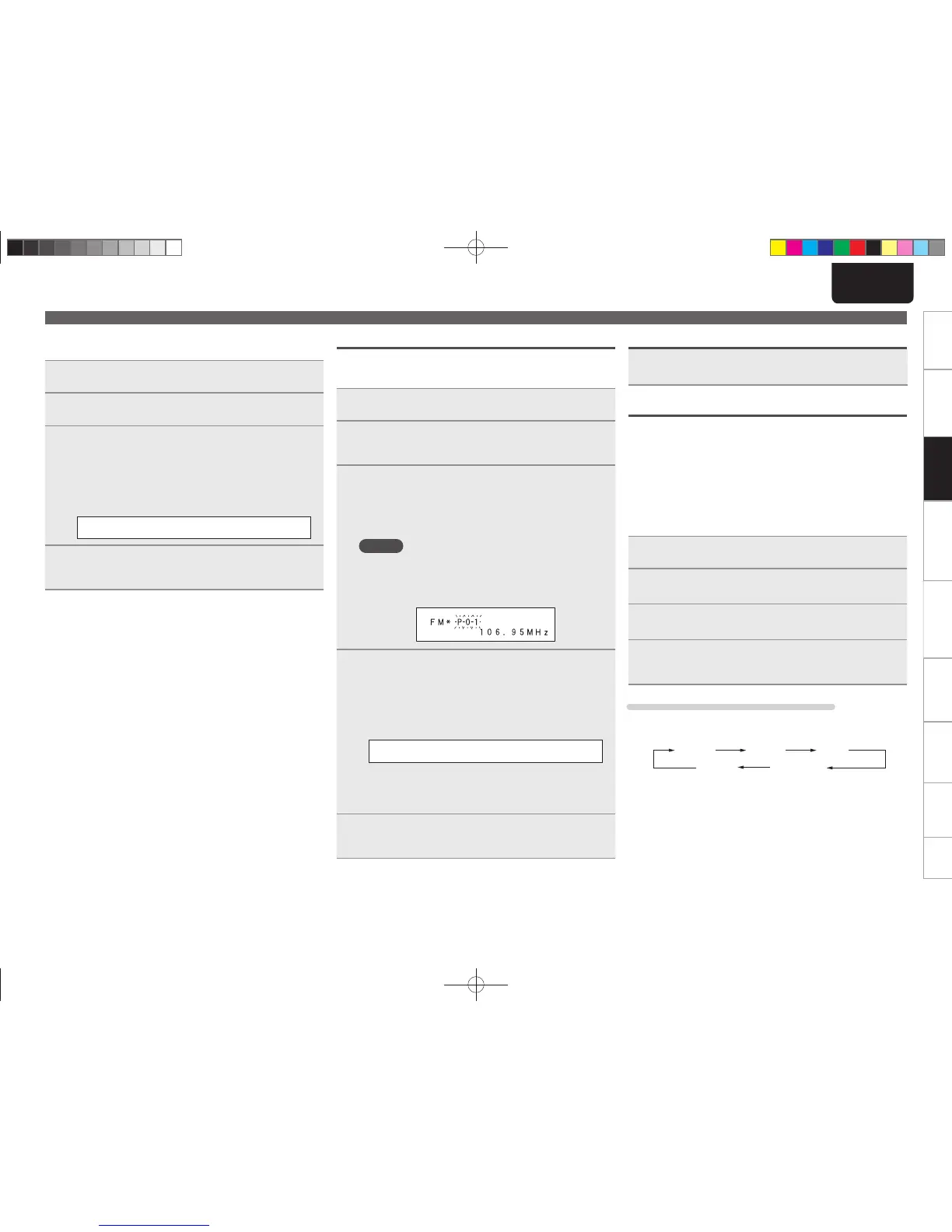
n Giving station names to preset channels
Names of up to 8 characters can be input.
1
Tune in the preset channel you want to name.
2
Press [ENTER/MEMO] or <ENTER> twice.
The display switches to the station name input display.
3
Input the station name.
Names of up to 8 characters can be input.
• u, i .........................Selects the character.
• [p] or <INPUT> ......... Moves the cursor to the right.
• [o] or <MODE> .......... Moves the cursor to the left.
• [CLEAR/DEL]............... Deletes the currently selected character.
• Characters that can be input.
A ~ Z, 0 ~ 9, ^ ’ ( )
z
+ , - . / = (space)
4
Press [ENTER/MEMO] or <ENTER>.
The characters you have input are entered.
• To give names to other stations, repeat steps 1 to 4.
Presetting FM/AM stations manually
This unit can be preset with a total of 99, FM and AM broadcast
stations.
1
Tune in the station you want to preset.
2
Press [ENTER/MEMO] or <ENTER>.
The minimum number display “P– –” for the unregistered
preset fl ashes.
3
Use [NUMBER] (0 – 9, +10), [CH –, CH +] or <8,
9> to select the number to be preset, then press
[ENTER/MEMO] or <ENTER>.
The reception frequency and reception mode are preset and the
display switches to the station name input display.
NOTE
When the registered preset number is selected, “
*
” is
displayed.
To overwrite this preset number, press [ENTER/MEMO] or
<ENTER>
.
4
Input the station name.
Names of up to 8 characters can be input.
• u, i .........................Selects the character.
• [p] or <INPUT> .........Moves the cursor to the right.
• [o] or <MODE> .......... Moves the cursor to the left.
• [CLEAR/DEL]............... Deletes the currently selected character.
• Characters that can be input.
A ~ Z, 0 ~ 9, ^ ’ ( )
z
+ , - . / = (space)
• If you do not want to input a station name, press [ENTER/
MEMO]
or <ENTER> without inputting anything else.
• If you make a mistake when inputting, perform the procedure
again. Whatever was previously input is overwritten.
5
Press [ENTER/MEMO] or <ENTER>.
The characters you have input are entered.
• To give names to other stations, repeat steps 1 to 5.
Tuner playback
Listening to preset stations
Use [NUMBER] (0 – 9, +10), [CH –, CH +] or <8, 9>
to select the preset number.
RDS (Radio Data System)
RDS (works only on the FM band) is a broadcasting service which
allows a station to send additional information along with the regular
radio program signal.
The following four types of RDS information can be received with this
unit:
n RDS Search
Use this function to automatically tune to FM stations that provide
the RDS service.
1
Press [TUNER] to select “FM”.
2
Press [RDS].
3
Use ui to select “RDS SEARCH”, then press
[ENTER/MEMO], [p] or <ENTER>.
4
Press [o p], [ENTER/MEMO] or <ENTER>.
Automatically begin the RDS search operation.
• If no RDS station is found, “NO STATION” is displayed.
Viewing information during reception
Press [TIME/DISPLAY] while receiving a RDS to display the information
currently being broadcast.
*
1
*
2
Freq. PS
CTRT
PTY
*1 Frequency
*2 Program service name
• If a station name is entered, it is displayed.
1.M-CR503NENG4th0610.indd171.M-CR503NENG4th0610.indd17 2010/06/1118:24:182010/06/1118:24:18



 To Next Page