23
ENGLISH
USING THE SLEEP TIMER
To program the SR4500 for automatic standby,
press the SLEEP button on the remote.
Each press of the button will increase the time
before shut down in the following sequence.
The sleep time will be shown for a few seconds in
the display on the front panel, and it will count
down until the time has elapsed.
When the programmed sleep time has elapsed,
the unit will automatically turn off.
Note that the SLEEP indicator on the display will
illuminate when the Sleep function is programmed.
To cancel the Sleep function, press the SLEEP
button until the display shows “SLEEP OFF” and the
SLEEP indicator will disappear.
NIGHT MODE
Press the NIGHT button on the remote to turn on the
NIGHT mode.
Selecting the Night Mode ON is effective in Dolby
Digital only, and it compresses the dynamic range.
This softens loud passages such as sudden
explosions, to help prevent disturbing others late at
night.
To turn off the Night mode, press the NIGHT button
again.
BASIC OPERATION
(PLAY BACK)
SELECTING AN INPUT SOURCE
Before you can listen to any input media, you must
first select the input source on the SR4500.
Example : DVD
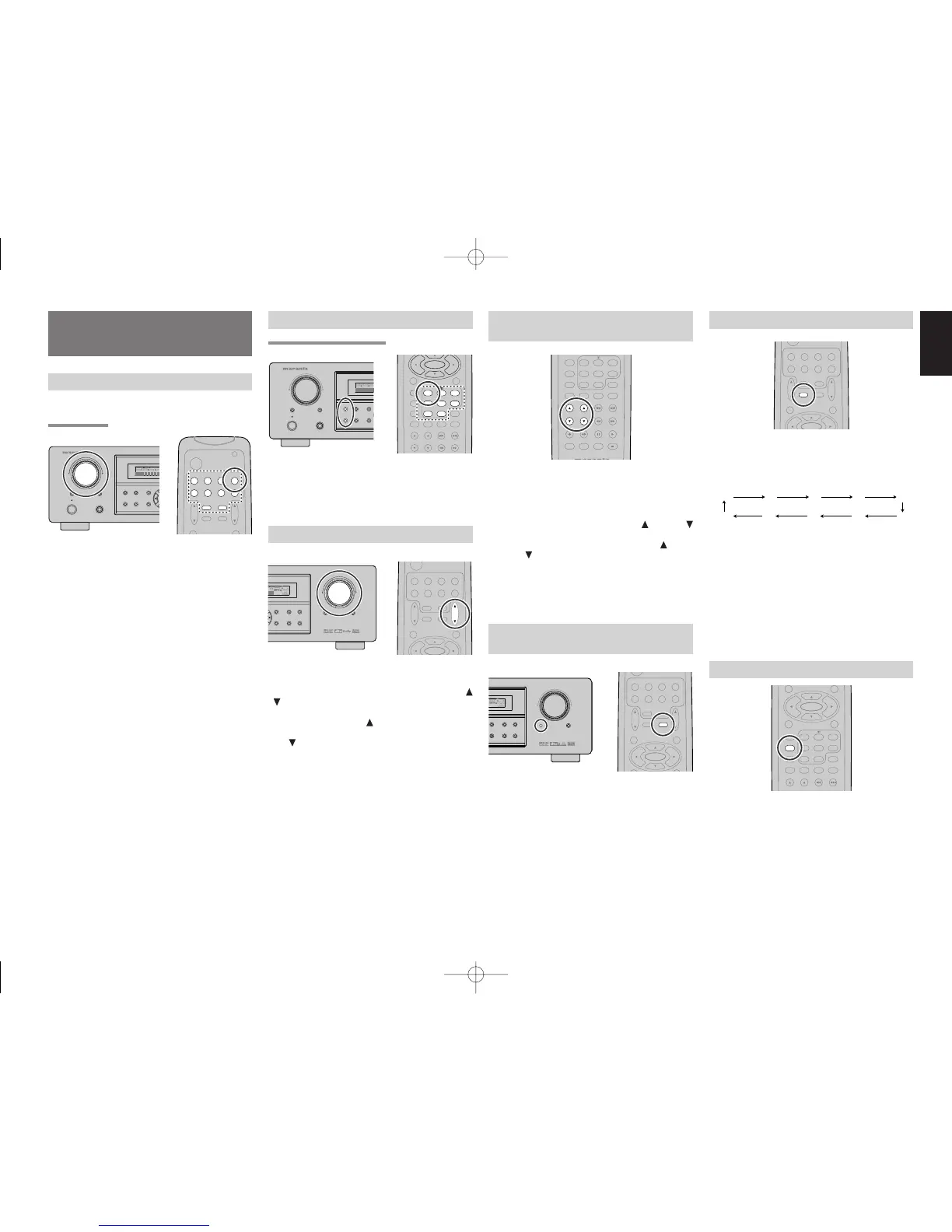
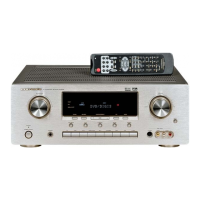
To select DVD, turn the INPUT FUNCTION
SELECTOR knob on the front panel or simply
press the DVD button on the remote.
After you have selected DVD, simply turn on the
DVD player and play the DVD.
•
The input name will appear in the display on the
front panel.
•
As the input is changed, the SR4500 will
automatically switch to the digital input, surround
mode, attenuation, and night mode status which
were entered during the configuration process
for that source.
• When an audio source is selected, the last video
input used remains routed to the VCR1 & DSS/
VCR2 Outputs and Monitor Outputs. This
permits simultaneous viewing and listening to
different sources.
• When a Video source is selected, the video
signal for that input will be routed to the Monitor
Outputs jacks and will be viewable on a TV
monitor connected to the SR4500.
If a component video input is connected to the
DVD or DSS component inputs, it will be routed
to the Component Video Output. Make certain
that your TV is set to the proper input to view the
signal.
SELECTING THE SURROUND MODE
Example : AUTO SURROUND
To select the surround mode during playback, press
the SURROUND MODE button on the front panel or
the Surround mode buttons on the remote.
ADJUSTING THE MAIN VOLUME
Adjust the volume to a comfortable level using the
VOLUME control knob on the front panel or VOL
/ buttons on the remote.
To increase the volume, turn the VOLUME knob
clockwise or press VOL button on the remote, to
decrease the volume, turn counterclockwise or press
VOL button on the remote.
Notes:
•
The volume can be adjusted within the range of – ∞
to 18 dB, in steps of 1 dB.
•
However, when the channel level is set as described
on page 20, if the volume for any channel is set at
+1 dB or greater, the volume cannot be adjusted up
to 18 dB.
(In this case the maximum volume adjustment
range is “18 dB - Maximum value of channel level)
ADJUSTING THE TONE (BASS &
TREBLE) CONTROL
During a listening session you may wish to adjust
the Bass and Treble Control to suit your listening
tastes or room acoustics.
(Using the remote control unit)
To adjust the bass effect, press BASS or BASS
on the remote.
To adjust the treble effect, press TREBLE or
TREBLE on the remote.
Note:
• The tone control function can work in the AUTO
Surround, Stereo, Dolby PL
IIx
, DTS, DTS-ES,
and Multi Ch. Stereo mode.
TEMPORARILY TURNING OFF THE
SOUND
To temporarily silence all speaker outputs such as
when interrupted by a phone call, press the MUTE
button on the front panel or MUTE button on the
remote.
This will interrupt the output to all speakers and the
head-phone jack, but it will not affect any recording
or dubbing that may be in progress.
When the system is muted, the display will show
“MUTE” .
Press the MUTE button again to return to normal
operation.


 To Next Page