ENGLISH
28
7.1 CH INPUT
The SR4500 is equipped for future expansion
through the use of Multi channel SACD multichannel
player or DVD-Audio player.
When this is selected, the input signals connected
to the L(front left), R (front right), CENTER, SL
(surround left), SR (surround right) and SBL
(surround back left) and SBR (surround back right)
channels of the 7.1 CH. In jacks are output directly
to the front (left and right), center, surround (left
and right) and surround back speaker systems as
well as the pre-out jacks without passing through
the surround circuitry.
In addition, the signal input to the SW (subwoofer)
jack is output to the PRE OUT SW (subwoofer)
jack.
When 7.1 CH. INPUT is selected, the last video input
used remains routed to the Monitor Outputs.
This permits simultaneous viewing with video
sources
1.
Select a desired Video source to decide the
routed video signal to the Monitor Outputs .
2.
Press the 7.1 CH INPUT button on the front
panel or press 7.1 CH IN on the remote to
switch the 7.1 channel input.
Recording the video from one source and the
audio from another
You can add the sound from one source to the
video of another source to make your own video
recordings.
Below is an example of recording the sound from a
compact disc player connected to CD IN and the
video from a video camera connected to VCR1 to
video cassette recorder connected to the DSS/
VCR2 OUT jack.
1.
Switch the video output source to VCR1 by
simply pressing the input selector buttons on
the remote.
2.
Switch the audio input source to CD by simply
pressing the input selector buttons on the
remote.
3.
Now “CD” has been selected as the audio input
source and “VCR1” as the video input source.
Notes:
•
If you change the input source during recording,
you will record the signals from the newly selected
input source.
• You cannot record the surround effects.
• Digital input signals are only output to the digital
outputs. There is no conversion from digital to
analog .
When connecting CD players and other digital
components, do not connect only the digital
terminals, but the analog ones as well.
HT-EQ
Press the HT-EQ button on the front panel to turn on
the HT-EQ mode.
The tonal balance of a film soundtrack will be
excessively bright and harsh when played back over
audio equipment in the home. This is because film
soundtracks were designed to be played back in
large movie theater environments.
Activating the HT-EQ feature when watching a film
made for movie theaters corrects this and restores
the correct tonal balance.
The HT-EQ feature can be activated only while in
Dolby Pro Logic Mode, or while decoding Dolby
Digital or DTS encoded material.
RECORDING AN ANALOG SOURCE
In normal operation, the audio or video source
selected for listening through the SR4500 is sent to
the record outputs.
This means that any program you are watching or
listening to may be recorded simply by placing
machines connected to the outputs for TAPE OUT,
CD-R/MD OUT, VCR1 OUT, and DSS/VCR2 OUT
in the record mode.
To record the input source signal you are currently
watching or listening to
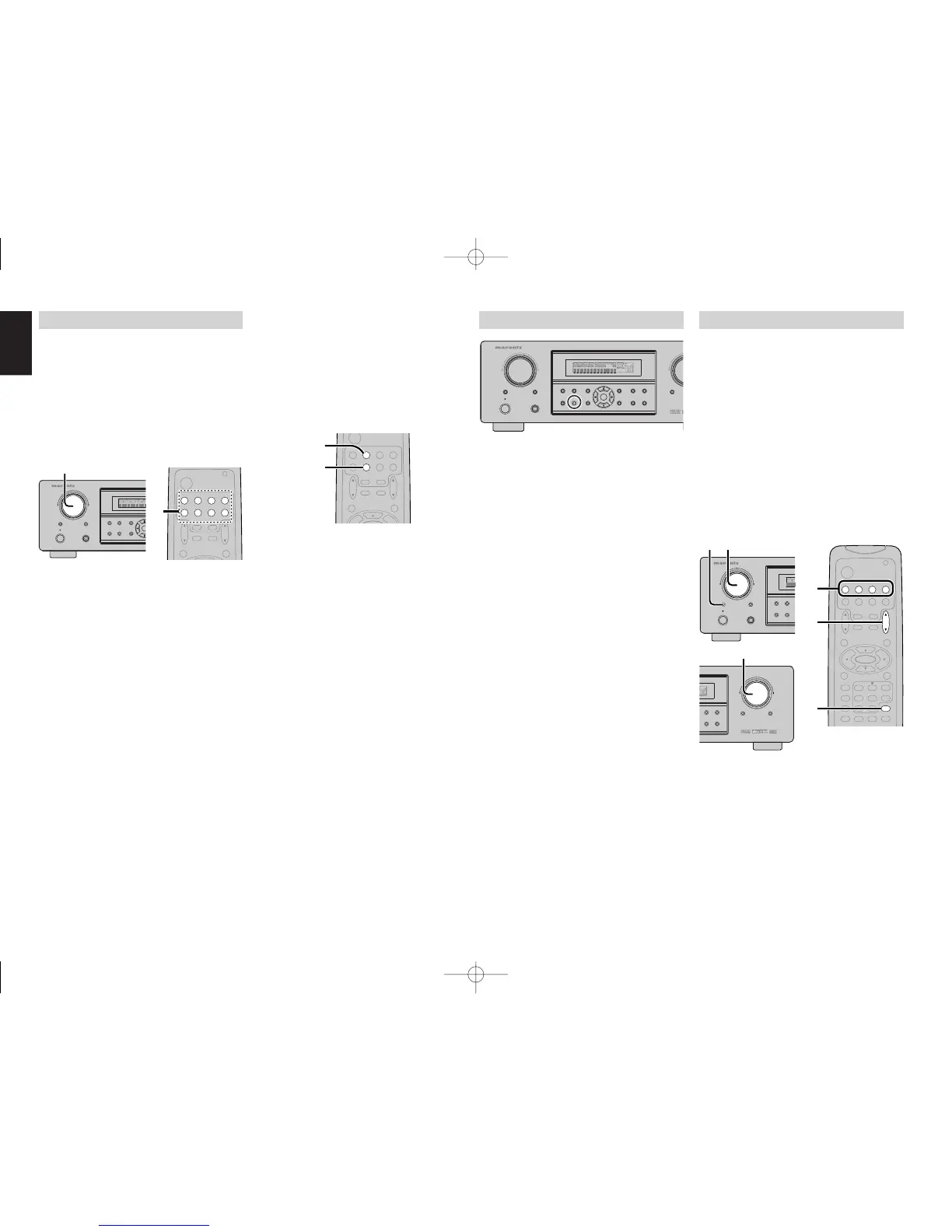
1.
Select the input source to record by turning
the INPUT FUNCTION SELECTOR knob on
the front panel or simply press the input
selector buttons on the remote.
The input source is now selected and you may
watch or listen to it as desired.
2.
The currently selected input source signal is
output to the TAPE OUT, CD-R/MD OUT,
VCR1 OUT, and DSS/VCR2 OUT outputs for
recording.
3.
Start recording to the recording component as
desired.


 To Next Page