54
ENGLISH DEUTSCH FRANÇAIS ITALIANO ESPAÑOL NEDERLANDS SVENSKA
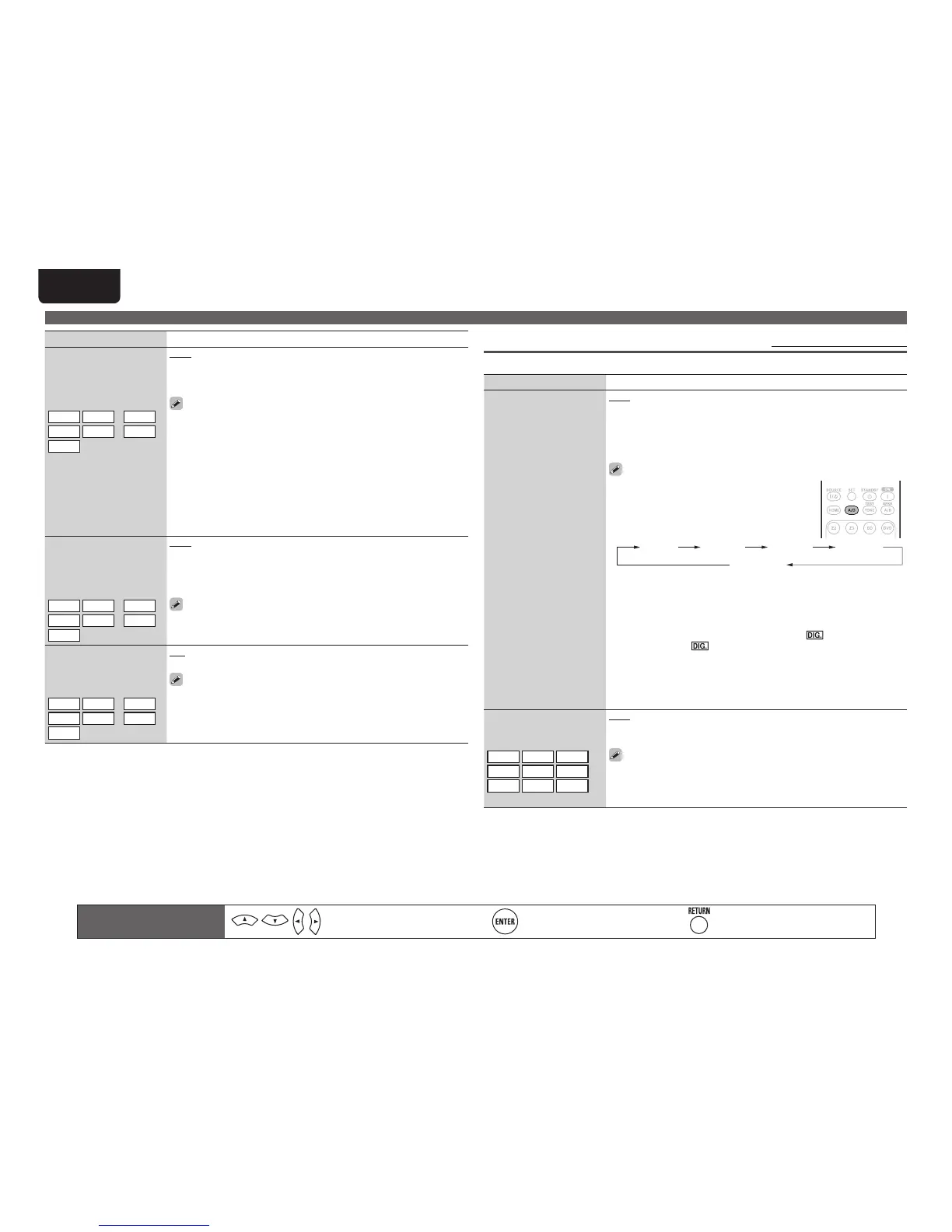
Input Setup
Setting items Setting details
Resolution
Set the output resolution.
Resolution (Analog) :
Analog Video
Resolution (HDMI) : HDMI
BD
DVD
VCR
SAT
GAME
z
AUX1
TV
z
Auto : The number of pixels the TV connected to the HDMI output
connector supports is detected automatically and the appropriate output
resolution is set.
480p / 576p / 1080i / 720p / 1080p / 1080p:24Hz : Set the output resolution.
• This item can be set when “i/p Scaler” is set to anything other than
“OFF”.
• When “i/p Scaler” is set to ”Analog & HDMI”, the resolution of both the
analog video input signal and HDMI input signal can be set.
• To watch 1080p/24Hz pictures, use a TV that supports 1080p/24Hz video
signals.
• When set to “1080p/24Hz”, you can enjoy film-like pictures for film
sources (in 24 Hz). For video sources and mixed sources, we recommend
setting the resolution to “1080p”.
• It is not possible to convert a 50 Hz signal into 1080p/24Hz. It is output
at a resolution of 1080p/50Hz.
Progressive Mode
Set an appropriate
progressive conversion
mode for the source video
signal.
BD
DVD
VCR
SAT
GAME
z
AUX1
TV
z
Auto : The video signal is automatically detected and the appropriate
mode is set.
Video1 : Select mode suitable for video playback
Video2 : Select mode suitable for video and 30-frame film material
playback.
This item can be set when “i/p Scaler” is set to anything other than
“OFF”.
Aspect
Set the aspect ratio for the
video signals output to the
HDMI.
BD
DVD
VCR
SAT
GAME
z
AUX1
TV
z
Full : Output at 16:9 aspect ratio.
Normal : Output at 4:3 aspect ratio.
“Aspect” can be set when “i/p Scaler” is set to anything other than
“OFF”.
z “GAME” or “TV” can be set when “HDMI” (vpage52) or “Component” (vpage53) has been
assigned.
Input Mode Default settings are underlined.
The input modes available for selection may vary depending on the input source.
Setting items Setting details
Input Mode
Set the audio input modes
for the different input
sources.
Auto : Automatically detect input signal and perform playback.
HDMI : Play only signals from HDMI input.
Digital : Play only signals from digital input.
Analog : Play only signals from analog input.
7.1CH IN : Only signals input from the 7.1CH INPUT terminal will be
played back.
• This can also be set by pressing A/D on the
remote control unit.
• Each time A/D is pressed, the setting is changed
as shown below.
7.1CH IN
• “HDMI” can be set for input sources for which “HDMI” is assigned at
“Input Assign” (vpage52).
• “Digital” can be set for input sources for which “Digital” is assigned at
“Input Assign” (vpage52).
• If the input source is set to “TV” or “Game”, it cannot be set to “Analog”.
• When digital signals are properly input, the indicator lights on
the display. If the indicator does not light, check the digital input
connector assignment and the connections.
• The surround mode cannot be set if the input mode is set to “7.1CH IN”.
• If “HDMI Control” is set to “ON” and a TV compatible with the ARC is
connected via the HDMI OUT connectors, the input mode whose input
source is “TV” is fixed to ARC.
Decode Mode
Set the decode mode for
input source.
BD
DVD
VCR
SAT
GAME
AUX1
TV
CD
AUX2
Auto : Detect type of digital input signal and decode and play automatically.
PCM : Decode and play only PCM input signals.
DTS : Decode and play only DTS input signals.
• This item can be set for input sources for which “HDMI” or “Digital” is
assigned at “Input Assign” (vpage52).
• Normally set this mode to “Auto”. Set “PCM” and “DTS” when
inputting the corresponding input signal.
Remote control operation
buttons
Move the cursor
(Up/Down/Left/Right)
Confirm the setting Return to previous menu



 To Next Page