•
Now with the and button, you select the menu-item program and then push the OK
button
•
With the and button, select a new or existing program block (1 to 20) and then push
the OK button.
•
Now with the and button, you select Day and then push the OK button
•
Now with the and button, you change to the desired days and then push the OK
button again.
(12345, 1234567, 1, 2, 3, 4, 5, 6, 7, 67, 2345 or off).
1=Monday, 2=Tuesday, 3=Wednesday, ……, 6=Saturday, 7=Sunday
•
Now with the and button, you select the switch time program and then push the OK
button
•
now with the and button you change the hours and minutes from the start and end
times, in that order. Conrm each entry with the OK button after which the display goes
automatically to the following entry. After you conrm the last entry you automatically go
back to the menu-item clock program
•
Now with the and button, you select switch to and then push the OK button.
•
Now with the and button you change the desired mode of operation (DAY,
NIGHT, ECO) and then push the OK button.
Repeat the above to input a new clock program or another change.
When you are nished with changing the clock program:
•
You push the ESC button to go back to the user menu again.
5.4 User menu: change/set exception day
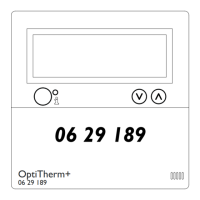
Exception days can be used to allow the OptiTherm+ to switch to another mode of operation
on a certain date. After the exception day has passed then it automatically disappears from the
program and it is again available for the entry of a new one. You have 20 program blocks available
for input.
To program or to change an exception day:
•
With the and button, you select the menu-item exception day and then push the OK
button


 To Next Page
 Loading...