back to main screen
•
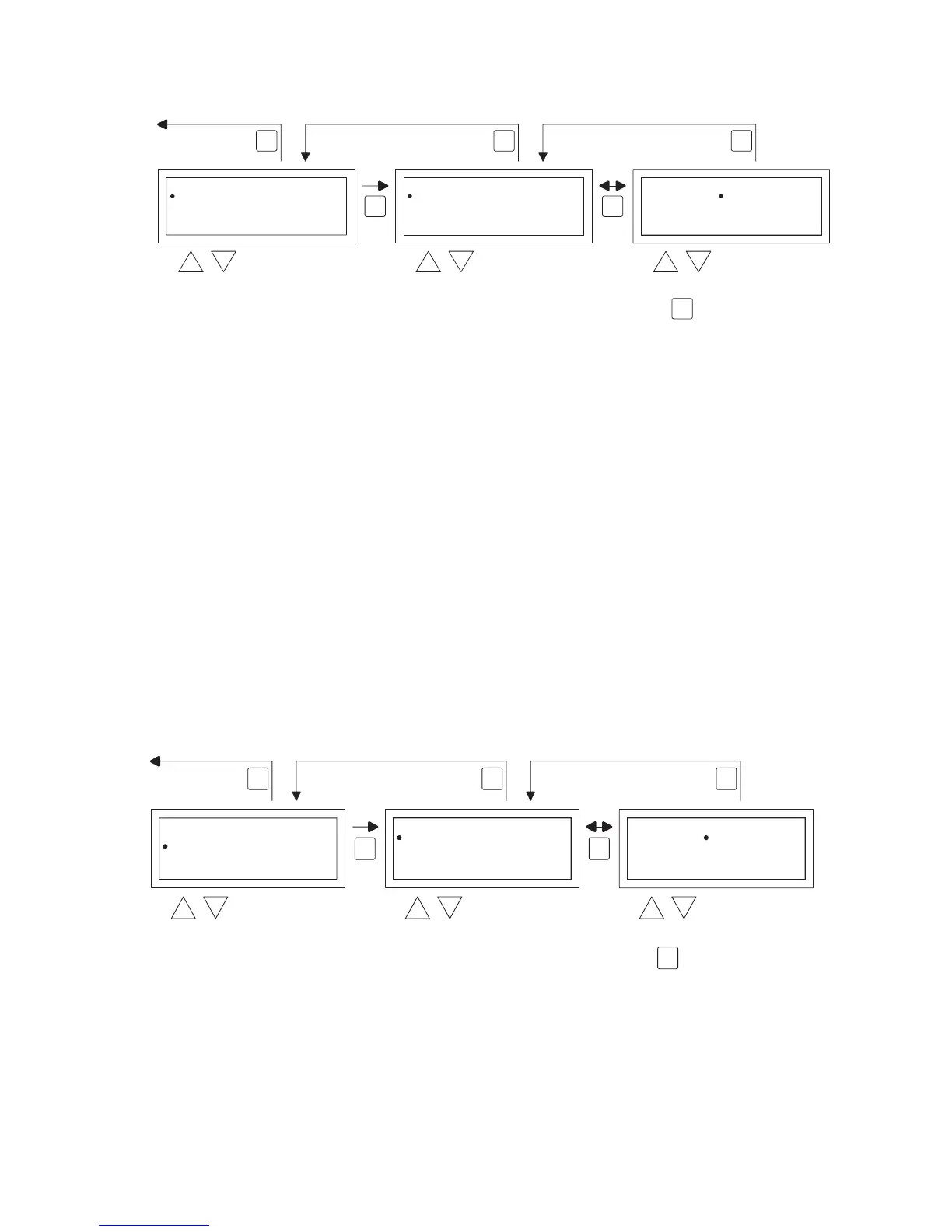
With the and button, select the menu-item Date/time in the menu settings and then
push the OK button.
•
Now select the date by pushing the OK button.
•
Change the date with the and button and conrm each input with the OK button
after which the display automatically goes to the next entry. After you have changed the
year, the display will automatically go back to the Date.
•
Now with the and button, select Time
•
Now with the and button, select Time and then push the OK button. With the and
button change the hours and minutes and conrm each entry with the OK button, after
which the display automatically goes to the next entry. After you conrm the last entry you
automatically go back to the Time.
•
When you have nished the changes and these are conrmed with the OK button, you push
the ESC button to go back to the settings menu.
•
Now select another item to change or to go back to the user menu by pushing the ESC
button. Push the ESC button again to go back to the main display.
5.7 Settings menu: Change overtime timer settings
To change the overtime timer settings you follow the image below:
OK OK
ESC ESCESC
select select modify
Settings
2x
OK
Overtime setting
Select Temperature sensor
Calibrate
Date/Time
ECO fan function
•
With the and button, select the menu-item Overtime timer in the menu settings and
then push the OK button.
•
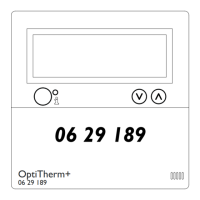
Now the maximum time duration of the overtime timer and to which mode of operation
the OptiTherm+ must be switched, can be changed using the overtime timer.
•
s elect the maximum setting time and then push the OK button.
•
With the and button, change the maximum time (minimum increasing or decreasing is
15 minutes). And then push the OK button.


 To Next Page
 Loading...