T: +44 (0)1443 230935 F: +44 (0)1443 231531 E: enquiries@markes.com
www.markes.com
3. Software
UNITY software will run on most 32-bit versions of Windows® and 64-bit versions of Windows 7, however,
use of currently supported versions of Windows is strongly recommended. In general, a PC with sufficient
resources to run 32-bit Windows should have enough performance to control UNITY.
Other Windows software may be active on the PC at the same time as UNITY 2 software, for example data
handling software, word processing and spreadsheet functions.
3.1 Running the software
First ensure UNITY 2 is switched on then start the software as described in the UNITY 2 Installation
Manual.
If communications between the PC and UNITY 2 are established successfully the software will open.
UNITY 2 then begins to operate using the active controlling method, see Section 2.3.4. The controlling
method will contain default parameters when UNITY 2 software is first downloaded.
If for some reason, communication is not established, an ‘Instrument not Detected’ box appears with a
number of options.
Cycle Power and retry?
Run simulation?
Select options?
Exit?
Choose Select options. This will take you to the Ports tab of Options under the View menu (see Section
2.4.4.). Ensure that the correct PC comms port is selected. Change the default comms port if necessary by
clicking on the down arrow and then clicking on the correct comms port in the list. Close down UNITY 2
software, switch the power to UNITY 2 off, wait ten seconds and then switch UNITY 2 back on again. Re-
access the UNITY 2 program on the PC as described above.
3.2 Status bar
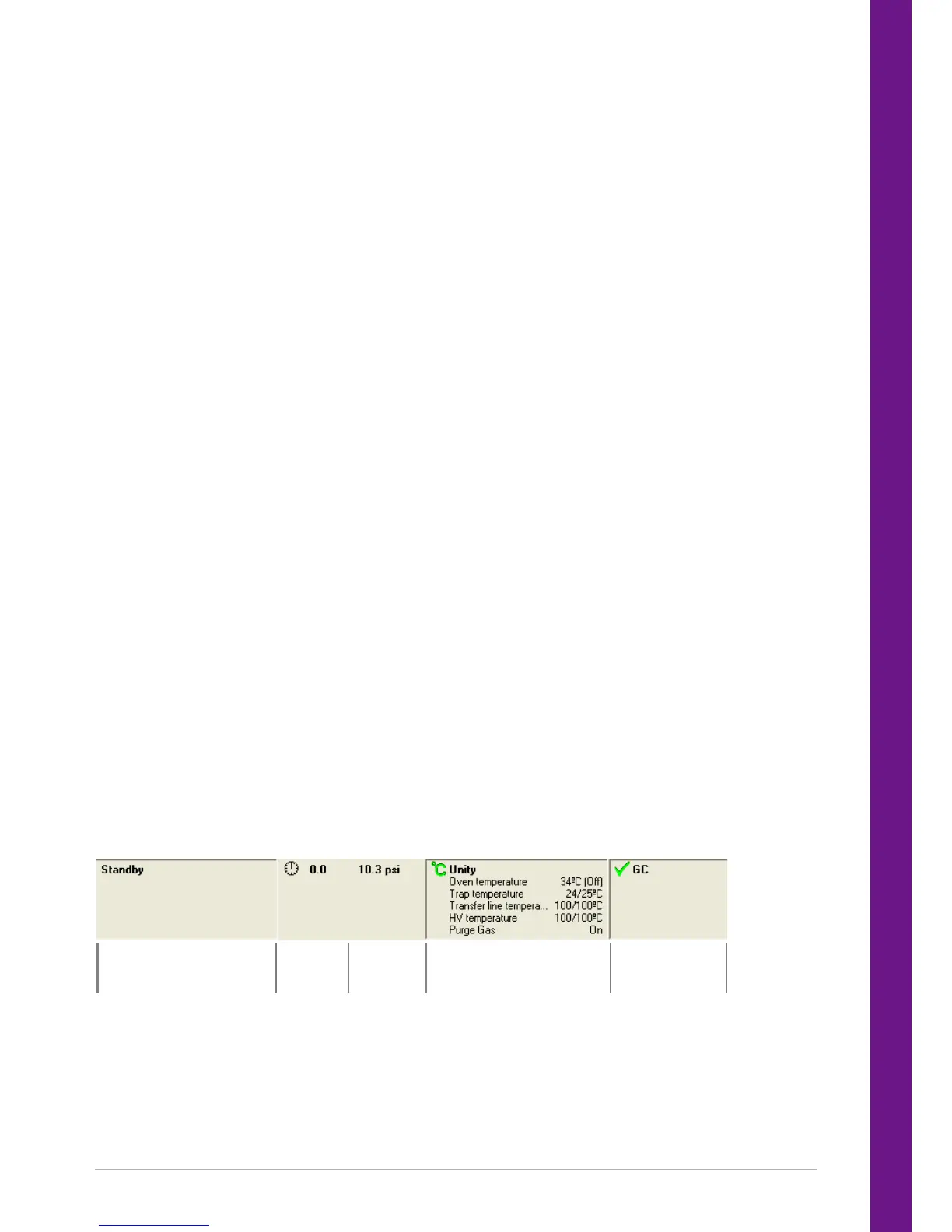
The UNITY 2 status bar displays all key UNITY 2 parameters and is always visible and on top of the
desktop while the software is open, whether maximised or minimised.
Status
Elapsed
Time
Pressure


 To Next Page