Please make sure that the protective ground wire is securely connected. If it is not connected or is
loose, it may cause electric shock.
After connecting the device, short press the power button on the back for 1 second, the power
button lights up, and the device enters the power-on state. After waiting for a while, the device
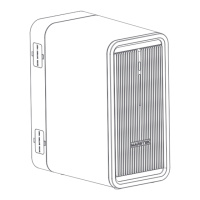
screen lights up and enters the home page display. If the fault sign displayed on the home page of
the screen is white, it means that the device has started normally.
When the device leaves the factory, the default power generation mode is automatic mode. If you
need to switch to manual mode, the user can switch the power generation mode by clicking the
switch button on the home page of the screen.
For more information about power generation mode, please refer to Section 2.5.
Automatic mode: When the CT connection indicator light is green, the device can automatically adjust
the grid-connected output power, and the user does not need to make additional settings.(For CT
connection instructions, please refer to the CT instruction manual).
Manual mode: In manual mode, the user needs to click the button on the right to set the grid-
connected power. After the setting is completed, the device will output grid-connected power
according to the date and time period set by the user.
Device startup
WIFI Configuration
After the device is started, click the WIFI button on the home page of the screen to enter the
WIFI configuration page. At this time, the device will automatically search for nearby WIFI
hotspot information, select the WIFI hotspot you need to connect to, and enter the correct
password. After waiting for a while, the device will complete the WIFI connection. After the
WIFI is successfully connected, the WIFI button will display green.
Power generation mode setting
3.5 Installation And Debugging
13


 To Next Page