4 Installing the Software and Configuring the Printer
The USB stick that comes with the printer contains the following:
•
Windows Vista, Win7, Win8, Win8.1 (32 and 64 bit), Win10 printer driver for USB, Ethernet LAN and
Wireless connections (if supported by the purchased model)
•
PDF User Guide
•
Driver Installer (XPS DRIVER)
4.1 Connecting the Printer to the Computer and Installing the Software
4.1.1 Printer connection through USB
1)
Download/ save a copy of MC320 driver installer software into your PC/Laptop.
2)
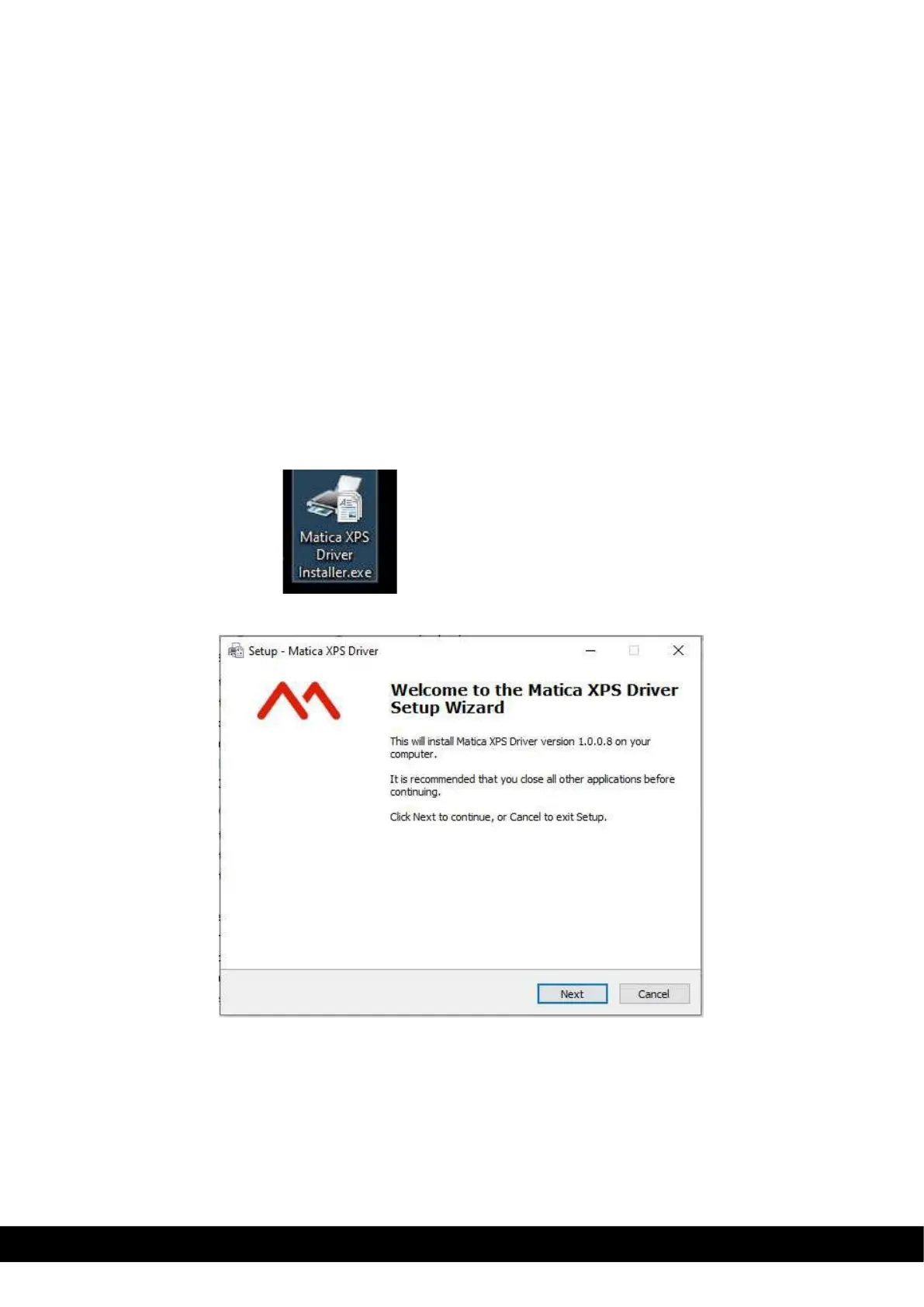
Double click on the Matica XPS Driver installer.exe application to setup the Wizard.
3)
Set up wizard displayed. Click ´Next´ button.


 To Next Page