23
Status page
Status page
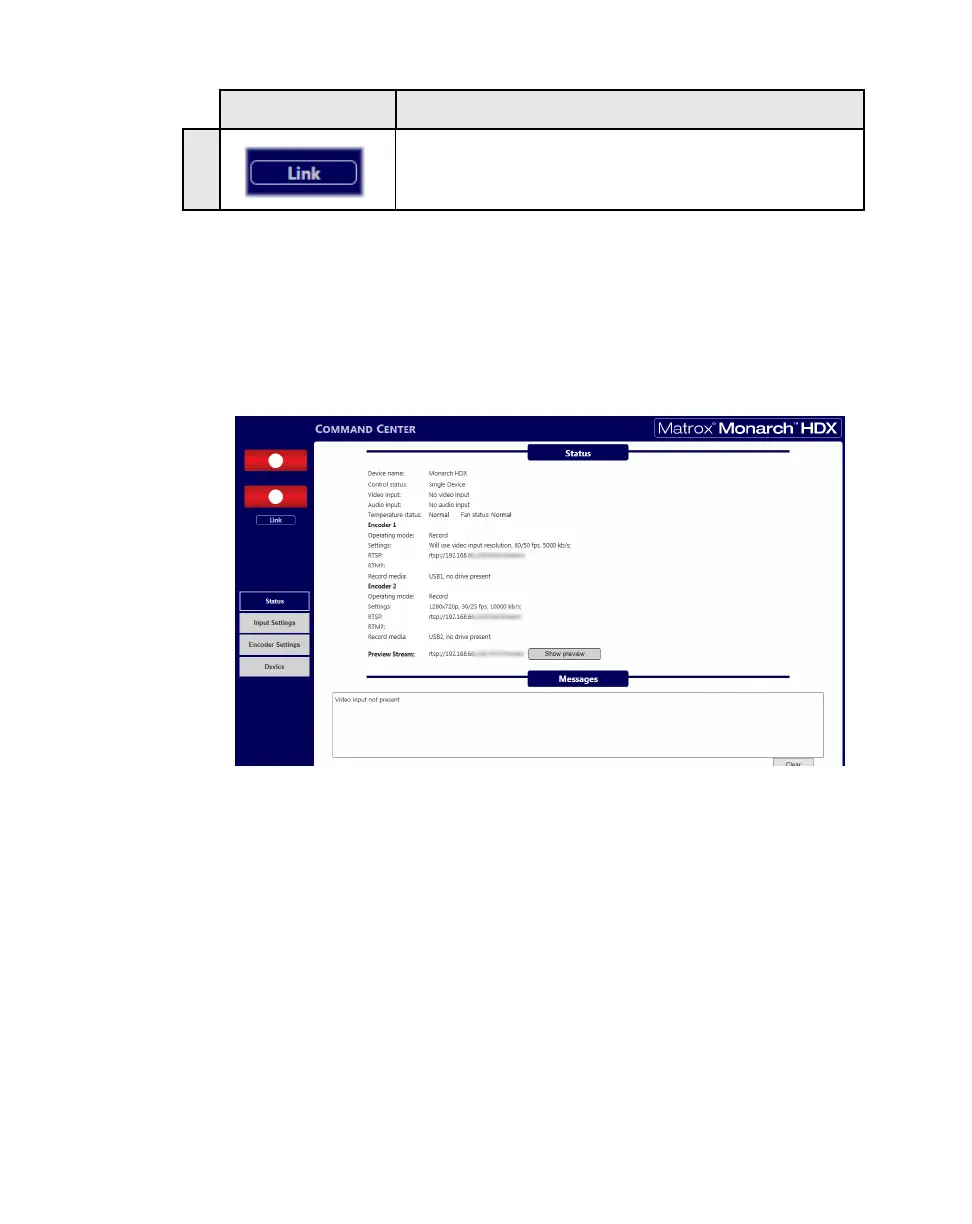
The Status page in the Command Center provides a summary of the Monarch
HDX status and settings, as well as any logged errors. You can view this page
without logging in.
To access the
Status page, open the Monarch HDX Command Center (see
“Accessing the Command Center” on page 19), and then click
Status.
Previewing the input
Click Show preview to display a real-time preview of what you are streaming
or recording. The preview is independent of your primary encoding channels.
¡ Important QuickTime 7 must be installed on the connected computer for
preview to work (see Apple.com or Microsoft.com for download).
The
Show preview button launches or hides the viewing window. What you see
and hear in the viewing window depends on your input source. When in
RTSP
mode, the preview stream can be accessed by a third party device using the RTSP
address on the
Status page.
¦NoteThe Show preview option is enabled by default, but you can disable it
from the
Control tab on the Device page.
This button links both encoder buttons. Operating as a
single button, pressing it starts or stops the sessions
(streaming or recording) of active encoders (one or both).
Button Function



 To Next Page