48
Appendix B, Sharing a Mac OS X folder using NFS protocol
Introduction
To record to a shared folder that is on a Mac OS X Yosemite system on the
network (see “Destination settings (record)” on page 34), the folder must be
shared using the Network File System (NFS) file-sharing protocol as explained
below.
¦NoteTo share a folder using the NFS protocol, the full path to the folder that
you want to share is required. You can obtain the full path to the folder by
right-clicking the folder, and then clicking
Get Info.
Folder sharing with a Mac OS X Yosemite
system
1 On the computer that contains the folder that you want to share, make sure
that you're logged in as an administrator and that your user account has a
password. User accounts that do not have a password cannot be used to share
a file using the NFS protocol.
2 In the Finder menu, choose File > New Finder Window.
3 In the Applications folder, click the Utilities folder, and then click
Te r mi na l.
4 In the Te r mi n a l window, type the following command, where “Path” is the
full path to the folder that you want to share:
echo /Path -mapall=$(logname)| sudo tee /etc/exports
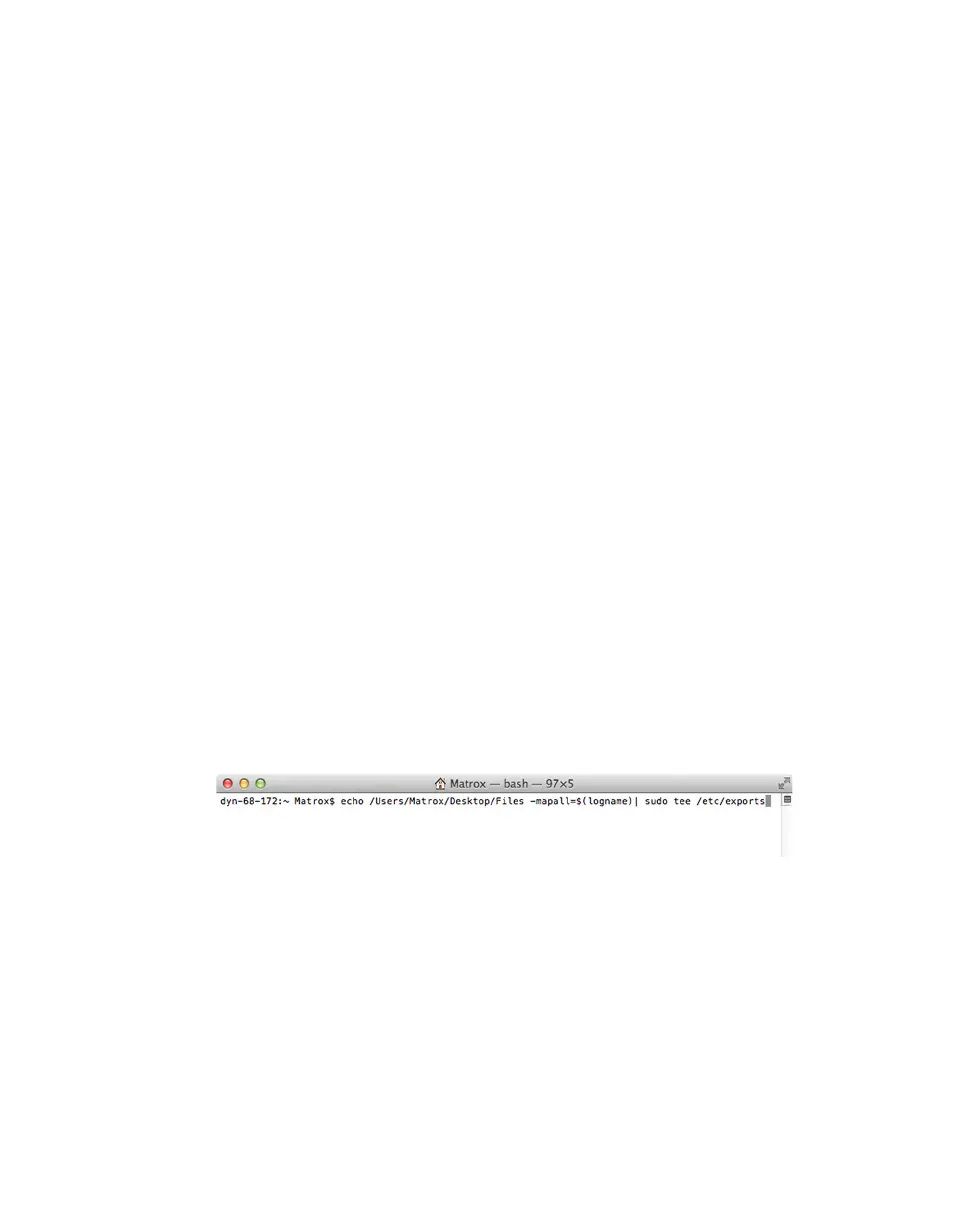
For example, to share a folder named Files that is located on the Desktop
under Matrox in the Users root directory folder, type the following
command:
echo /Users/Matrox/Desktop/Files -mapall=$(logname)| sudo tee
/etc/exports
For added security, you can restrict write access to the folder to one device
by adding the IP address of the Monarch HDX that you want to use to write
to the folder. For example, if the IP address of the Monarch HDX device is
169.254.1.11, type the following command:
echo /Users/Matrox/Desktop/Files 169.254.1.11 -mapall=$(logname)| sudo
tee /etc/exports
5 Press ENTER.
6 Type your user account password, and then press ENTER.
7 Type the following command:



 To Next Page