26
Chapter 4, Using the Command Center
¡ Important To save changes made on the Input Settings page, you must click
the
Apply button. If you leave the Input Settings page before applying the
settings, all changes will be lost.
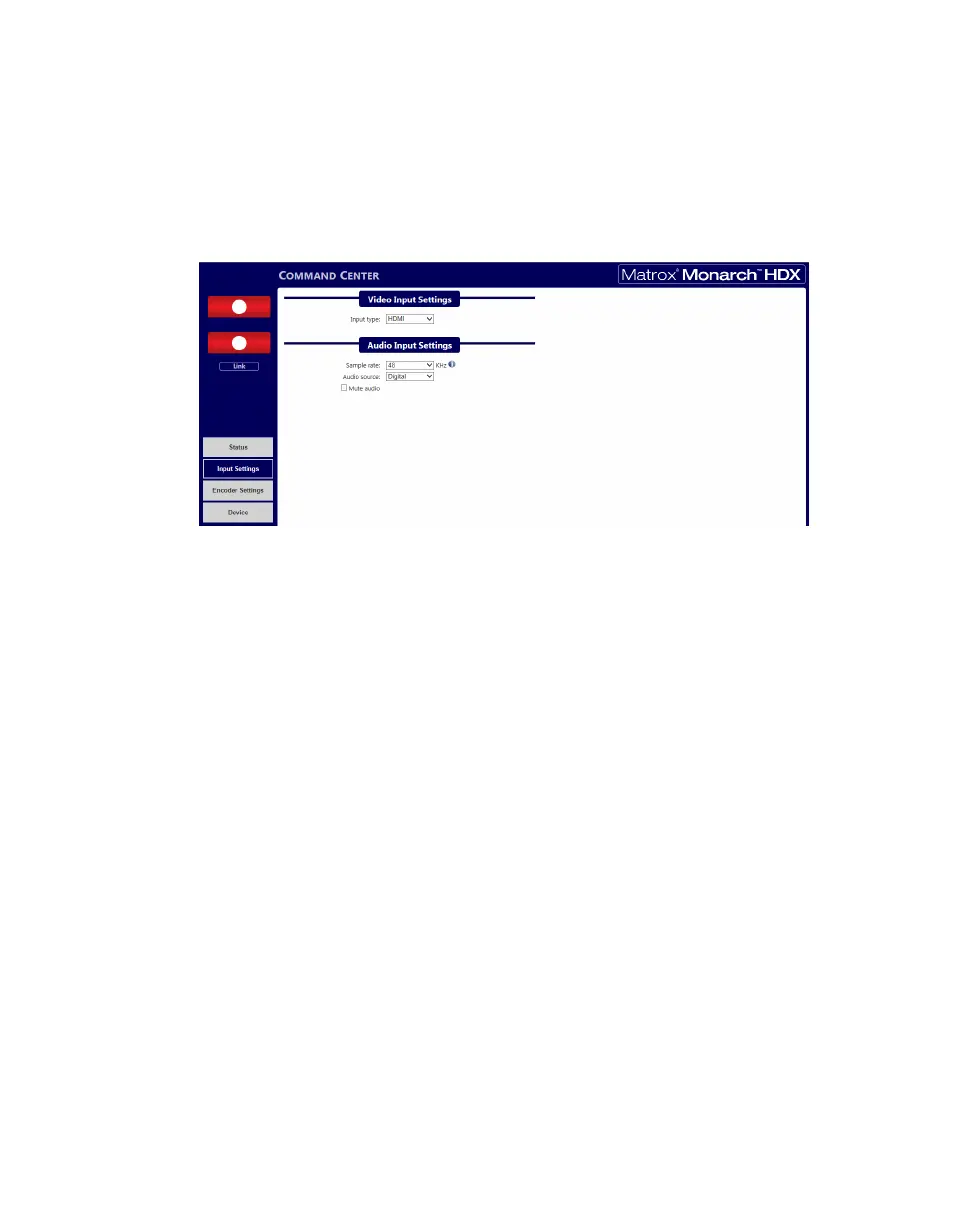
To access the video and audio settings, open the Monarch HDX Command
Center (see “Accessing the Command Center” on page 19), and then choose
Input Settings.
Video Input Settings
Monarch HDX has two selectable video input settings in the Input Type
drop-down list on the
Input Settings page: HDMI and SDI. Inputs for both
formats are on the back of the device, and only one can be the source for
streaming and recording at a time. You can switch between inputs from the
Command Center or by using the control button; however, only after a streaming
or recording session has been stopped. If you attempt to switch the inputs while
encoding, the encoder will stop, and will have to be restarted to encode from the
new input.
Audio Input Settings
On the Input Settings page, you can set the audio sample rate, the source for
your audio source, and even choose to mute the audio.
Audio Source
You can select either
Analog or Digital (embedded) as the audio input source to
be used for streaming/recording.
Remarks
• Monarch HDX supports two audio channels for streaming and recording,
and whether you are using an SDI or HDMI source, only the first two
channels are selected by the device for encoding (see “Video/audio inputs
and outputs” on page 9).



 To Next Page