38
Chapter 4, Using the Command Center
in the Command Center instead of the encoder buttons located on a Monarch
HDX device, which control the streaming and recording for that device only.
You can control multiple Monarch HDX devices from any of the devices on the
network. When enabling the control of multiple devices in a device’s Command
Center, that device becomes the primary device and the devices being controlled
become secondary devices. The control buttons in the Command Center of the
primary device can then be used to control the other devices on the network. You
can have more than one primary device on the network, with each primary device
controlling its secondary devices. For example, if you have three Monarch HDX
devices on the network, you can set device one to control devices two and three,
and you can also set device two to control devices one and three.
°To enable multi-device control:
1 In the Command Center, click Device >Control.
2 Select Enable multiple Monarch HDX device control.
3 For each Monarch HDX device that you want to control, enter the network
IP address of the device. Click Scan after entering the IP address to verify
if the device can be found on the network.
Activate or deactivate the control for a Monarch HDX device by selecting or
clearing the device’s
Active box.
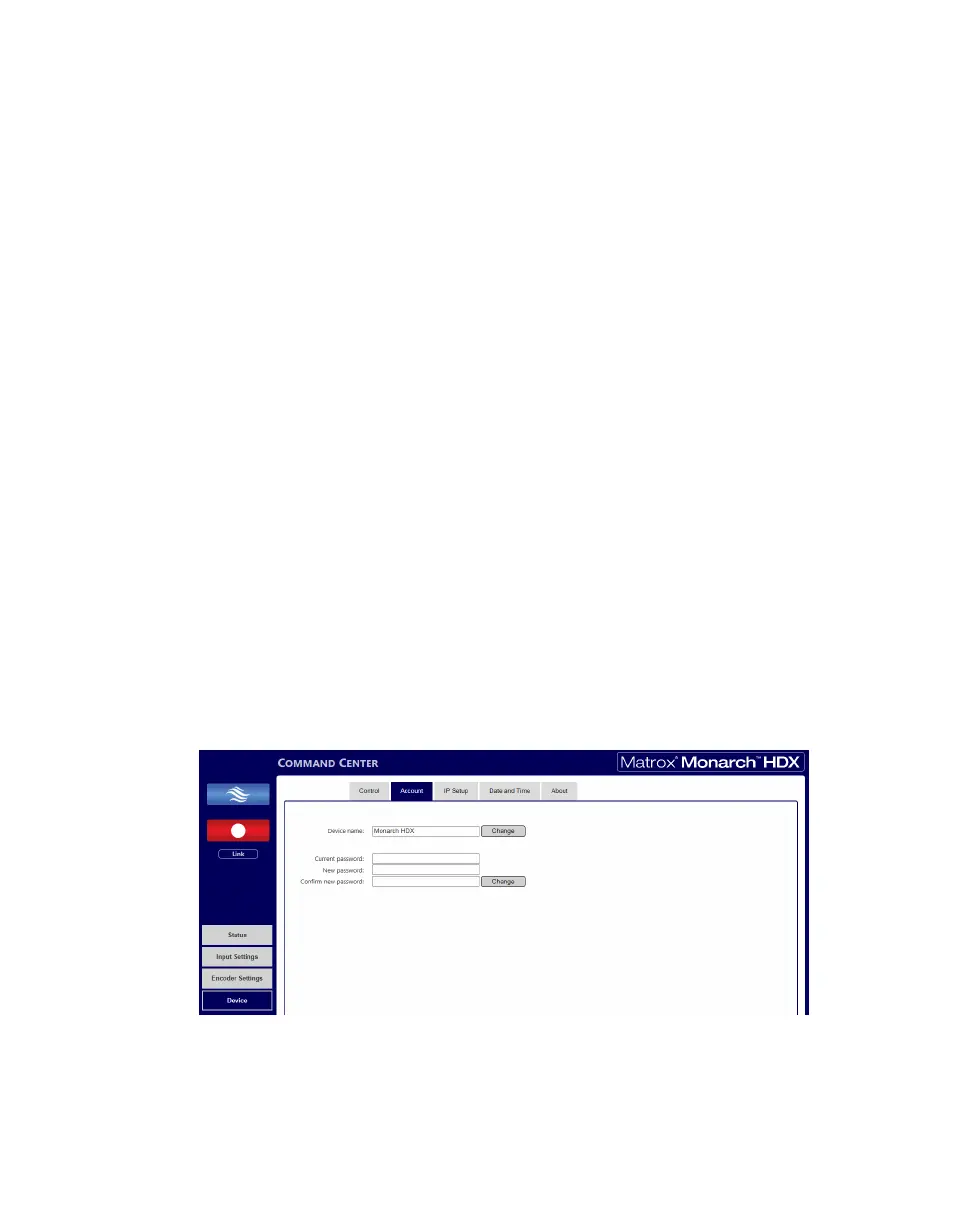
Account tab
The Account tab in the Command Center is where you give a descriptive name
to your Monarch HDX device and change your Monarch HDX password.To
access the
Account tab, open the Monarch HDX Command Center, and then
choose
Device > Account.



 To Next Page