Maxim Integrated Page 27 of 42
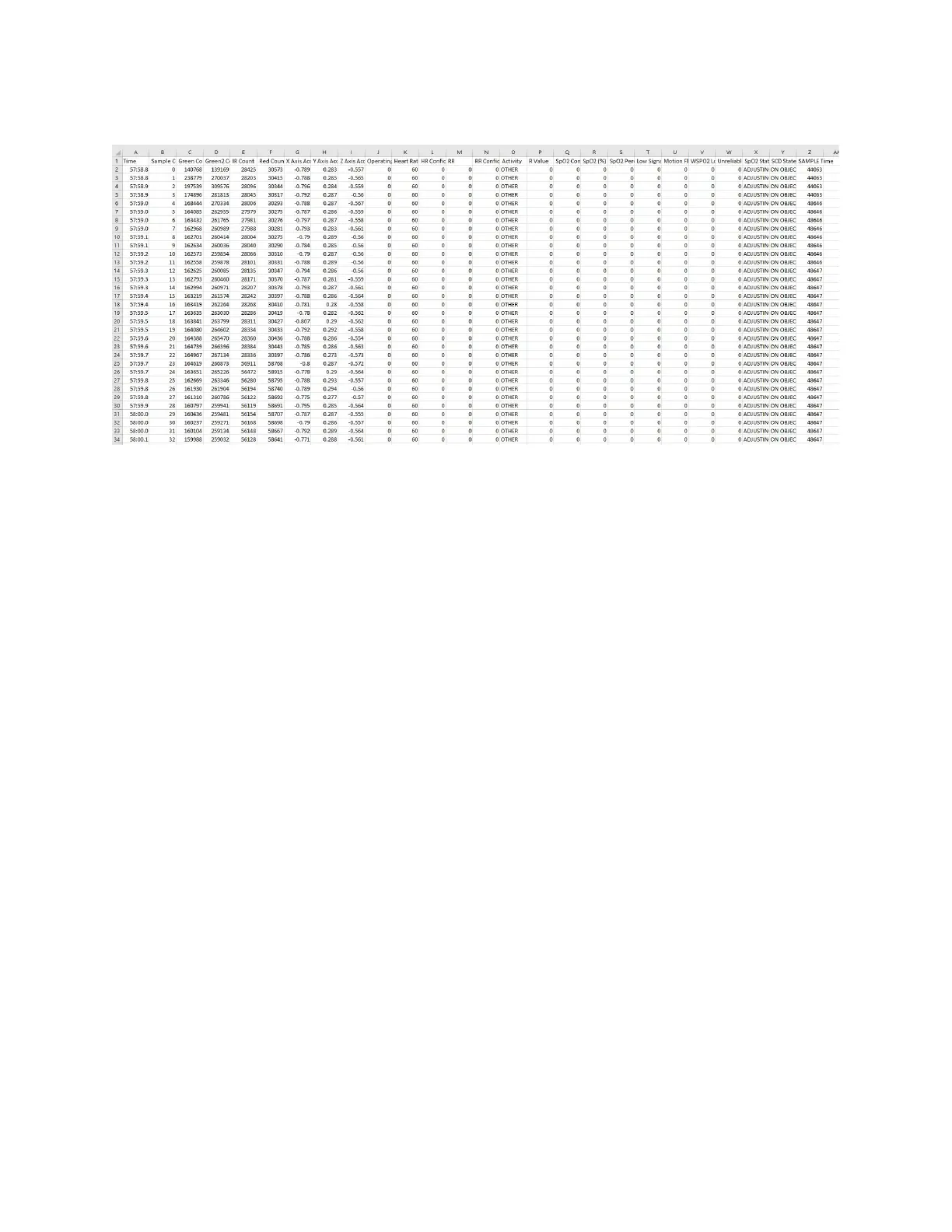
Figure 29. Example log file PPG_.csv.
Flash Logging of Data
To log PPG data to on-board flash memory, perform the following steps.
To start flash logging from the PC GUI:
1. Set up PPG measurement on the PC GUI as instructed in the Using the PC GUI section
and ensure that the Watch Flash box is checked and the Log to File box is unchecked.
2. Click Start Monitoring. Data is not streamed to the GUI or app while flash logging is
enabled.
3. At this point, you can disconnect the USB Type-C cable or Bluetooth LE connection to log
data while untethered.
To start flash logging from the health band:
1. Press and release Button F.
To start flash logging from the Android app:
1. Click on the three vertical dots near the top right and select the Log to Flash box.
If the MAXREFDES103# is still tethered to the PC device, flash logging can be stopped by
pressing the Stop button in the GUI or app. Alternatively, Button F may be pressed and released
to stop flash logging.
Downloading the Log File
After flash logging is complete, download and parse the log file using the following steps:
1. Ensure that the USB Type-C cable is not connected, and power off the MAXREFDES103#
by holding the power button down for 15 seconds.


 To Next Page