Maxim Integrated Page 28 of 42
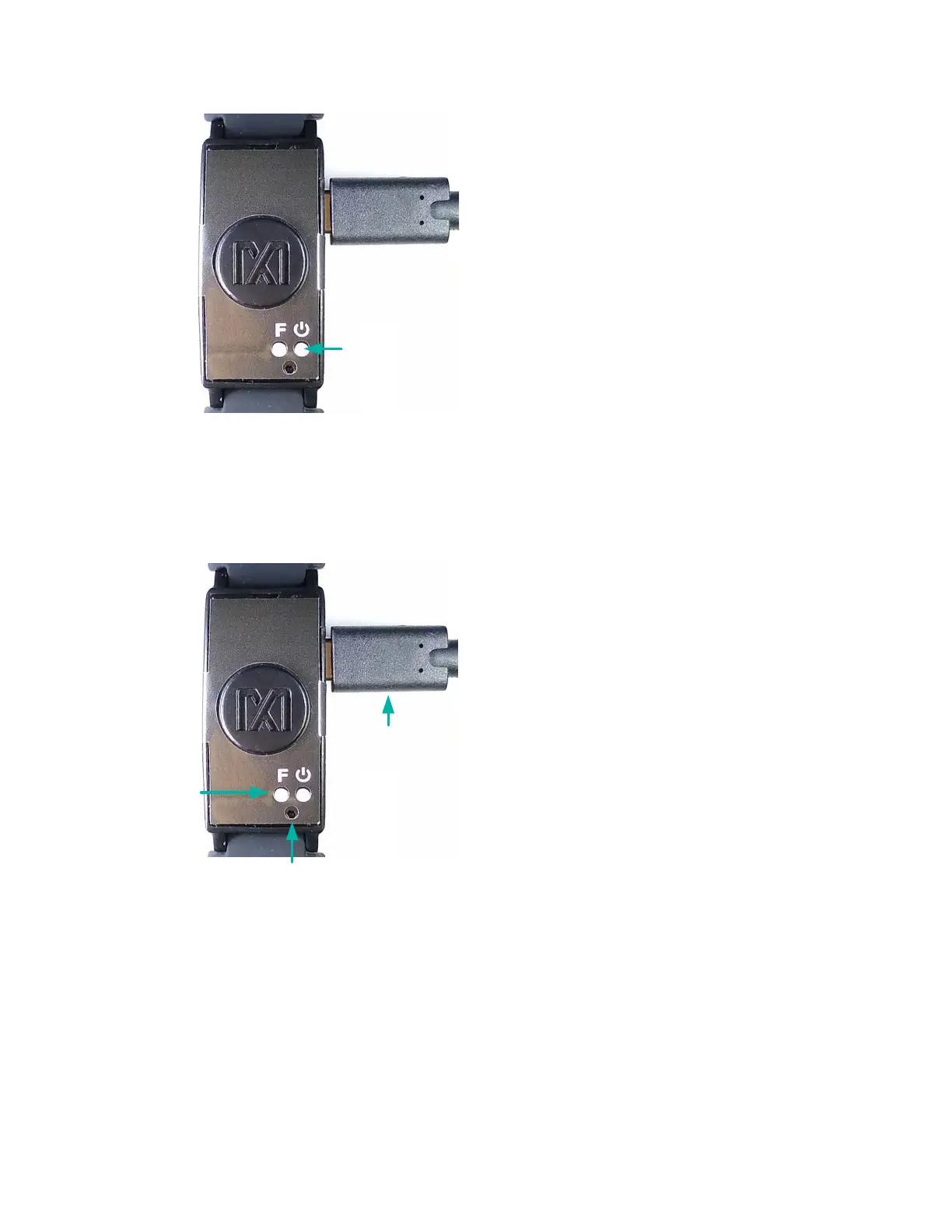
Figure 30. Power button on the MAXREFDES103#.
After the MAXREFDES103# is powered down, hold Button F on the MAXREFDES103#
and insert the USB Type-C cable (or the MAXDAP Pico Adapter board with a USB
Micro-B cable, as pictured in Figure 31) into the USB Type-C connector of the
MAXREFDES103#. Continue holding Button F until the status LED is slowly flashing
white.
Figure 31. MSD connection to PC using USB Type-C cable.
2. If done correctly, the MAXREFDES103# boots into mass storage device mode. When in
mass storage device mode, the MAXREFDES103# will not be able to connect to the PC
GUI or Android app.
3. The device appears in Windows Explorer as a USB drive, and you can copy-paste files
from the device.
4. Copy the “.maximlog” file to your PC hard drive.
Note: The log files are in raw binary format and need to be parsed to convert them to a
readable .csv format.


 To Next Page