MBIT Technologies
*
www.mbit.com.au 42
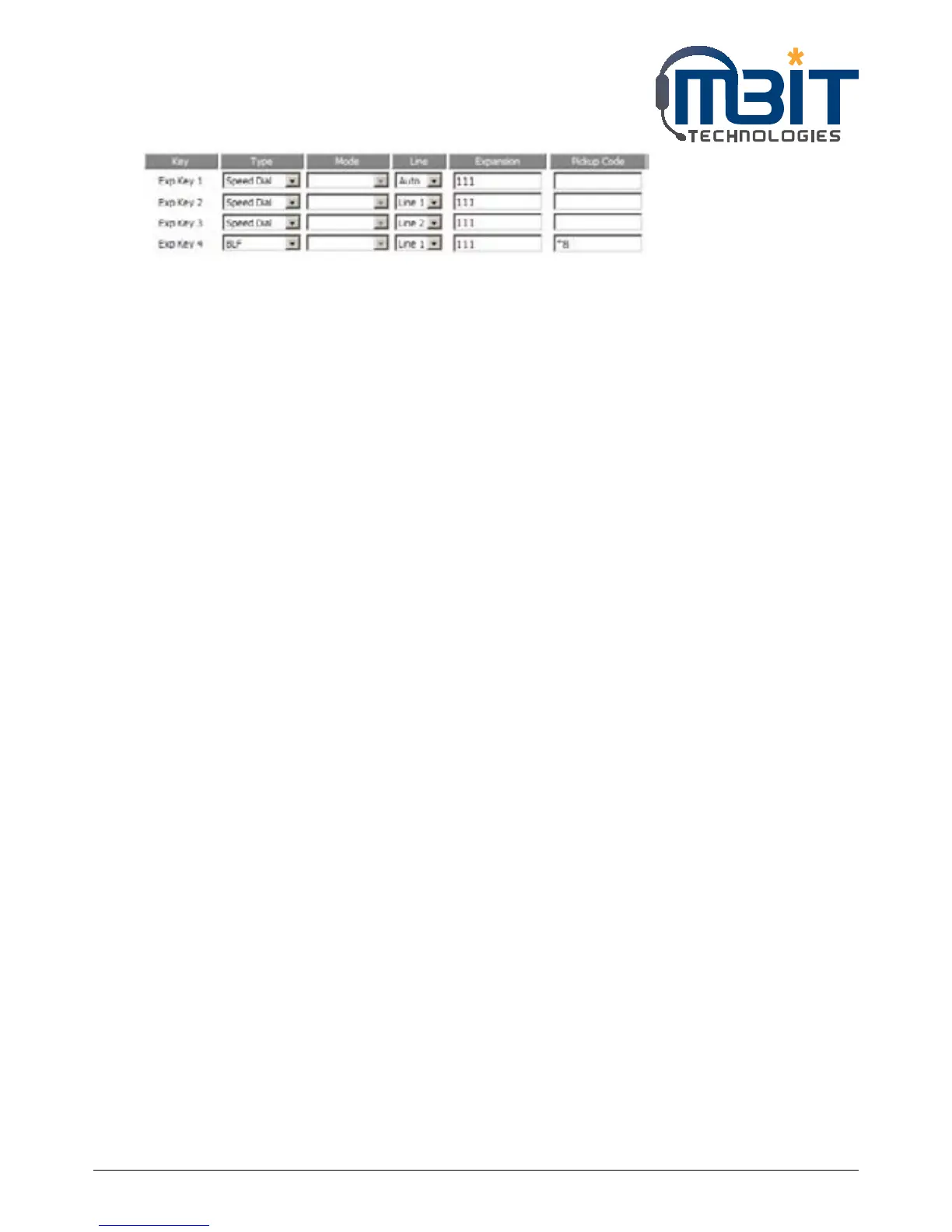
Adding speed dial:
Step 1: Choose one Exp Key to configuration
Step 2: Select the speed dial from the drop down list
Step 3: Choose the Line from auto (the first line registered), line1, line2
Step 4: Fill the phone number in Expansion
Step 5: Press the Save button to save changes and you can see the status of corresponding LED is solid
green.
Step 6: Press the Reboot button to make changes effective.
If set properly, press the corresponding key to make call immediately, and the status of LED is solid red.
Adding BLF:
Step 1: Choose one Exp Key to configuration
Step 2: Select the BLF from the drop down list
Step 3: Choose the Line from line1, line2.
Step 4: Fill the monitored phone number in Expansion
Step 5: Fill the pickup code in Pickup Code if user wants to pickup the call when there is a new call
coming in monitored phone.
Step 6: Press the Save button to save changes.
Step 7: Press the Reboot button to make changes effective.
Adding shortcut key:
Step 1: Choose one Exp Key to configuration
Step 2: Select the shortcut key from the drop down list
Step 3: Select the mode from the phonebook, call history, text message, volume+, volume- and login/
logout in the drop down list.
Step 4: Press the Save to save changes and you can see the status of corresponding LED is solid green.
Step 5: Press the Reboot button to make changes effective.
If set properly, press the corresponding button to access to phonebook, call history, text message,
volume+, volume- and login/logout menu directly.
Adding Call Pickup:
Step 1: Choose one Exp Key to configuration
Step 2: Select the call pickup from the drop down list
Step 3: Choose the Line from line1, line2.
Step 4: Fill the phone number in Expansion


 To Next Page