Chapter 4 Operation
- 24 -
5. WLAN: 2.4GHz, conforms to 802.11 b/g/n.
4.3.2.2 Software Installation Instructions
Insert the flash drive, which is provided with the device and supports the OTG function, into the
Micro USB port of the Tablet PC, open the file manager, select the installation package
“Medascan.apk” on the flash drive folder, select "install", start the installation of software, select
“continue to install” when there is a prompt of right until the software installation is completed.
When the installation is completed, the icon of for "Medascan" application displays on the
Tablet PC.
4.3.3 Main Interface
After the Tablet PC is started, click of "Medascan" application icon to start the application
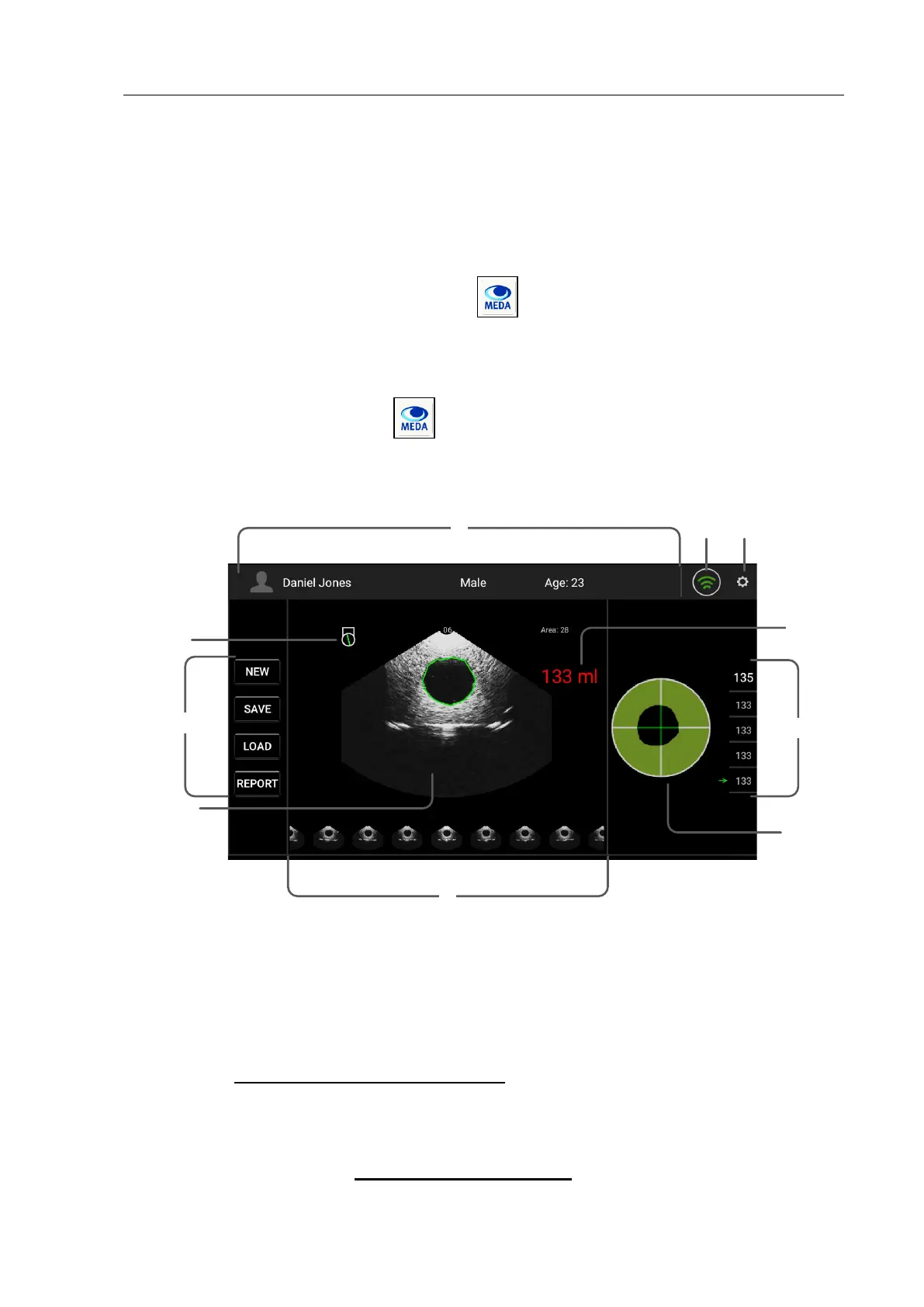
procedure. The Main Interface of the Tablet PC software displays on the screen, as shown in Fig.
4.20.
Fig. 4.20 Main Interface of the Tablet PC Software
4.3.3.1 Description of the Display Area
① Patient Information Display
After you input patient information, this area displays the patient information, including Name, Sex
and Age. See §4.3.5 Patient Informaiton Interface for details.
② Wi-Fi Status
This area displays the status of Wi-Fi, if Wi-Fi is connected successfully, the icon is green, and if
not, it is gray and flashes. See §4.3.4 Main Unit Connection for details.


 To Next Page