MVR Lite-UG01-EN-200324-OB
<15>
MVR Lite User Guide - English
Pausing a Video Recording
To use Pause you have to enable the function in Settings.
➤ Settings ➤ Video/Audio ➤ Recording Options
The Pause icon will appear in the live screen after Pause is enabled.
To pause a video, tap on the Pause icon on the touchscreen. To continue video recording, tap the Pause icon again.
Alternative operation:
To pause a video while it is recording:
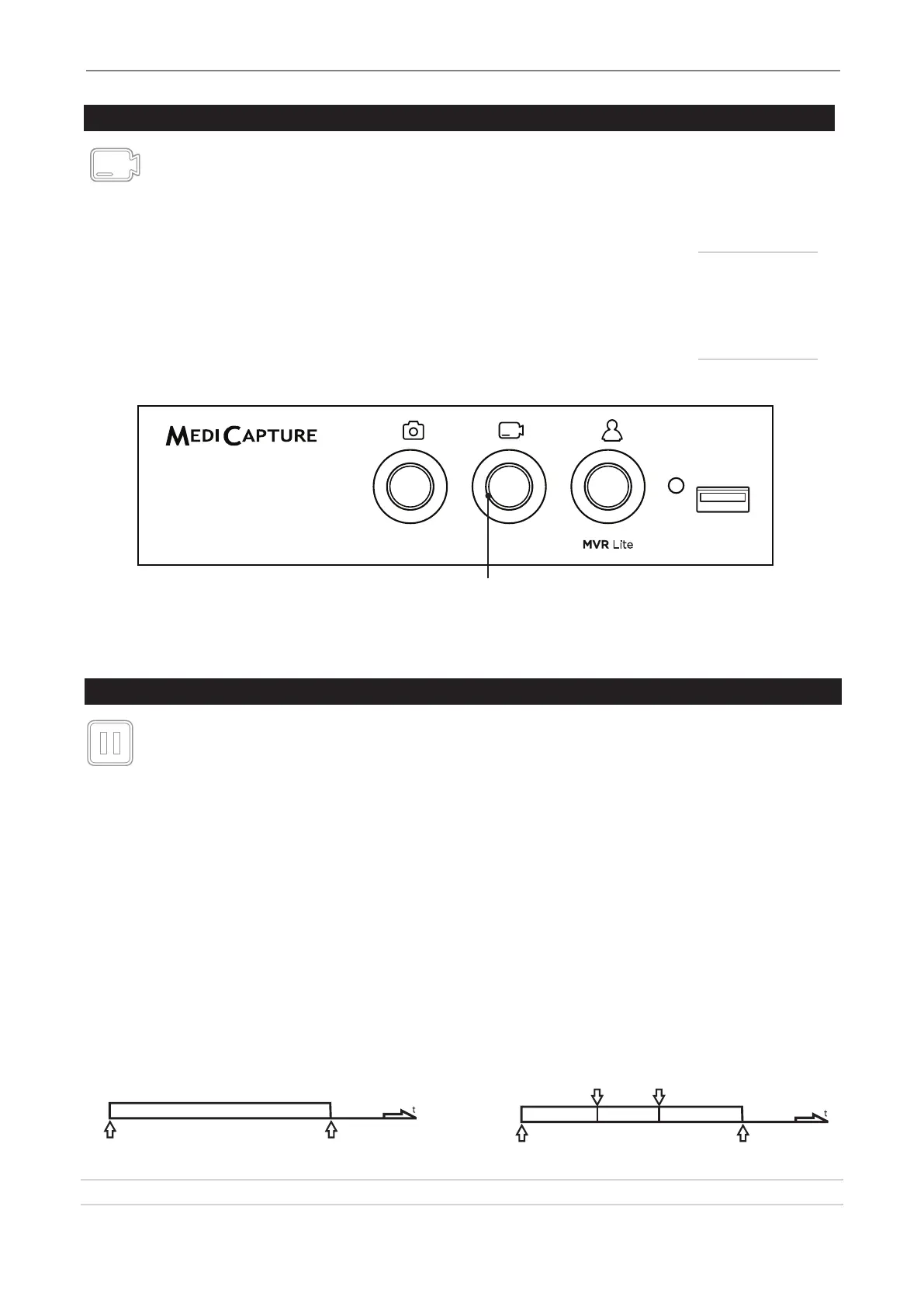
• press the Record Video button on the front panel for 3 seconds.
• You can also use the OK button of the Remote Control.
• [USB keyboard: Holding key “F2” for 3 seconds or “Enter” has the same function.]
The Light Ring ashes in a very fast sequence when the video recording in paused.
To continue the video recording:
• press the Record Video button or OK button of the Remote Control again.
• [USB keyboard: Pressing “F2” or “Enter” has the same function.]
The Pause function is used to create only one video le with content of different sections. It can be used multiple times during
one video recording to eliminate “unwanted” parts. When reviewing a video le that was paused, you can see tags in the
timeline. These tags are helpful to identify the different sections of the video.
Video Start Video Stop
Pause Pause
Part 1 Part 2 Part 3
Video Start Video Stop
More information about tags in chapter: Reviewing Videos on MVR Lite.
Recording Videos
To start recording video, tap on the Record Video icon on the touchscreen. Tap icon again to stop recording.
Front panel: Press the Record Video button on the front panel. Press the button again to stop recording.
[USB keyboard: Function key “F2” has the same function.]
Recording tips:
• You can capture still images while video is being recorded. Simply tap/press the Capture
Photo button while a video recording is in progress. When reviewing a video le, you can
see tags in the timeline. These tags are helpful to identify when a picture was captured
during recording.
• Long recordings are automatically divided into les of 4GB each. This ensures that les are
kept to a manageable size. The process is “seamless.” When making a long recording, you
will not notice when a new le is automatically started. When playing back a long recording
using “continuous play” (a feature in most media players), there will be no gaps in playback.
Light Ring
Is illuminated green when the device is ready for
recording videos. Flashes green while recording.
More information
about tags
in chapter:
Reviewing Videos
on MVR Lite.


 To Next Page