MVR Lite-UG01-EN-200324-OB
<20>
MVR Lite User Guide - English
Reviewing Videos on MVR Lite
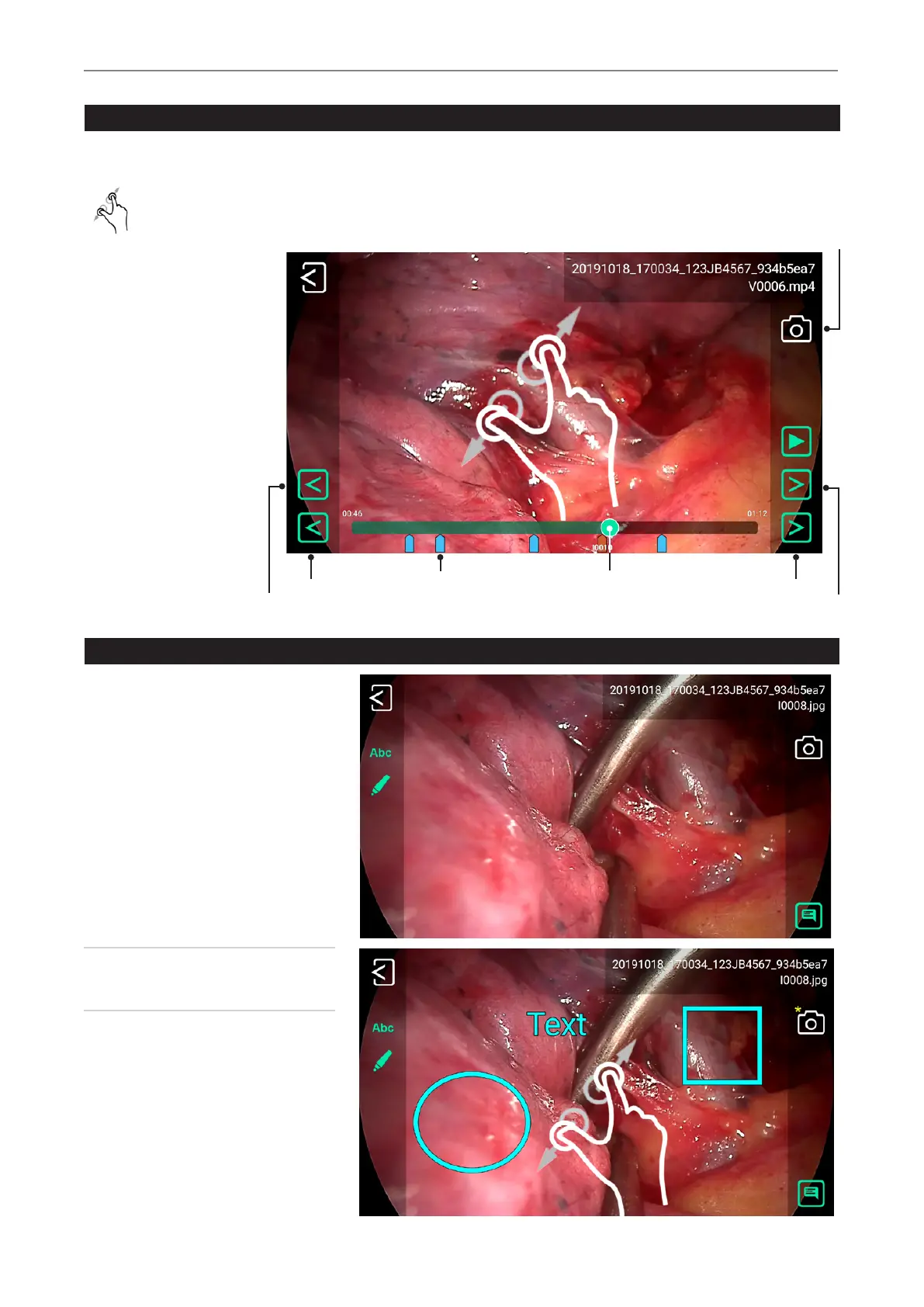
A selected video starts to play automatically. To pause the video, tap on the Pause icon. You can now use the timeline slider
to change position in the video or tab forward and backward frame by frame.
You can magnify the paused video by using two ngers.
If you want to take a snapshot of the paused video, tap on the Photo icon.
This captured image will be added to the patient study.
You may see tags in the video
timeline. Tags get created
every time:
One frame backward
One tag
backward
Tag Position in timeline
One tag
forward
One frame forward
Snapshot
• the video is paused during
recording
• an image is captured
during recording
• the video signal
lost synchronization for
less than 10 seconds
(most probably caused by
a damaged video cable)
You can jump between tags
by using the green forward/
backward icons.
Reviewing Still images on MVR Lite
A selected image can be edited in many
ways and stored afterwards as a new image
to the study.
Options are:
• Magnication / cropping
• Adding text notes
• Marking areas with circles, squares
or freehand drawings
• Adding notes to the image le which
will appear in reports
Note: To discover all options for editing,
please watch our demonstration videos at
medicapture.com


 To Next Page