MVR Lite-UG01-EN-200324-OB
<18>
MVR Lite User Guide - English
Recording to Network Storage*
Recording to network storage is the best option for long-term storage. Images and Videos are recorded in real-time and in standard
formats to this external mass-storage.
Please ask your IT-Administrator to setup the settings for network storage.
1. Create a physical LAN connection to your Network server by using the USB-LAN adapter for the rear of MVR Lite.
Plug the adapter into a USB port.
2. For wired LAN connection: Choose IP settings Auto-IP setup or Manual IP setup.
➤ Settings ➤ Advanced ➤ Connections ➤ Network
3. Properties for the Network storage server.
➤ Settings ➤ Advanced ➤ Connections ➤ Network storage*
4. Storage settings for Network storage (activation and resolution limits).
➤ Settings ➤ Archive ➤ Storage
Reviewing Studies on MVR Lite
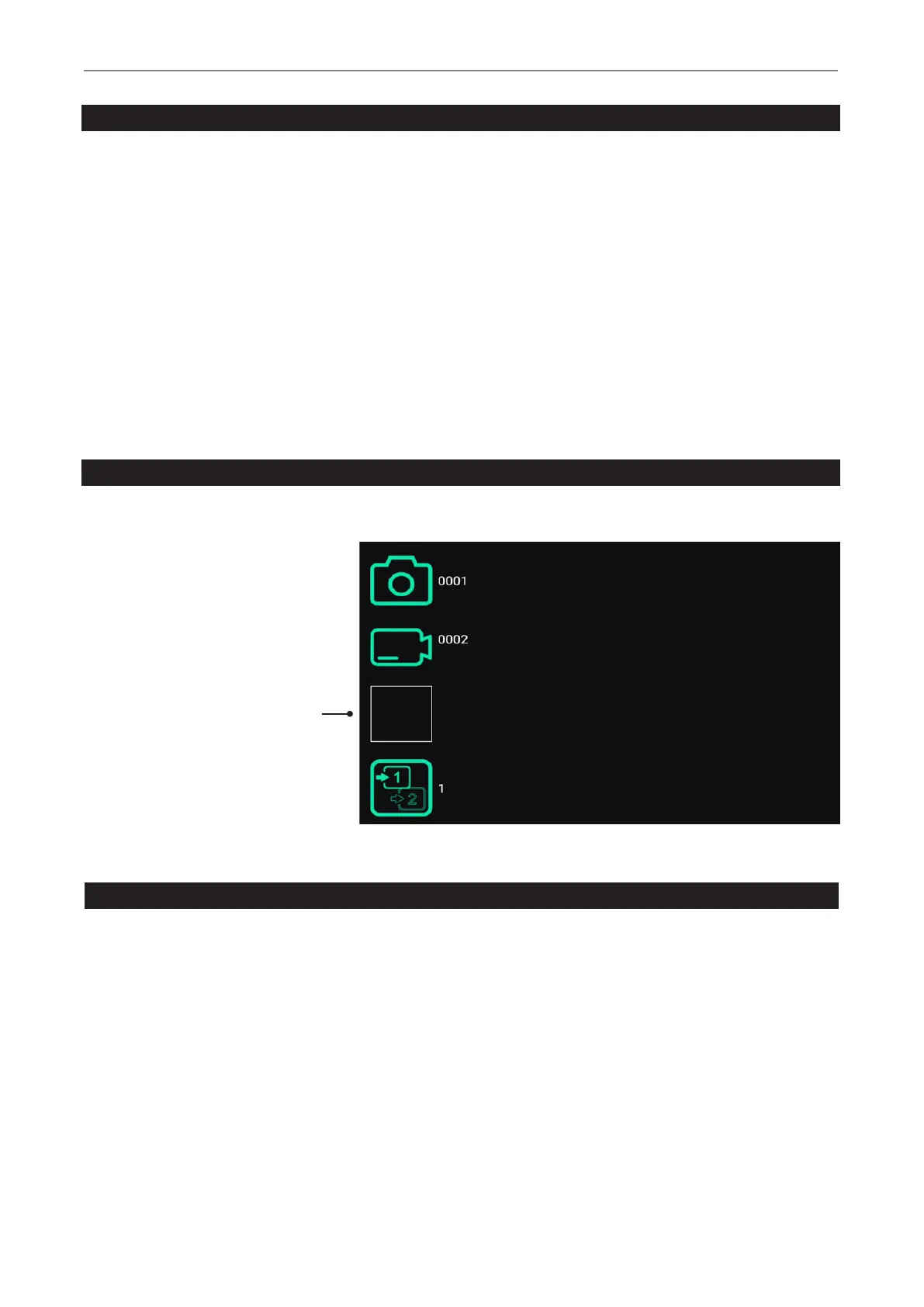
You can review your active study from the live recording screen. This is helpful to control your recordings before you nish this study.
Video recordings must be stopped before changing to Review.
• Tab on the Review icon to enter Review.
• [USB keyboard: Pressing “r” has the
same function.]
• Closing the Review screen brings
you back to your live recording screen.
Control Icon and
Review last study
Archive
The Archive offers intuitive features to browse your recorded studies. You can enter the Archive from the Start screen. Both enabled
options for Multi-Storage can be accessed in Archive. All enabled options need to be connected to MVR Lite.
Available features in Archive:
• Review images and playback videos
• Delete les
• Delete empty studies
• Take snapshots from paused videos. Paused videos can be moved frame by frame
• Edit images with annotations and store them as new image
• Magnify or crop images and store them as new image
• Copy complete studies, single images or single videos from Network to USB*
• Select images and print them on a report
• Send reports to a network printer* or store them as PDF le
*Note: Only available when Network is activated by activation key.
*Note: Only available when Network is activated by activation key.


 To Next Page