MVR Lite-UG01-EN-200324-OB
<21>
MVR Lite User Guide - English
Creating and Printing Reports
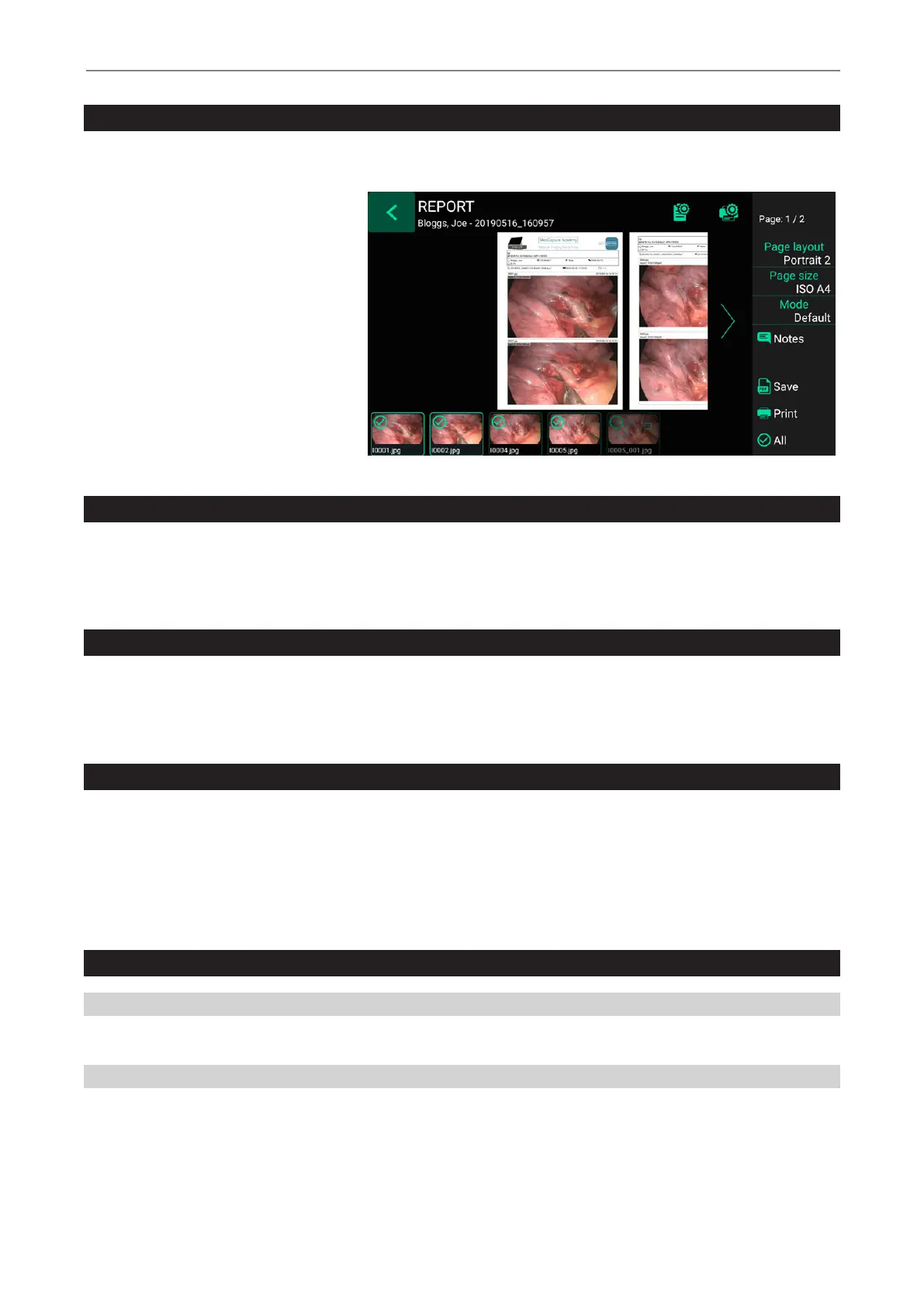
Still images of a selected study can be saved as a PDF report. You can add notes which will appear on the report. The PDF report will
be stored into the same folder as your images and videos.
The report can also be printed with a
network printer*.
All selected images will appear in
the report.
By tapping on the upper icons you can
change the layout of the report (number
of images per page, arrangement) and
select the number of copies.
* Please ask your IT-Administrator to
connect a network printer and to setup
the printer properties.
Report Header Image
You can import a header image to personalize the report. This image will appear on top of the rst page of your reports.
Recommended header image size is 1600-3200 pixels in width. Recommended height is 200-1000pixels. PNG or JPG les can
be used for the header image.
Viewing Still Images on Your Computer
You can easily view the recorded images that you have transferred to your computer. Windows and Mac computers provide
built-in viewing software that will open automatically when you double-click on an image le. You can also view and edit your still
images using specialized medical image management programs available from many third-party vendors.
Viewing Videos on Your Computer
The MVR Lite records high denition video in H.264 or HEVC (=H.265) format, sometimes referred to as MPEG-4 or MP4. These
widely used formats are ideally suited to medical applications because they deliver the highest quality video in a compact le
size. New Windows and Mac computers provide built-in viewing software that will open automatically when you double-click
on a video le. However, some older computers may need additional software to play H.264 / HEVC videos. For example, on
Windows XP and Vista computers, playback is enabled by installing a simple “add-on” to Windows Media Player. For information
on how to install this “add-on”, please visit medicapture.com/support.
Other Features
Capturing Images While Recording Videos
While video is being recorded, you can also record still images; simply press the Record Photo button as you normally would.
Creating Tags in Video Files
Tags are helpful markers in your video le to identify important events. Tags get added to the video timeline when:
• an image was captured during video recording
• the video recording was paused and continued
• the video source has lost synchronization for a short moment (probably by a damaged cable etc.)


 To Next Page