44
MELBOURNE INSTRUMENTS – NINA V 1.3.0
45
MELBOURNE INSTRUMENTS – NINA V 1.3.0
operation will read all patches and layer setups from the
backup and overwrite those currently on Nina, in the
same Preset locations as they are in the backup.
Bank/Preset Management
Whole banks of Presets can be exported and imported
from a USB ash drive. This can be used to share
patches, copy and there are other functions to help
organize the Presets on Nina.
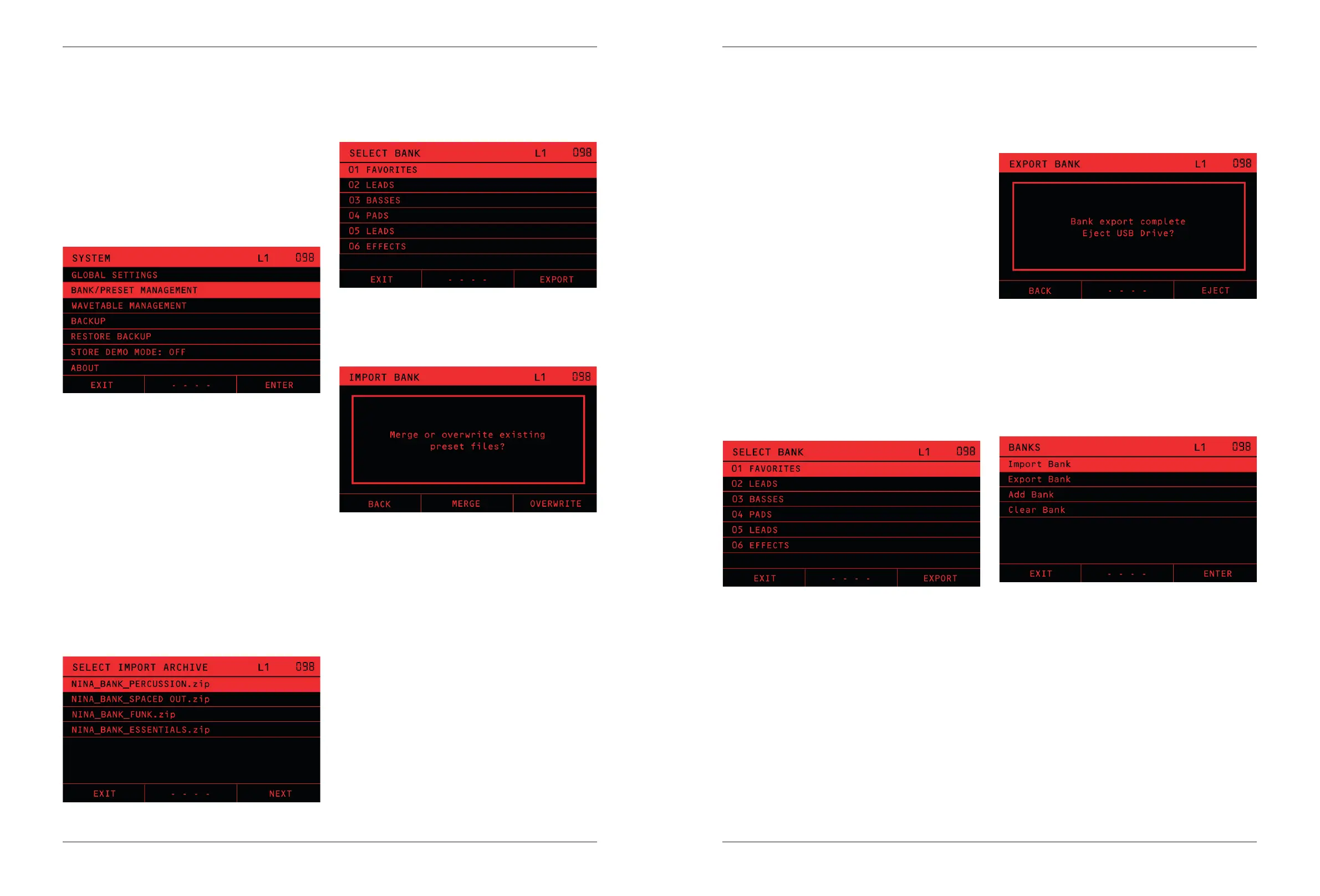
From the home screen, press the SYSTEM soft-key and
then choose BANK/PRESET MANAGEMENT to access
these functions.
Import Bank
Banks are stored as zip les. The name of the bank is in
the le (eg NINA_BANK_BASSES.zip for a bank called
BASSES) and the patches are .json les inside it.
To import, insert a USB ash drive containing the zip le
you want, and choose Import Bank from the list shown
via SYSTEM -> BANK/PRESET MANAGEMENT.
NOTE: If you are preparing your own Banks on Mac or
PC, do not include any folder hierarchy in the zip le.
The zip le should contain .json les and no folders.
Choose the zip le you want and press the NEXT soft-key.
You will then be asked where to store the bank, the
screen will show the list of all banks currently in NINA.
Choose the BANK where you want to store the imported
Presets and press the NEXT soft-key again. You will then
be asked if you want to Merge or Overwrite the presets
in the bank.
If you choose OVERWRITE, then Nina will write all of the
Presets in the zip le to the bank in their number order.
The Presets in the Bank will be overwritten and the Bank
will be renamed to the name of the zip le. Note that if
there are more Presets in the destination bank than in
the zip le, the import will not delete the extra Presets
in the bank. For example if there are 20 Presets in the
destination bank and only 5 in the zip le, Nina will
overwrite the rst 5 and the other 15 will still be there
after import.
If you choose MERGE then Nina will read all the Presets
from the zip le, and add all new Presets into the
destination bank, without aecting the Presets already
in that bank. If there is a Preset in the Bank already with
the same name, then it will skip (not import) the Preset.
All new Presets will be written to the Bank, to ll all the
empty locations. An empty location in the Bank is one
that has a Preset called BLANK or BASIC, depending on
the rmware version.
Example: A friend gives you a Bank of Presets with
some bass sounds. When you import, you choose the
destination bank called BASSES, and choose MERGE.
This will add the new sounds to your unit, and keep
everything you had there.
NOTE: For a MERGE import, Nina will rst check if there
is enough free space in the destination Bank for the
new patches. If there is not, it will tell you the import
cannot be done. In this case, choose a dierent bank,
create a new one, or use OVERWRITE.
After import is complete, you will be asked if you want to
Eject the USB ash drive. Choose EJECT and remove the
drive, or choose BACK if you want to do something else
with the drive eg import another bank of Presets.
\\ ]
Export Bank
Choose Export Bank to write a bank of Presets to a USB
ash drive. After you choose Export Bank, you will be
asked to choose which bank. A zip le will be created
called NINA_BANK_NAME.zip, where NAME will be the
name of the bank exported.
TIP: You can make a copy of an entire Bank of Presets
on Nina by using Export Bank and then Import Bank.
If you want to make a selection of Presets to share,
create a new bank, load up each Preset and save it to
your new bank. Rename your new bank and export it.
After the export, the display will show ‘Bank export
complete’ and you will be asked if you want to EJECT the
USB drive. Choose EJECT and remove drive, or choose
BACK if you want to do something else with the drive eg
export another bank of Presets.
Add bank
The Add Bank function will create a new Bank of 127
Presets. The Bank’s name will be BANK. The Presets
will all be empty. As usual, empty Presets will show
the BASIC Preset. You can rename the BANK after it is
created, from the LOAD or SAVE menus.
Clear Bank
The Clear Bank function with delete all Presets from a
Bank. Choose the Bank you want and conrm the delete.
Note that there is no Undo, so it is a very good idea to
do Export the BANK or to a complete Backup to the USB
ash drive rst.
After a bank is cleared, as usual it will show 127 entries
with the BASIC Preset. The BASIC Preset is always
shown in every location in a Bank where there is no
factory or user-saved Preset.


 To Next Page