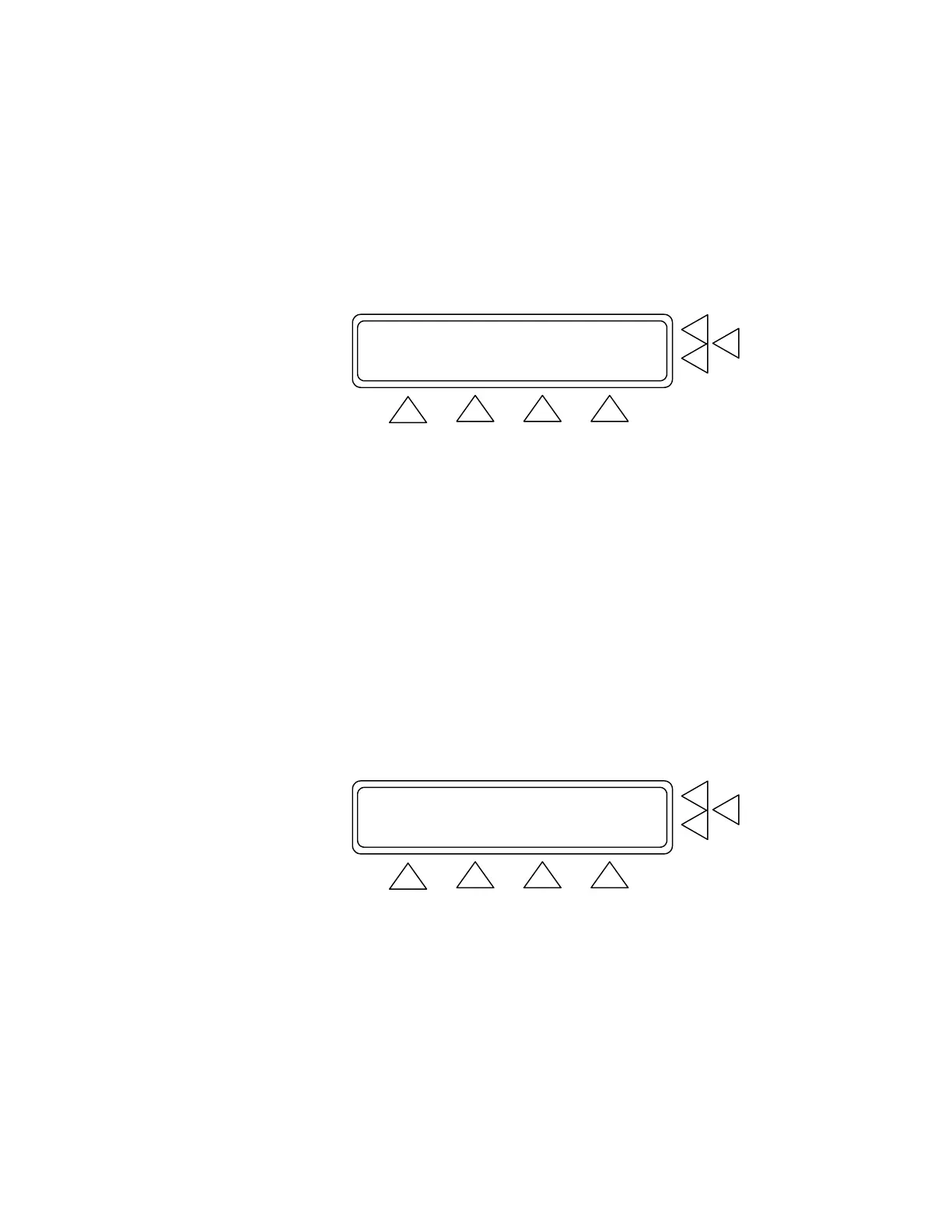
• Press Establishment (F5). Use the alphanumeric keys to en-
ter the test facility’s name or other identifying data. Press En-
ter to save.
• Press MORE (F1) to advance to Setup Screen 2.
• Press STORE (F2) to store all settings in QA-1290’s flash
memory.
Language: English .............> F7
Date : XX. XXXXXXX XXXX ..........> F6
Time : XX:XX:XX (HH:MM:SS) ......> F5
MORE STORE AM/PM MAIN MENU
F1 F2 F3 F4
Setup Screen 2. This screen (above) contains the following settings:
• Language (F7). This is installed with METRON’s Firmware
version. No selection.
• Press Date (F6). Use the alphanumeric keys to set, or reset,
the system date (DD/MM/YYYY). Press Enter to save.
• Press Time (F5). Use the alphanumeric keys to set, or reset,
the system clock (HH:MM:SS). Press F3 to specify the a 12-
hour (Am/Pm) or 24-hour (24 hour) clock. Note: When 24
Hour shows above F3, the system is operating on a 12-hour
time schedule. When showing “Am/Pm” above F3, the sys-
tem is operating on a 24-hour time schedule.
• Press MORE (F1) to advance to Setup Screen 3.
• Press STORE (F2) to store all settings in QA-1290’s flash
memory.
QA-1290 Serial no : XXXXX.............> F7
Report page length : 58 ..............> F6
FIRMWARE Version : X.XX F5
MORE GO BACK MAIN MENU
F1 F2 F3 F4
Setup Screen 3. This screen (above) contains the following settings:
• Press QA-1290 Serial no. (F7). Use the alphanumeric keys
to enter the QA-1290’s serial number. Press Enter to save.
• Press Report Page Length (F6). Use the alphanumeric keys
to set the length of the printed report.. The range is 10 to 999.
Press Enter to save.
3-5


 To Next Page