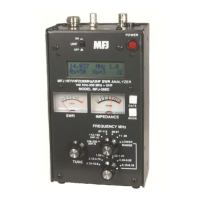
Download the Firmware update and the Firmware Update
Program. Put them in a directory that will be easy to get to.
Extract the update.exe from the zip file and put it in this
directory. When finished there should be the firmware.enc
and update.exe in this directory along with the zip file.
On the PC, Click on the RUN command and type CMD in the
command line.
In the Command Line Box using the DOS commands change
the directory to the directory where the files were saved.
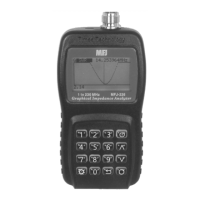
Put the MFJ-226 into update mode by pressing and holding
the analyzer's Mode key and press the boot key to turn on the
analyzer. A "Firmware Update" message will appear on the
LCD screen.
Plug in the USB cable to link up with the PC.
Find out which USB emulated COM port is connected by
checking:
Control Panel/System/Hardware/Device Manage
Confirm that the MFJ-226 LCD screen is displaying
"Firmware Update"
Set up the following command:
update firmware.ENC -COMx -115200
where firmware.ENC is the actual name of the firmware
file and
x is the actual COM port in use.
For example if the firmware update file is
“MFJ-226V01R02.ENC” and the MFJ-226 is connected
to COM3 then enter:
“update MFJ-226V01R02.ENC –COM3 -115200”
The program will start, indicate the progress, then tell you
when it is finished.
The MFJ-226 will power off and you can disconnect the cable
and close the DOS box.
The firmware version can be checked in the SETTINGS INFO
section.


 To Next Page