LVS-95XX Series Barcode Quality Station Operations Manual
LVS-95XX Series Barcode Quality Station Operations Manual - English Page 28 of 94
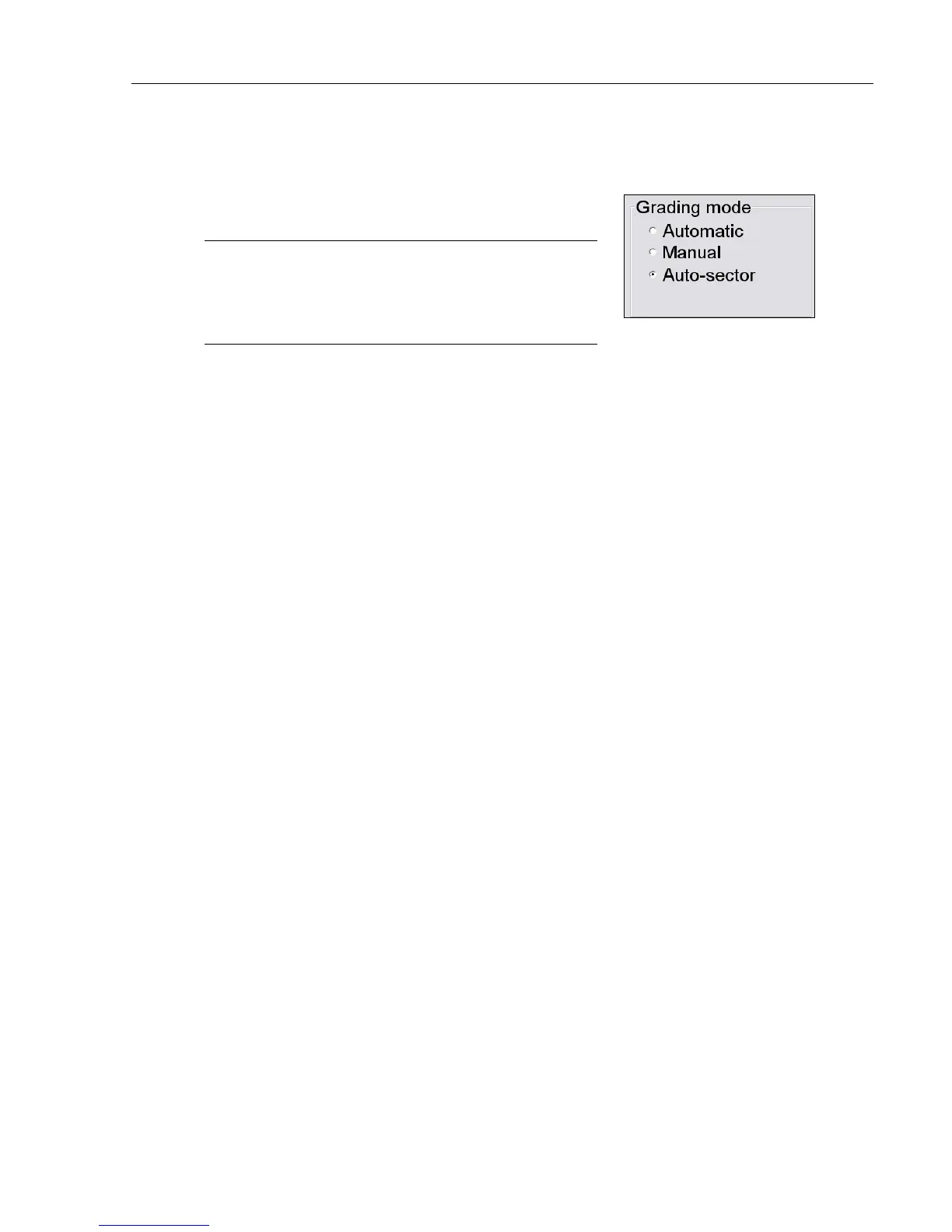
Grading Mode
The “Grading Mode” section allows you to choose
one of the following three ways to grade barcodes:
Note: All grading results, regardless of which
grading mode is selected, are archived and viewable
by clicking the “Archive” tab, and then selecting
“Recent reports (last 30 days).”
• Automatic: Automatic grading mode is selected typically when the user is verifying multiple barcodes of
the similar dimensions. Once a sector (blue box) has been drawn, the software will detect motion and will
“automatically” attempt to grade once motion has ceased. The user does not have to draw a new sector
for each new barcode placed in the field of view. The sector must be drawn sufficiently large to include
the required quiet zones and to allow barcodes to be easily placed in the sector but not so large as to
capture unnecessary data within the reading window.
• Manual: After a sector has been established, you can remove the barcode and place another barcode
into the field of view. Motion is detected (same as Automatic mode), however the barcode is graded after
the Click to grade button is pushed or if a new sector is drawn.
• Auto-sector: The LVS-95XX software draws the sector automatically; the user does not have to draw a
sector. The barcode is placed on the green “+” and when motion stops, the software detects the barcode
and draws the appropriate sector around the barcode and grades the barcode. Auto-sector does a nice
job detecting the barcode and drawing a sector including appropriate quiet zones; however, it is not
perfect. If an incorrect sector is drawn, the user can re-draw the sector manually. Follow the steps below
to use the Auto-sector feature.



 To Next Page