LVS-95XX Series Barcode Quality Station Operations Manual
LVS-95XX Series Barcode Quality Station Operations Manual - English Page 83 of 94
Import Image from File
The “Import Image from File” button allows you to import a .bmp image into the LVS-95XX software for the
purpose of analyzing and troubleshooting the image. This feature is used for remote troubleshooting
assistance when an image needs to be analyzed by a Microscan technician or other employees internal to
your company who also have an LVS-95XX system.
IMPORTANT: Only Bitmap (.bmp) files that have been exported from the LVS-95XX
software can be imported. See the next section entitled “Export Image to File” for more
information on exporting images.
To import an image:
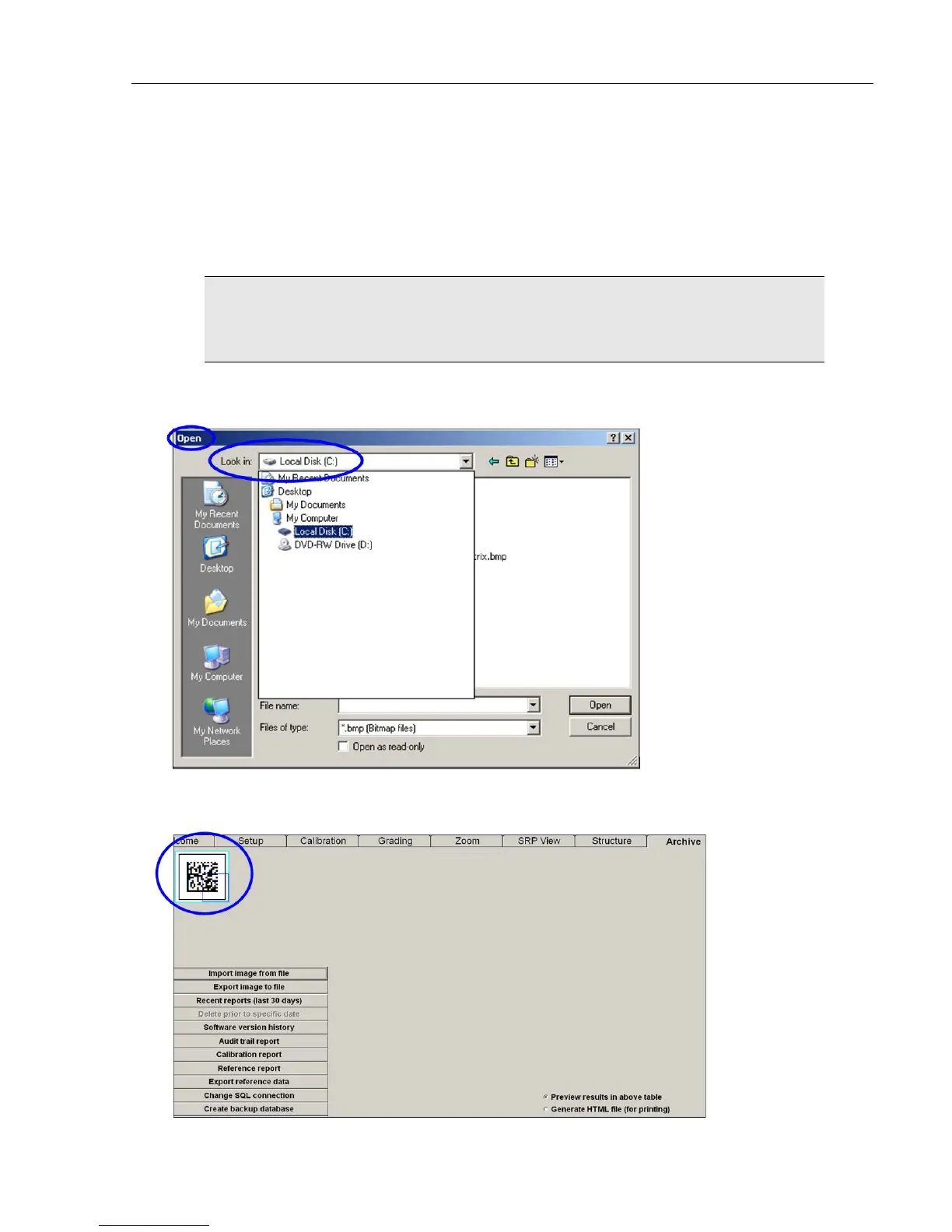
1. Click the “Import image from file” button. The “Open” dialog box appears.
2. In the “Look in” list, click the folder that contains the image you want to import.
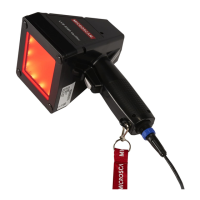
3. Click the image, and then click “Open.” The image appears on the “Archive” tab.



 To Next Page