Troubleshooting 6-3
VGM Startup Troubleshooting Table
SYMPTOM CAUSE REQUIRED ACTION
Power problem
1. Check that VGM power switch is on.
2.
Inspect computer to see if fans are turning. If
not: Is computer power supply connected to its
power cable? Is computer power supply turned
on?
3. Plug VGM into AC power outlet. Verify presence
of AC line voltage.
Improper line voltage
switch setting
Turn off VGM power. Unplug AC line cord. Check
line voltage switch. If necessary, set it to agree
with local AC line voltage. Retest VGM.
Open fuse
1. Turn off VGM power. Examine AC fuse at rear of
VGM, on AC cord plug plate.
2. Replace faulty fuses with identically rated parts.
3. Turn on VGM power. If fuse opens again, check
AC wiring harness and connectors.
Faulty wiring
1. Remove line cord. Test line cord, power plug,
and IEC connector for breaks or damage. Verify
continuity of each wire in cord. Install cord at
power chassis. Press connector firmly to seat it.
2. Check computer cord in same manner.
3. Assure that cabinet wiring harness connectors
fully seat in corresponding power supply and
board connectors.
4. Inspect wiring for breaks or damage.
•
VGM (video game machine)
doesn’t start.
•
VGM appears completely
non-functional.
•
No audio
•
No illumination
•
No video display
Arcade computer
problem
Turn off power for one minute and turn VGM on
again. Power On Self-Test checks electronics.
Screen may report errors. If video circuits don’t
operate properly, computer produces series of
beeps. (See Error Message Troubleshooting
Table.)
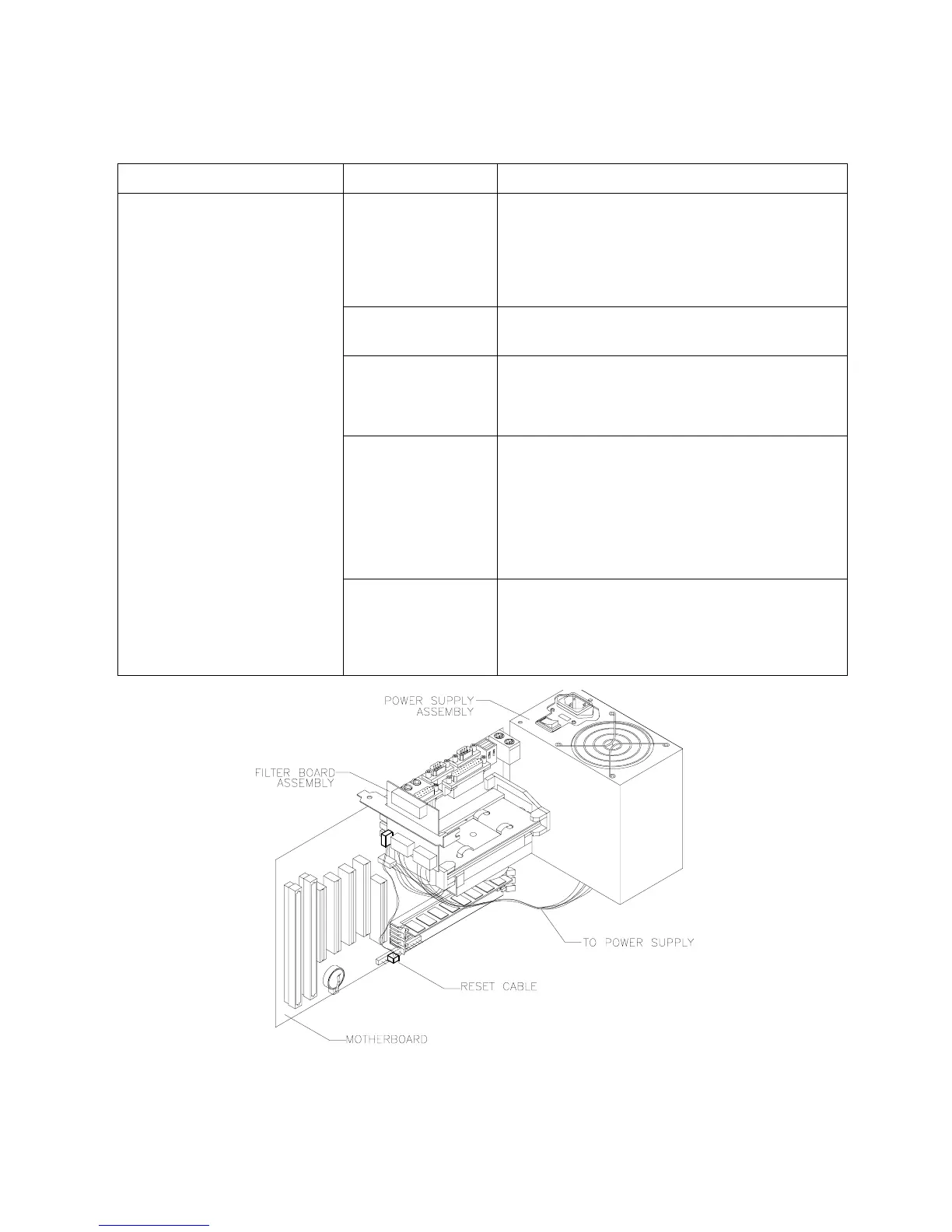
Location of Power Supply




 To Next Page