Diagnostic, Audit & Adjustment Menu System 3-3
•
The block at the top, center of each screen displays the current menu title.
•
Data (menu items, video signals, statistics, reports, etc.) appears in the center of the screen.
•
Game-operation information appears at the top-center of the screen, between logos.
•
Messages (explanations, control functions, revision levels) display at the bottom of the screen.
MENU NAVIGATION CONTROLS
Highlight a menu line item with the middle two diagnostic buttons inside the coin door. (Press VOLUME
UP or VOLUME DOWN.) Select the option with the TEST MODE button. You can only select one
highlighted item at a time. To return the game to play, first highlight START THE GAME. Then press
TEST MODE. (This is the only menu that allows you to exit the Menu System.)
EQUIVALENT MENU NAVIGATION CONTROLS
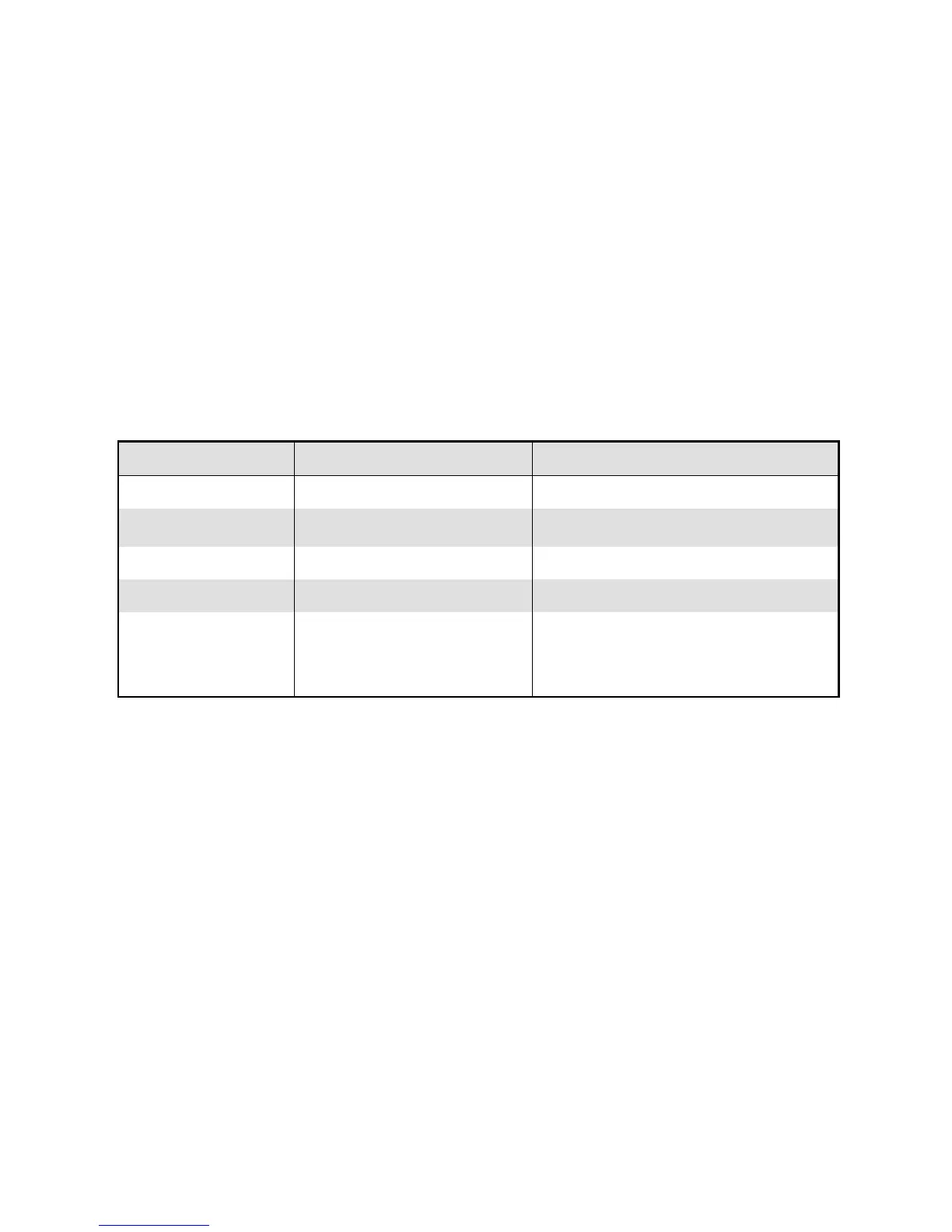
In most cases, certain player panel buttons duplicate the functions of the diagnostic buttons. You may find
menu navigation easier with the player panel buttons. Here are the player panel functions within the Menu
System…
Player Panel Button Function Equivalent Diagnostic Switch
NITRO Select a menu item (None)
CHOPPER CAM
•
Select a menu item
•
Enter Change Mode
TEST MODE
CRASH CAM Move down the menu VOLUME DOWN
SLAM CAM Move up the menu VOLUME UP
START
Various functions, including….
•
To bottom of Operator Menu
•
Back to Operator Menu
•
Cancel
SERVICE CREDITS
(for some functions)
AUTOMATIC TESTS
Whenever you open the Menu System, the Power-On Self-Test (POST) activates. This routine runs
automatically. It can detect faults that cause game or Menu System malfunctions. The Self-Test usually
takes less than a minute. The test doesn’t display anything.



 To Next Page