mindray
DC7 Diagnostic Ultrasound System
25
1. System Preset -> General, select “Send/ print Image after End Exam”, as shown
in Figure 13.
2. In Network Preset -> DICOM Service, set the default print server.
3. When pressing <End Exam> with the current exam being active, all single-frame
images of the current exam are sent to the default DICOM print server.
Send to DICOM print when saving the file
1. In System Preset -> General, select “Send Image to DICOM Printer”, as shown in
Figure 14.
2. In Network Preset -> DICOM Service, set the default print server.
3. If <Save> on control panel is preset as saving single-frame image, the system will
save and send a single-frame image to remote DICOM printer when <Save> is
pressed.
Send to DICOM print when pressing user-defined key
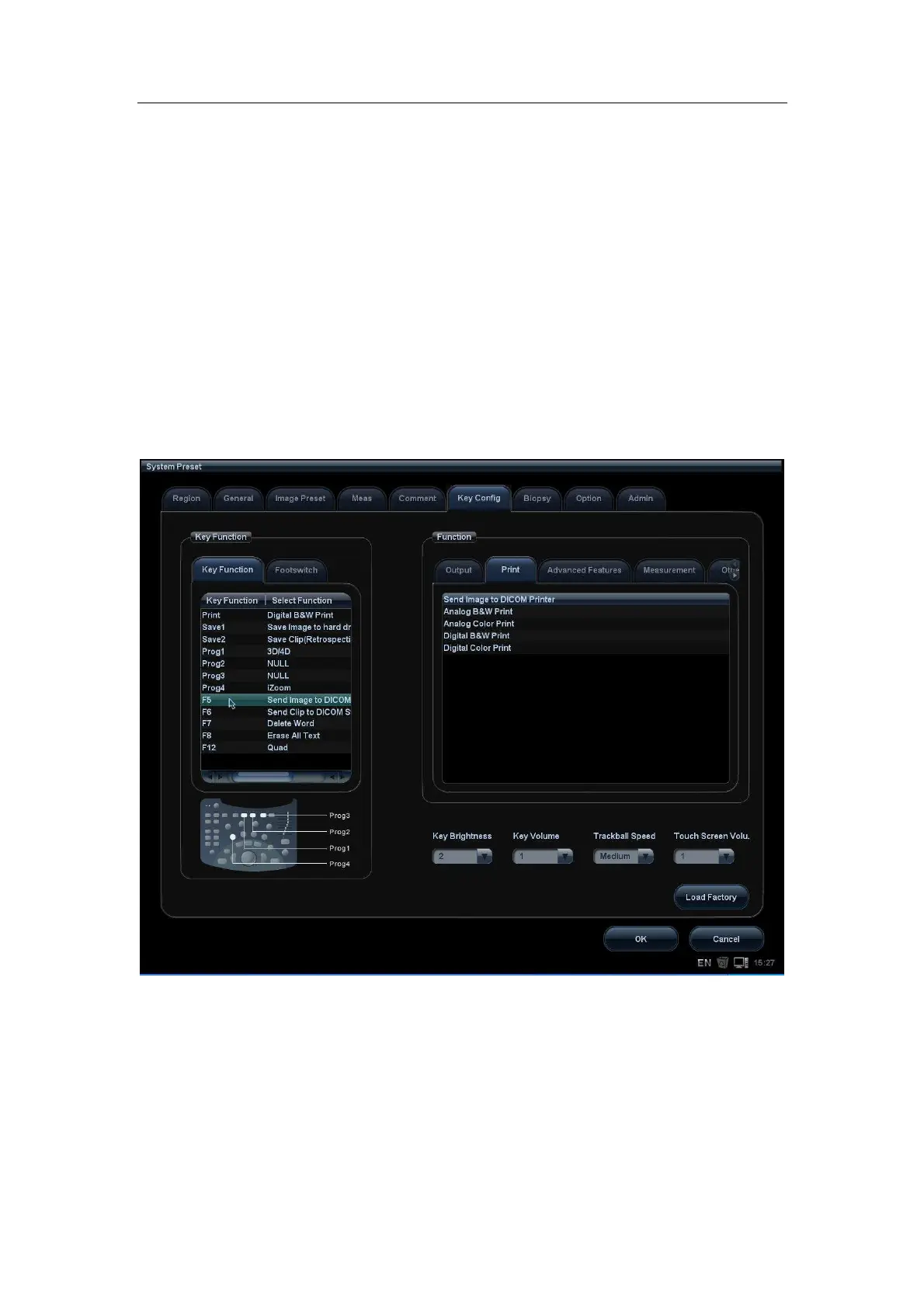
1. In System Preset -> Key Config, the NULL key can be set as “Send Image to
DICOM print”, as shown in figure below.
Figure 17 Send to DICOM print when pressing user-defined key
2. In Network Preset -> DICOM Service, set the default print server.
3. In current exam, press <F5> (according to the user preset), the system will save
and send a single-frame image to remote DICOM printer automatically.
4. View the print status in the DICOM Task Management, check the DICOM preset
and network connection if a print error occurs.


 To Next Page