5.1.1 Wi-Fi
This setting allows to enable or disable Wi-Fi for connecting your camera to your
smartphone. When connecting your MNB10Z to your smartphone, you can utilize
your smartphone as a remote viewfinder with live viewing.
To wirelessly operate the MNB10Z camera, you will need to install the “D Video” app
on your Android or iOS device. To download the app, search for “D Video” in the
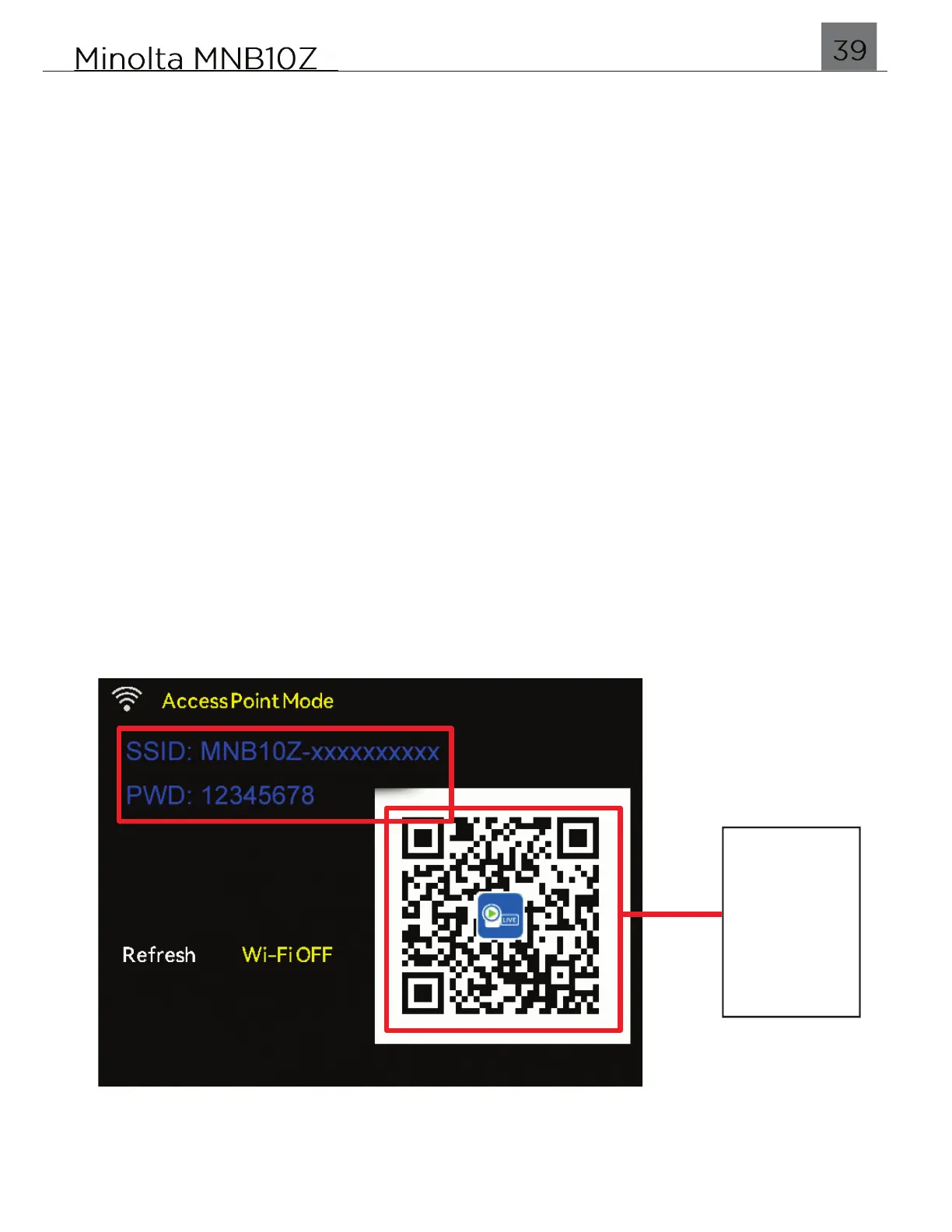
Apple App Store or Google Play Store. You may also scan the QR code that will be
shown on the camera’s LCD monitor once your camera’s Wi-Fi has been enabled.
1.
To access the camera’s Wi-Fi settings, press the MENU button.
2.
Once in the menu, press the RIGHT button twice to switch from Camera settings to
System settings.
3.
Press the UP and DOWN buttons to navigate.
4.
Select ‘Wi-Fi’ and press the OK button to enter the submenu.
5.
You may select from Off and On.
6.
Highlight your selection and press the OK button to confirm and you will enter the
Wi-Fi status screen.
Once you enable Wi-Fi, the SSID (camera’s Wi-Fi network name) and password are
displayed here for connecting to your smartphone.
Scan QR
Code with
to quickly
“D Video”
App


 To Next Page