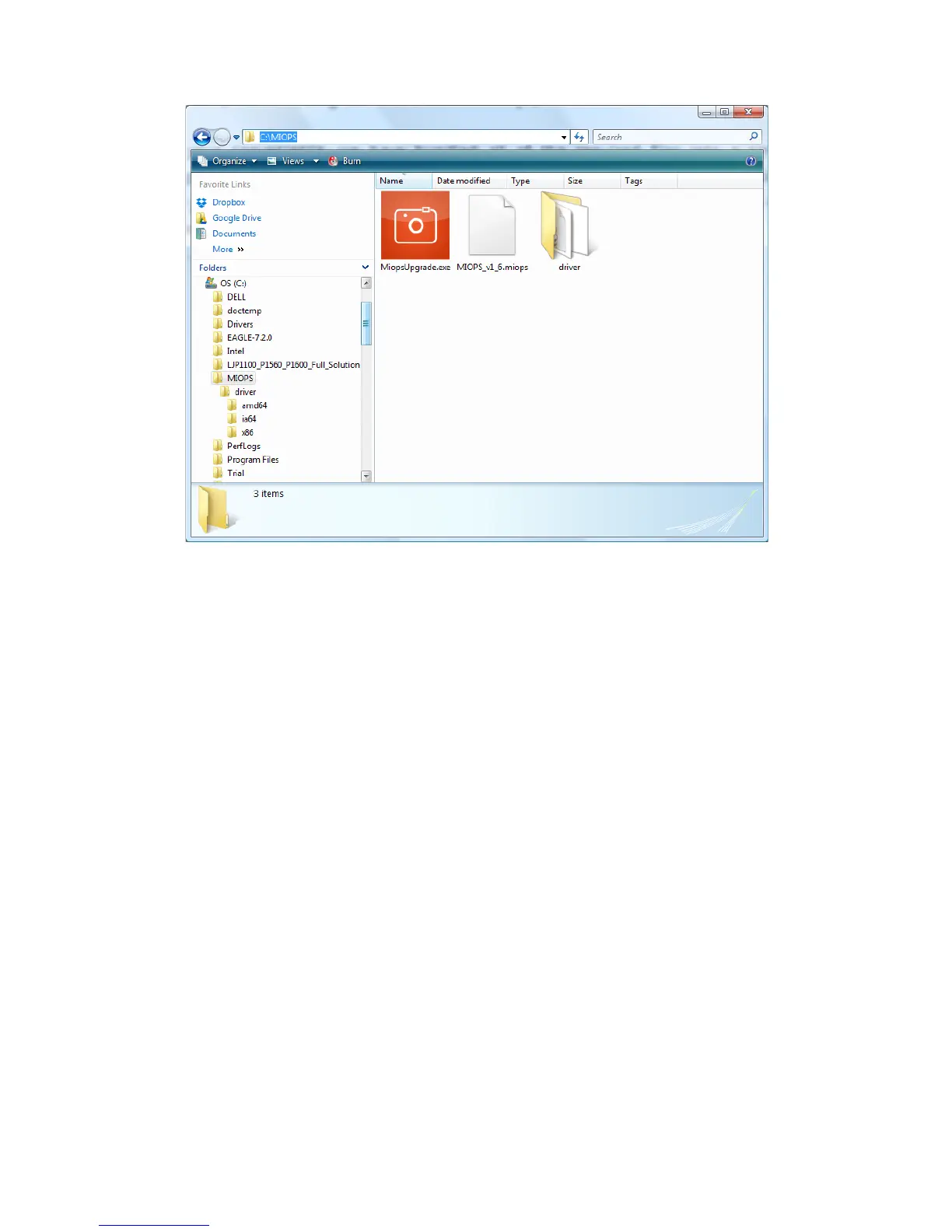
Figure 4 Firmware Upgrade Folder
In order to start the firmware upgrade, you need to connect MIOPS Smart to
your computer with the provided USB connection cable. Connect MIOPS Smart
to your computer as it is still turned off. Start the MiopsUpgrade.exe software.
This software will start automatically. In order to put MIOPS Smart to
firmware upgrade state, you need to turn it on while pressing the UP
scroll button. This is important. If you cannot do this, MIOPS Smart will not
be in the firmware upgrade state and you will not be able to upgrade it.
Press and hold the UP scroll button and turn MIOPS Smart on. Then connect it
to one of the USB ports of your computer. As this is the first time that MIOPS
Smart is connected to your computer, you will need to install the required
drivers. After you have done this once, you don’t need to do it again. Next time
your computer will recognize MIOPS Smart which is put to “Firmware Upgrade”
state. If you connect MIOPS Smart to your computer without putting it to
“Firmware Upgrade” state, it will not communicate with your computer so
nothing will happen.


 To Next Page