Page | 28 © Mitchell & Johnson UK 2015 WLD+211 IB Ver 1.0 Rev 0.0
10. Using the “Play To”
feature in Windows 7
Windows 7 includes a feature called “Play To” and this
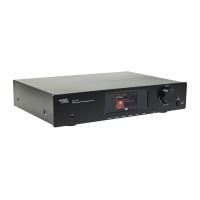
lets your PC running Windows 7 control the WLD+211 to
push media and use the PC as a universal remote
control for your media collection.
The WLD+211 supports the industry standard DLNA
(Digital Living Network Alliance) 1.5 digital media
renderer. This allows you to "Play To" other devices
around your home and combine media streaming with
controlling a connected media receiver while streaming
content to it from another Windows 7 PC on a home
network. Before you can use the “Play To” feature you
need the set-up the WLD+211 for Windows 7 streaming
media. See page 20.
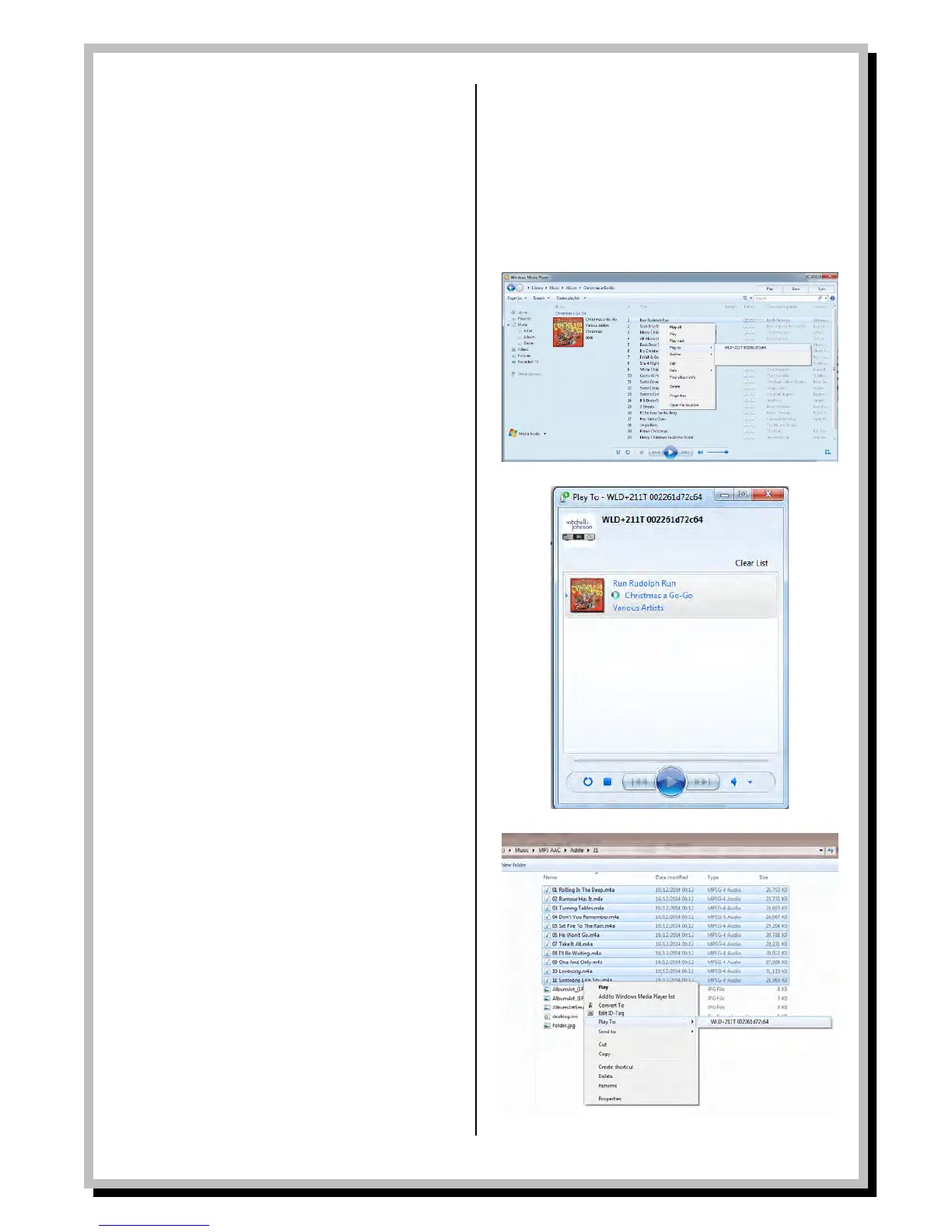
Use “Play To” in Windows Media Player
Windows Media Player makes it easy to manage your
media, find items that you want to play, and open Play
To. To select items that you want to play, follow these
steps:
1. Click the Start button, click All Programs, and
then click Windows Media Player. If the
Player is currently open and you’re in Now
Playing mode, click the Switch to Library
button in the upper-right corner of the Player.
2. If the list pane is closed or if the Burn or Sync
tabs are exposed, click the Play tab.
3. Find the items that you want to play in the
Player Library, and then drag those items from
the details pane into the list pane.
4. Click the Play to button at the top of the list
pane, click the device on your network that will
receive the media.
5. In the Play To dialog box, use the playback
controls to play, pause, or stop the media
stream, and to change to the next or previous
item in the list.
Use “Play To” elsewhere in Windows 7
Outside of Windows Media Player, you can stream
media to the WLD+211 with “Play To” by right-clicking
music files. To select music files and stream them to the
WLD+211, follow these steps:
1. Click the files you want to stream to the
WLD+211.
2. Right-click the selected files, point to “Play to”,
and then click the device on the network that
will receive the media.
3. In the Play To dialog box, use the playback
controls to play, pause, or stop the media
stream, and to change to the next or previous
item in the list.


 To Next Page