13
5
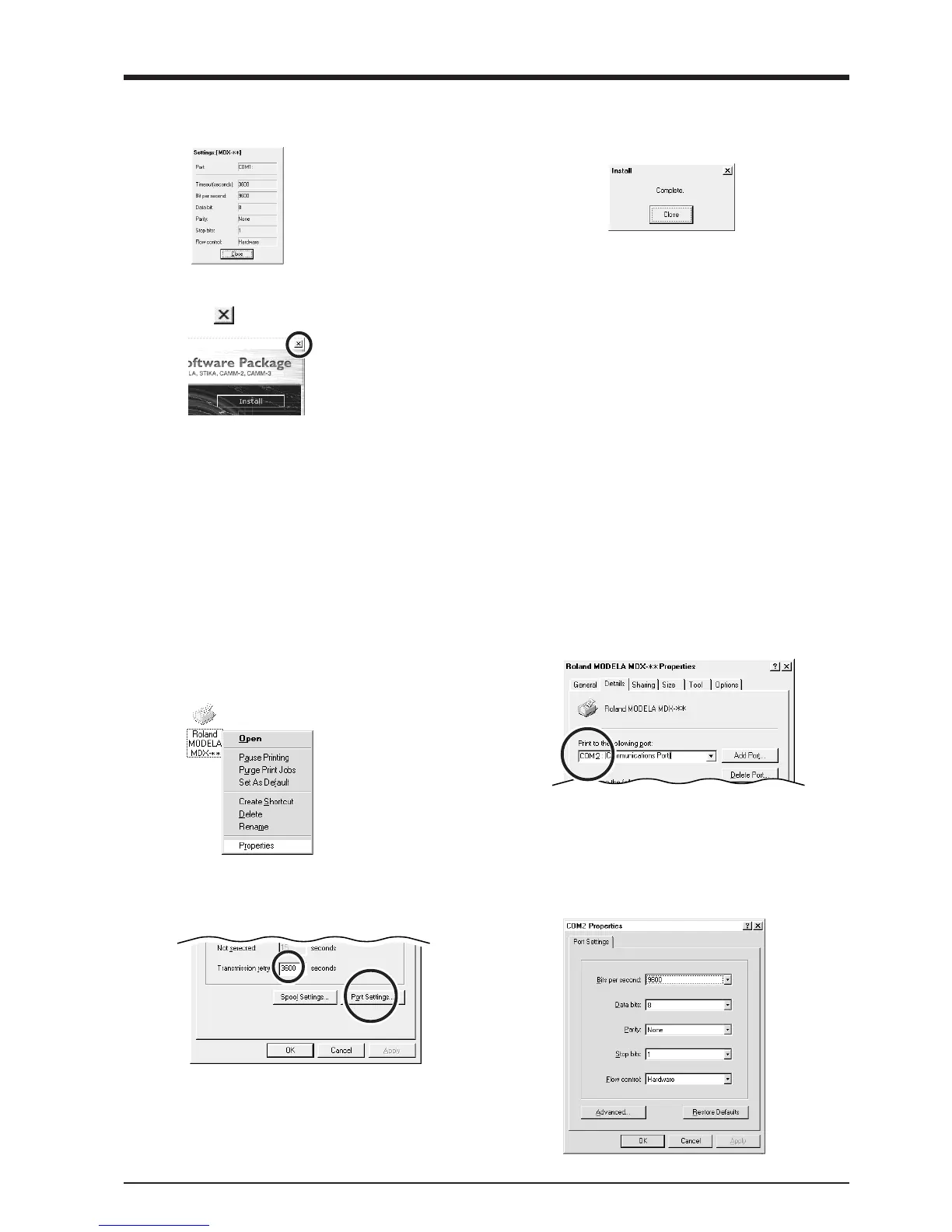
The driver settings appear. Check the values, click
[Close], and finish installing the driver.
6
When all installation finishes, the screen shown
below appears.
Click [Close].
After returning to the menu screen for installation,
click .
78
Remove the CD-ROM from the CD-ROM drive.
1
Click [Start]-[Settings]-[Printer] to open the [Printer]
folder. Right-click on the Roland MODELA MDX-
20 icon, then click [Properties].
The [Roland MODELA MDX-20 Properties] dialog
box appears.
2
Click the [Details] tab. At [Print to the following
port(s)], choose an unused port other than [COM1].
4
Make the settings for the following communica-
tion parameters. Click [OK].
3
Set [Transmission retry] to 3,600 seconds. Click the
[Port Settings] .
The [Port Settings] tab appears.
Changing the Port
When the driver is installed, the port for output from the computer is automatically set to [COM1]. If MODELA is connected to a port other
than [COM1], follow the steps below to change the port setting.
* The explanations in this section describe operation of the MDX-20. If you're using the MDX-15, then where "MDX-20" appears in the text, read "MDX-
15" instead.
<Driver for Windows 95/98/Me>



 To Next Page