21
Checking the Cutting Results
If Virtual MODELA is installed and set up, then before you perform actual cutting with MODELA
you can check the shape that will be produced after cutting.
1
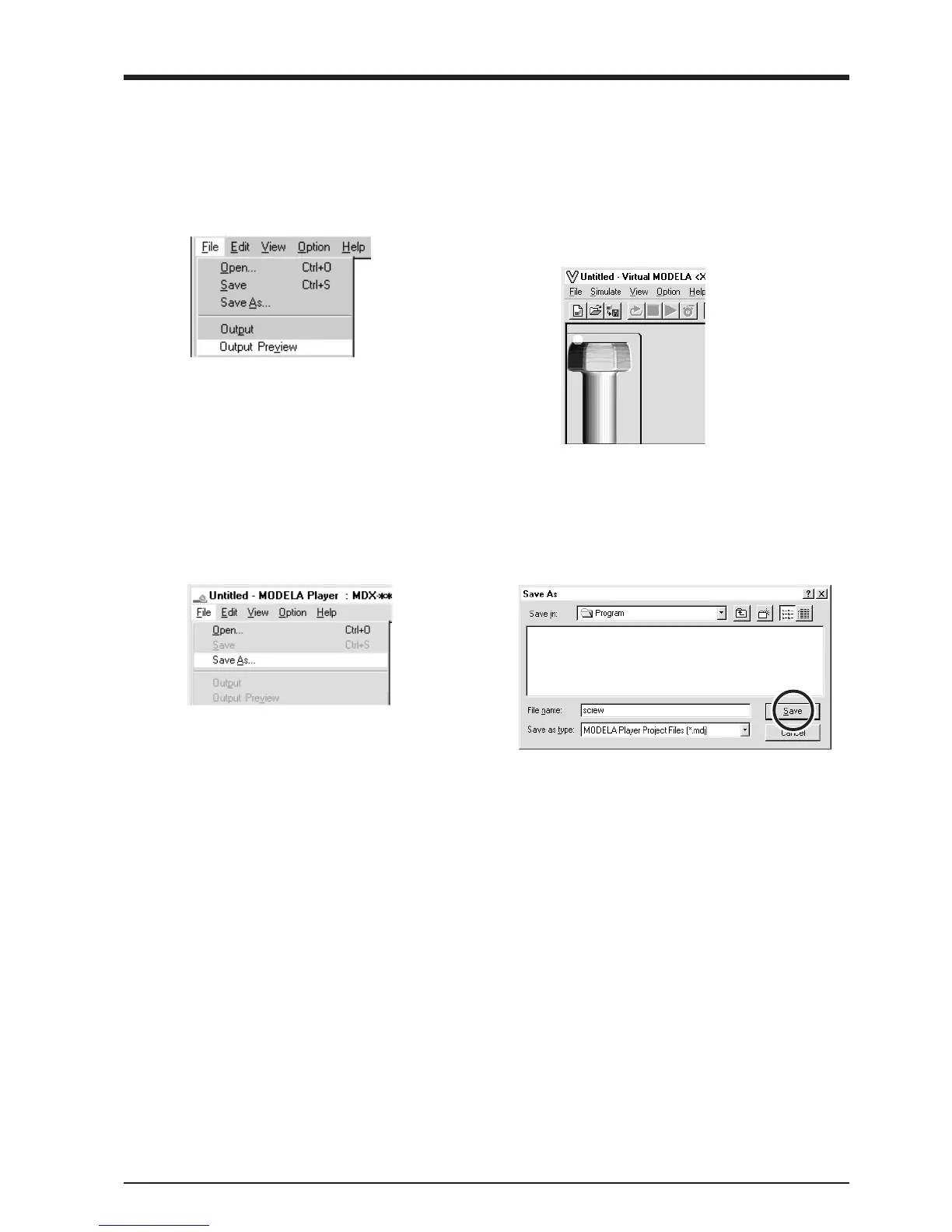
From the [File] menu, click [Print Preview].
Virtual MODELA starts.
2
The cutting data from MODELA Player is
imported into Virtual MODELA.
An animated display of tool movement appears,
and the shape after cutting is gradually produced.
* For more informa-
tion on how to
operate Virtual
MODELA, see the
help for Virtual
MODELA.
Save the file
1
From the [File] menu, click [Save As...].
The [Save As] dialog box appears.
2
Choose where to save the file, type a filename, and
click [Save]. The file extension is “.mdj”.



 To Next Page