6. CT Viewer
6.1.3.4. Connecting After the First Time
1. Navigate to the MENU → Connect to CT Viewer → Manual Connect menu. A window
showing all the stored server connections will appear.
2. Use the M-FUNCTION knob to highlight the connection for the computer.
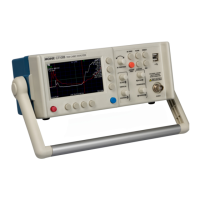
3. Press Select. The CT100B will try to connect to the server. On success, a message appears
on the CT100B and in CT Viewer 2.
6.1.3.5. After Connecting
1. Go to the File menu in CT Viewer 2 and select Open Tester. A screen then appears that
shows the serial number of the connected CT100B and a list of all traces saved on the
CT100B.
2. Select a trace to transfer by clicking with the mouse. Select multiple traces by holding down
the Shift or Ctrl key while clicking with the mouse.
3. Select the Transfer To button to send the traces to CT Viewer 2. A dialog box will appear.
Verify that the destination folder is correct and choose Start Transfer. The traces will appear
on the screen.
6.2. Using Remote Control
After the CT100B has connected to a computer over Ethernet using the steps in Section 6.1.3, go
to CT Viewer 2 and select Remote Control → Enable Remote Control.
Once remote control has been established, a new, live trace will appear in CT Viewer 2. This trace
will be identical to the trace on the CT100B screen. It can be moved around or scaled just like any
other trace in CT Viewer 2.
Normally the CT100B screen goes blank during remote control. To turn on the CT100B screen at
the same time as Remote Control, select Remote Control → Assistant Mode in CT Viewer 2.
6.2.1. Record and Playback Real-Time TDR Trace Movies
CT Viewer 2 can record a real-time movie of the TDR trace, useful for detecting and characterizing
transient/intermittent faults. To record a real-time movie of the CT100B trace, connect to the
CT100B as described in the previous sections, and then select Remote Control → Record to Movie
File. You will be prompted to enter a filename for the recording. Select Remote Control → Stop to
stop the recording. To view the individual TDR traces saved in the movie, go to File → Open
Other Files and locate and select the desired movie (CTM) file. Use the > and < keys to step
forward and backward in the file. The time stamp of the trace is shown as part of the trace label.
94 CT100B TDR Cable Analyzers Operator’s Manual


 To Next Page
